
Security

Security & Privacy - Security

Configure two-factor authentication, password policies, and security settings.

Beginner3 min read

/settings/security

Overview

Configure two-factor authentication, password policies, and security settings.

Step 1: Navigate to Settings

Click the Settings icon in the sidebar to access the Settings module. Then select Security & Privacy from the left menu.
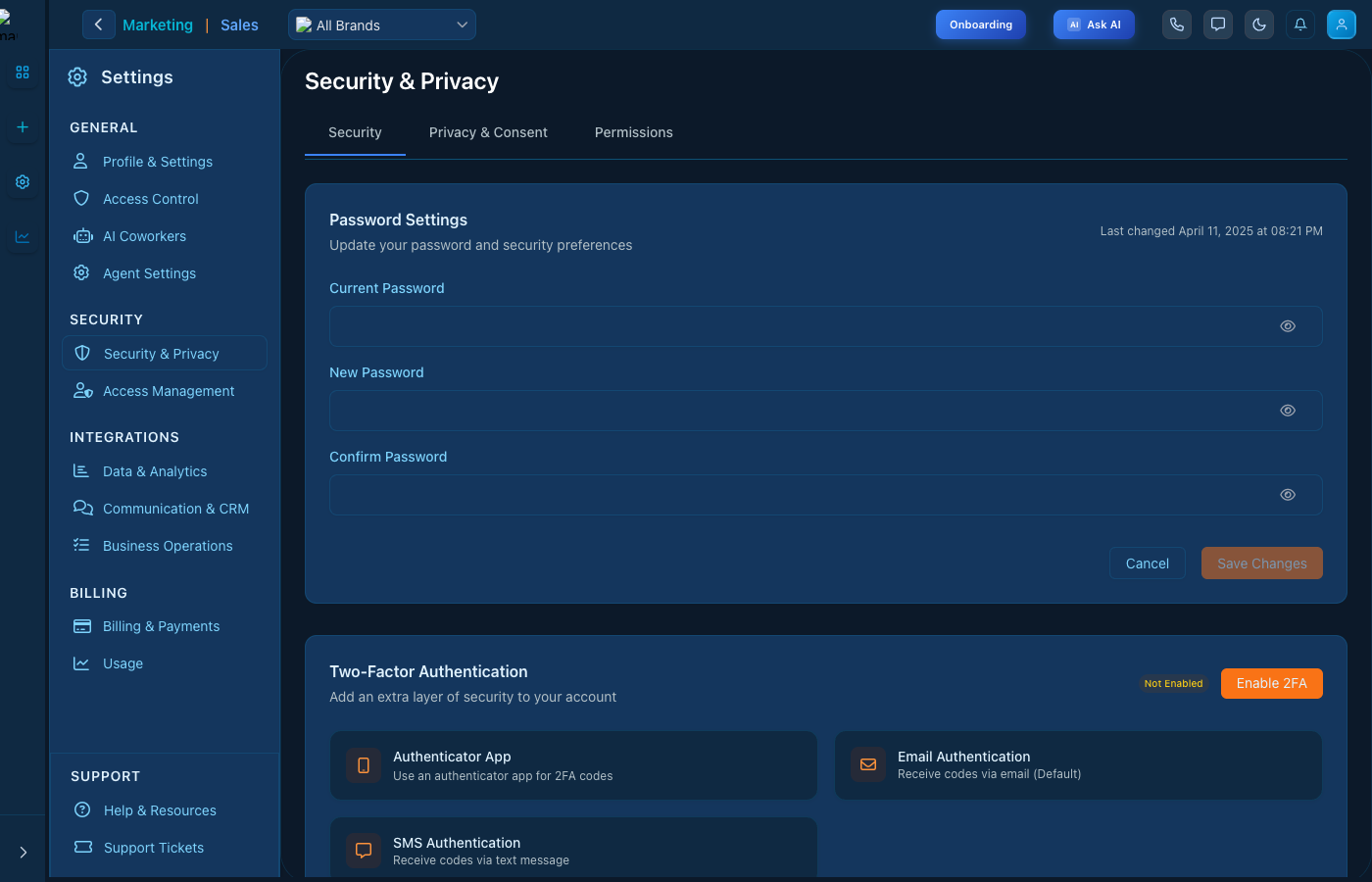
Security & Privacy - Security

Security & Privacy - Security interface

Step 2: Select Tab

Click the Security tab at the top of the page to access this section.

Key Features

  • Easy configuration - Intuitive interface for quick setup
  • Real-time updates - Changes apply immediately
  • Role-based access - Control who can modify settings

Tips

  • Review settings regularly to ensure they match your needs
  • Use the search function to quickly find specific settings
  • Contact support if you need help with configuration

Keep reading

More ways to get help

These guides are the same ones that sit inside the app’s help center, next to the screens they describe. If you prefer to watch, the Marketing Titan Academy has short video courses recorded in the product. Signed in, you can also ask Darwin, the built-in assistant, to explain a screen or do the step for you. If something is not covered here, contact us and a person will answer.

Try it yourself

Every guide here describes the live product.

Start free and follow along: every core module, unlimited users, no card required.