
/templates
Overview
The Create tab in Templates Hub shows all available template types you can build from scratch. Choose from emails, social posts, ads, landing pages, and more to start creating.
Step 1: Choose Template Type
Navigate to Templates → Create to see all template options:
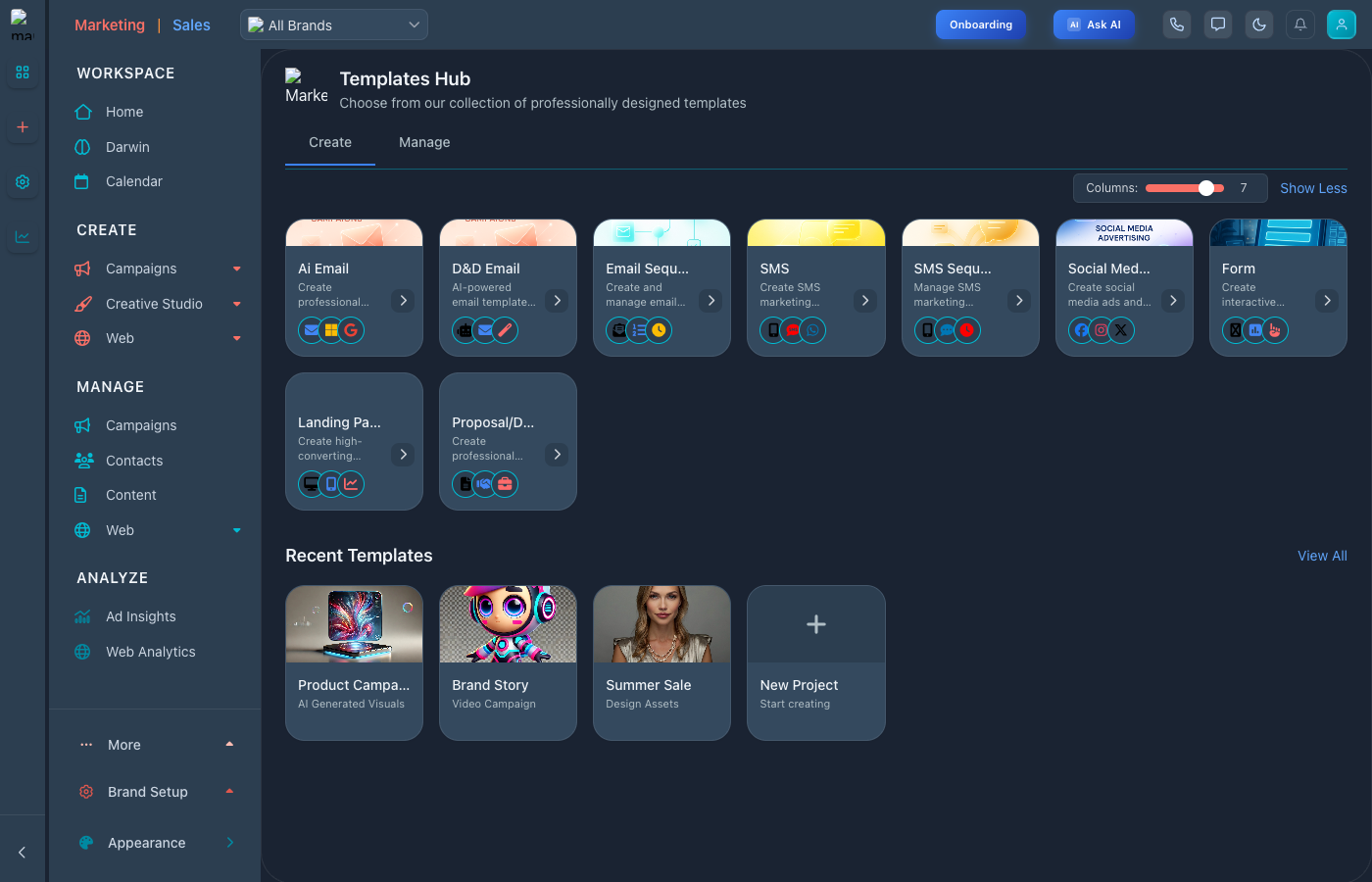
Template types available for creation
Step 2: Available Template Types
Create templates for any marketing need:
- AI Email - AI-generated email templates
- D&D Email - Drag-and-drop email builder templates
- Email Sequence - Multi-email automation templates
- SMS - Text message templates
- SMS Sequence - Multi-message SMS flows
- Social Media - Platform-specific post templates
- Form - Lead capture form templates
- Landing Page - Full page templates
- Proposal/Doc - Document templates
Step 3: Start from Scratch or Pre-built
Each type offers two starting points:
- Create - Start with a blank canvas
- Template - Choose from pre-built designs
Step 4: Build Your Template
After selecting a type:
- Name your template descriptively
- Design using the appropriate builder
- Add dynamic fields for personalization
- Preview on different devices
- Save to your template library
Tips for Creating Templates
- Plan first - Sketch out your template before building
- Use brand assets - Include your logo, colors, fonts
- Add personalization - Use merge tags for dynamic content
- Test thoroughly - Preview on all devices and email clients