
The Campaigns tab is the full list of everything you’re running — every type in one view, with statuses and scores, so you can find and manage any campaign.
Where to find it: Left menu → Campaigns → Campaign Hub → Campaigns. Part of the Campaign Hub guide.
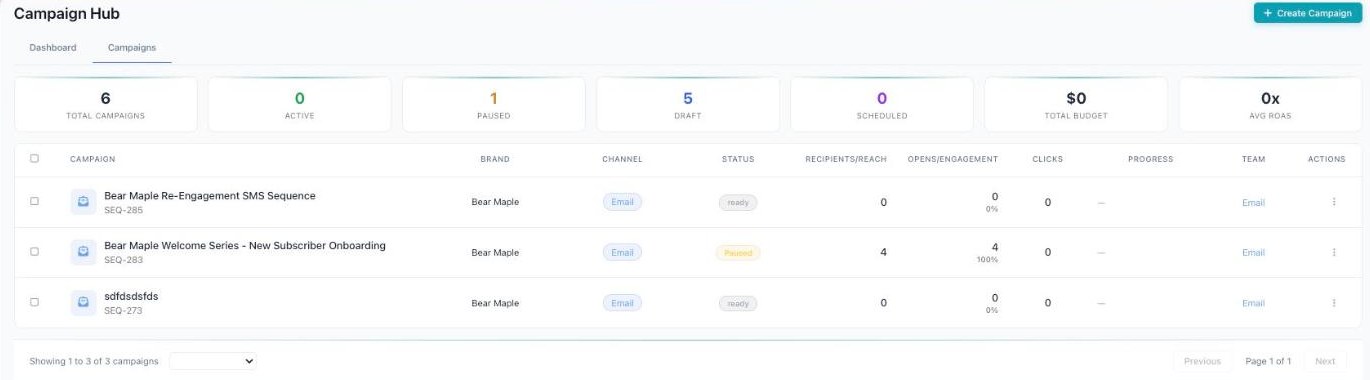
The Campaigns tab — stat cards (including Total Budget and Avg ROAS) above a sortable table.
The Campaigns tab
Below the stat cards is the campaigns table. Each row is one campaign, and the columns show you the key details at a glance. Use the Create Campaign button to start a new one, and the pages at the bottom to move through the list (for example, “Showing 1 to 50 of 205 campaigns”).
Here’s what each column means:
- Campaign — the name, plus a short code like
SEQ-334orCPY-2024-768. - Brand — which brand the campaign belongs to.
- Channel — how it goes out (Email, Social Media, and so on).
- Status — where the campaign stands (ready, scheduled, draft).
- Recipients/Reach — how many people it goes to or reaches.
- Opens/Engagement — how many people opened it or engaged with it.
- Clicks — how many people clicked.
- Progress — how far along the campaign is.
- Team — who’s working on it.
- Actions — quick buttons to manage the campaign.
All campaigns: every type in one view
The All campaigns view pulls every campaign type into a single, sortable list. It’s the best place to compare campaigns across channels and see which ones are winning.
At the top you’ll see summary cards for Live Campaigns, Spend, Blended ROAS, Pipeline, and At Risk (campaigns that need attention).
Across the top are type tabs, each with a count: All, Ads, Email, Social, Carousel, Display, Sequence, and Video. Tap one to see just that type. You can also filter by status, health, and grouping.
There are three ways to view the list:
- List — a detailed table view.
- Cards — a visual, card-style layout.
- Performance — a view focused on how campaigns are doing.
This view adds three helpful columns to the table: a Type column, a Score column (with a benchmark to compare against), and a Health column (Pending, Paused, Active, or At risk). The list is sorted by score, so the standouts rise to the top. You’ll also find a Search box, an Export button to download a list, and a New campaign button. Each row has quick actions to play/pause, edit, and open.
Reading a campaign’s status and score
Two things tell you how a campaign is doing: its status (where it is in its life) and its health (whether Darwin thinks it’s okay or needs a look).
| Label | Type | What it means |
|---|---|---|
| Draft | Status | Saved, but not going out yet. |
| Ready | Status | Set to send. |
| Scheduled | Status | Going out at a set time. |
| Paused | Status | Stopped for now — you can resume it any time. |
| Active | Status | Running right now. |
| Pending | Health | Waiting to get going. |
| At risk | Health | Darwin thinks this one needs your attention. |
How Darwin scores and flags your campaigns
Darwin gives every campaign a score and compares it to a benchmark, so you can see at a glance which ones are doing well and which need work. Because the All campaigns view is sorted by score, your strongest and weakest campaigns are easy to spot. When Darwin marks a campaign At risk, that’s its way of saying “take a look at this one” — so you can fix small problems before they grow.
How to find and manage a campaign
- Go to
Marketing → Campaignsto open the Campaign Hub. - Open the All campaigns view to see every type in one list.
- Use the type tabs (Ads, Email, Social, and so on) or the Search box to narrow things down.
- Filter by status or health to find exactly what you want — for example, everything that’s At risk.
- Sort by score to put your best or worst campaigns at the top.
- Use the row actions to play/pause a campaign, or click open or edit to make changes.
- Need a copy for a report? Click Export to download the list.
In a hurry? Filter by health and set it to At risk. That gives you a short list of the campaigns Darwin says need attention — a great place to start your day.
What’s next
- Back to the Campaign Hub overview.
- See Dashboard tab.