
The Dashboard tab is the visual, at-a-glance view of your campaigns — cards you can scan, an AI search, and summary numbers up top.
Where to find it: Left menu → Campaigns → Campaign Hub → Dashboard. Part of the Campaign Hub guide.
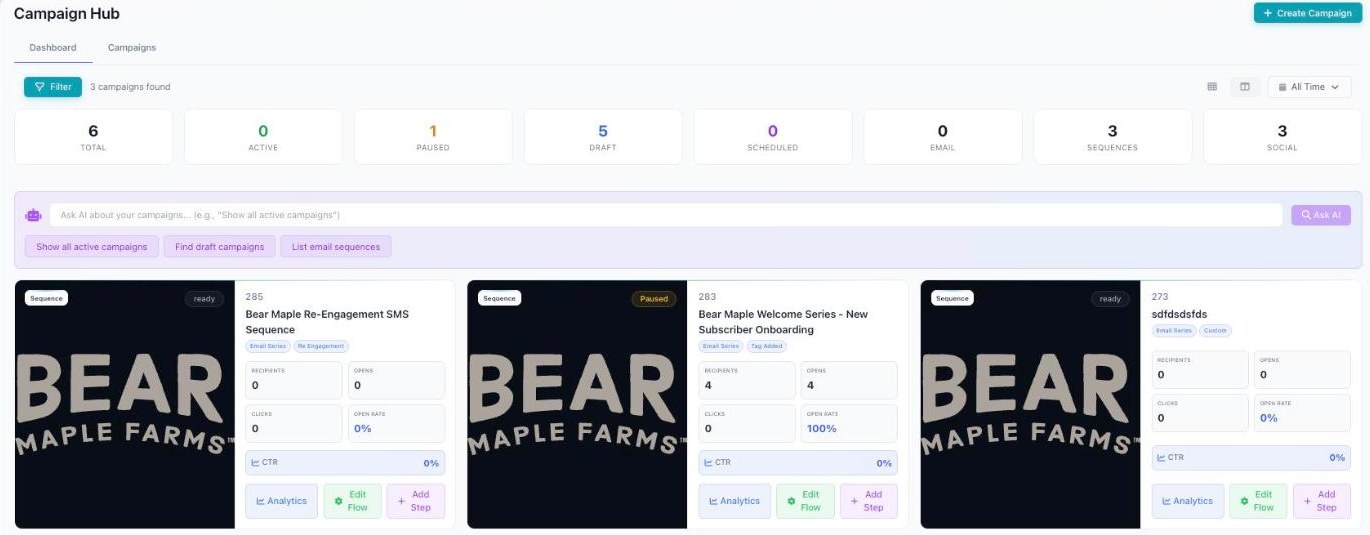
The Dashboard — stat cards (Total, Active, Paused, Draft, Scheduled, Email, Sequences, Social) and campaign cards.
The Dashboard tab: cards and AI search
The Dashboard tab shows your campaigns as visual cards instead of table rows. Each card has a picture, the campaign’s name and type, its status, quick stats (recipients, opens, clicks, open rate, and CTR), a progress bar, and handy buttons like Analytics, Edit Flow, and Add Step. Use the grid/list toggle in the top-right to switch between the card view and a table.
Ask AI about your campaigns
At the top of the Dashboard is an “Ask AI about your campaigns” box. Type a plain-English question — like “Show all active campaigns,” “Find draft campaigns,” or “List email sequences” — and Darwin finds them for you. There are one-tap suggestion chips too, so often you don’t even have to type. It’s the fastest way to pull up exactly the campaigns you want.
The numbers at the top
The Campaigns tab starts with a row of stat cards. These give you a quick read on your whole account. They update on their own as your campaigns change — you don’t have to refresh anything.
| Stat card | What it tells you |
|---|---|
| Total Campaigns | How many campaigns you have in total. |
| Active | Campaigns that are running right now. |
| Paused | Campaigns you’ve stopped for now. |
| Draft | Campaigns you’ve saved but haven’t sent. |
| Scheduled | Campaigns set to go out at a future time. |
| Total Budget | The combined budget across your campaigns. |
| Sequences / Social | Your average return on ad spend — how much you earn back for what you spend. |
What’s next
- Back to the Campaign Hub overview.
- See Campaigns tab.