
Marketing Titan is an AI-first platform. That means the AI — we call it Darwin — does the hard part for you. You pick a campaign type, tell Darwin what you want in plain words, and it writes the copy, suggests the images, and sets everything up. You just review it and hit go.
This guide walks you through your very first campaign, one step at a time. It takes about 10 minutes, and you need no marketing experience.
Where to find it: In the left menu, open
Marketing → Campaigns. That opens the Create Campaign page, where every campaign starts.
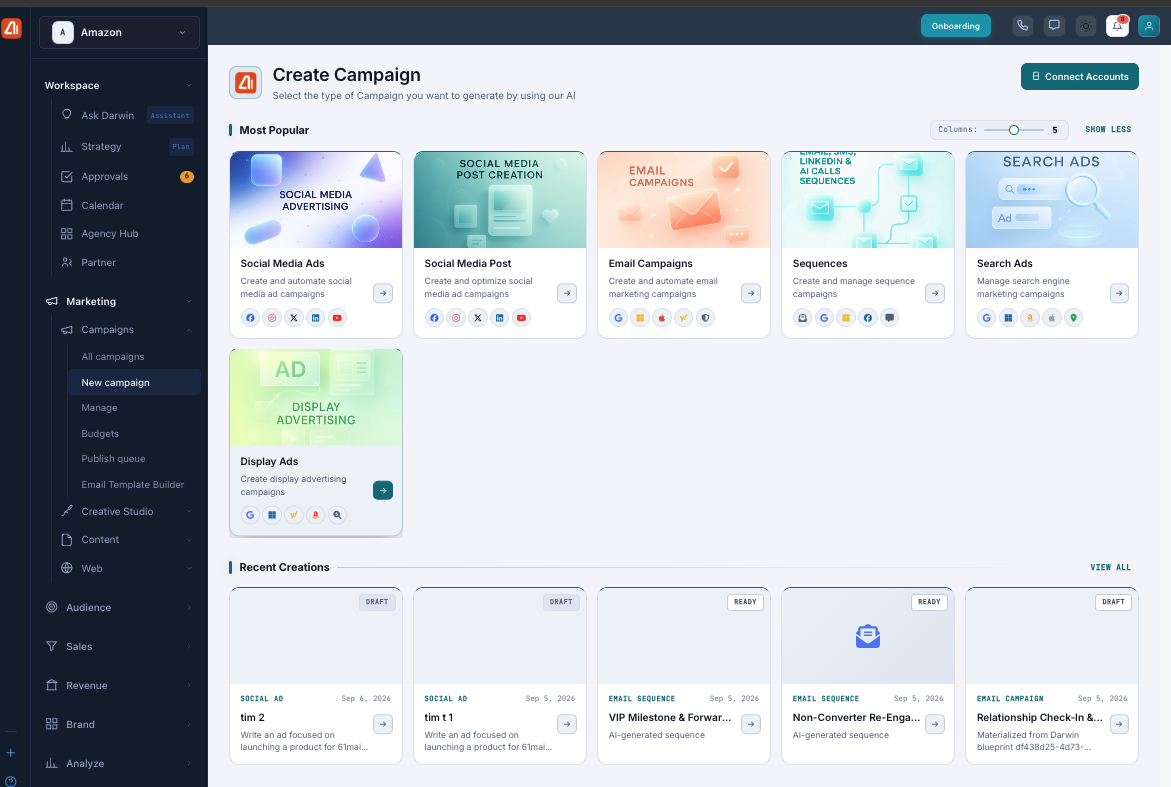
The Create Campaign page. Each card is a type of campaign — pick the one that matches your goal.
What is a campaign?
A campaign is a set of ads, posts, or messages you send to reach people. It might be one Instagram ad, a single email, or a series of messages sent over several days. In Marketing Titan you don’t build these by hand — Darwin builds a first draft for you, and you make it yours.
Before you start: connect your accounts
To actually send a campaign, Darwin needs somewhere to send it — like your Facebook page, your Instagram account, or your email tool. You connect these once, and Darwin remembers them.
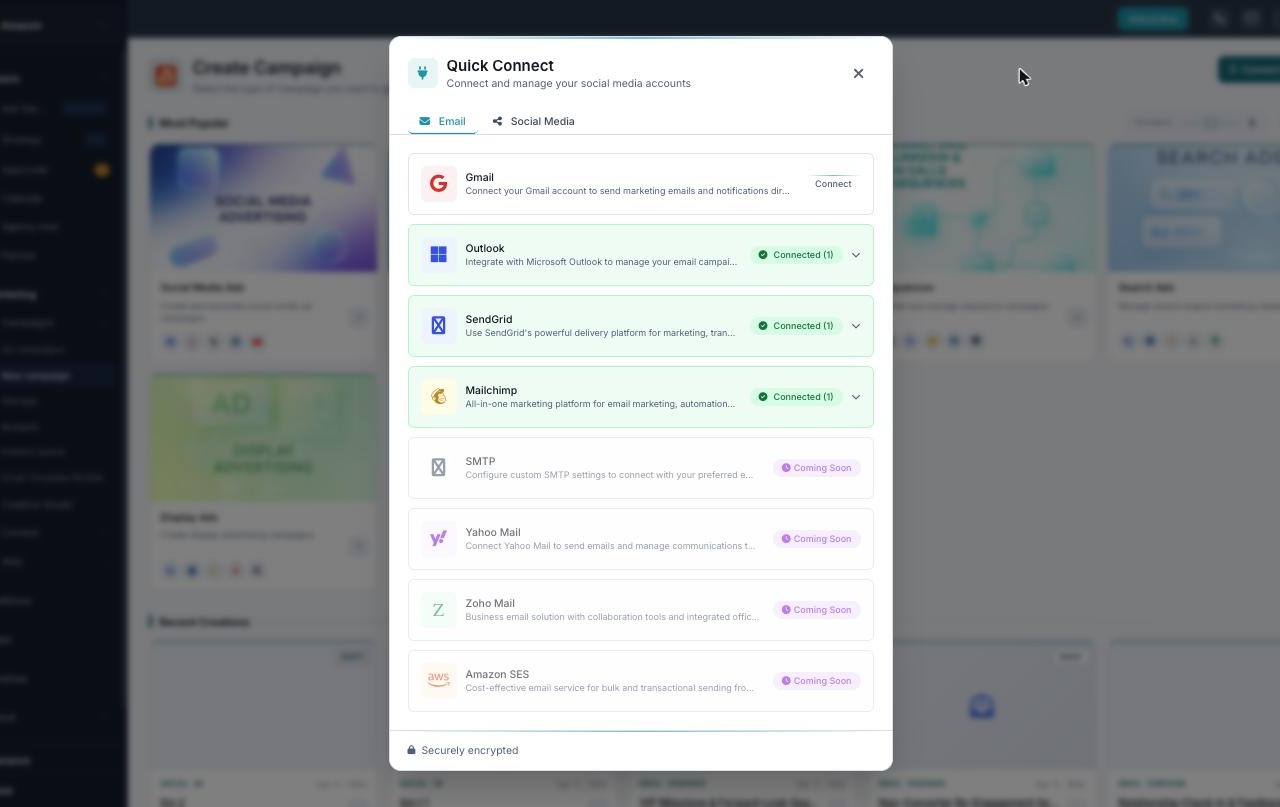
Quick Connect. Add your email tools (Gmail, Outlook, SendGrid, Mailchimp) and your social accounts. Your logins are securely encrypted, and you only connect them once.
- Click the Connect Accounts button in the top-right corner of the Create Campaign page.
- Choose the accounts you use and sign in to each one.
- You only do this once. After that, they’re ready for every campaign you make.
In a hurry? You can build a campaign first and connect your accounts later. Darwin will remind you before anything goes out. You just need at least one account connected before you send.
Which campaign type should you pick?
There are six types. Use this quick guide to choose. If you’re not sure, start with a Social Media Post — it’s the easiest first campaign.
| Type | Best for | What Darwin makes for you |
|---|---|---|
| Social Media Post | A normal, free post on your social pages | Post text, hashtags, and image ideas |
| Social Media Ads | Paid ads on social apps to reach more people | Ad copy, images, and audience ideas |
| Email Campaigns | A one-time email to your list | Subject line, email copy, and layout |
| Sequences | A series of emails, texts, or calls over time | A step-by-step message plan |
| Search Ads | Ads that show up in search results | Headlines, descriptions, and keywords |
| Display Ads | Banner ads on other websites | Banner text and image ideas |
Create your campaign, step by step
Step 1 — Open the Create Campaign page
In the left menu, click Marketing, then Campaigns. You’ll land on the “Create Campaign” page. This is home base for every new campaign.
Step 2 — Pick a campaign type
Click the card that matches your goal (see the table above). The Columns slider in the top-right only changes how many cards show at once — it doesn’t change anything about your campaign.
Each type opens its own builder, made just for that kind of campaign — a Social Media Post has different options than an Email, a Sequence, or a Search Ad.
Step 3 — Tell Darwin what you want
This is the AI-first part, and it’s the most important step. Instead of filling out a long form, you describe your goal in one or two sentences. Darwin reads it and builds your campaign from it.
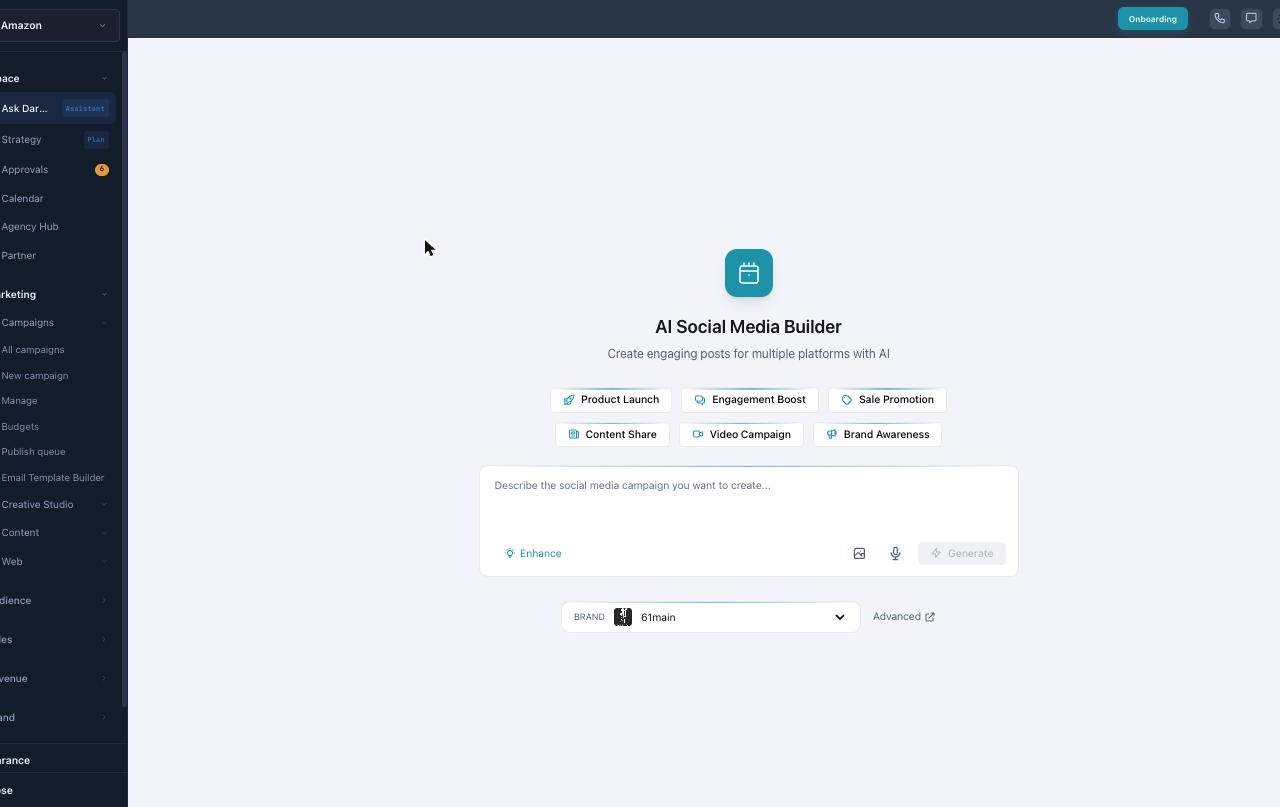
Tell Darwin what you want. Tap a goal like Product Launch or Sale Promotion, or just type your idea in the box, then press Generate.
How to write a good brief for Darwin. Say who it’s for, what you’re offering, and what you want people to do. For example:
- “Promote our new summer sale to people who bought from us before. I want them to shop the sale.”
- “Invite local customers to our grand opening this Saturday. I want them to RSVP.”
- “Remind people who left items in their cart to come back and check out.”
The clearer you are, the better Darwin’s first draft will be. You can always change it after.
Want more control? Click Advanced to open the full form for your campaign type. There you can set every detail yourself — things like audience, budget, and dates — instead of letting Darwin choose. New users can skip this and let Darwin handle it.
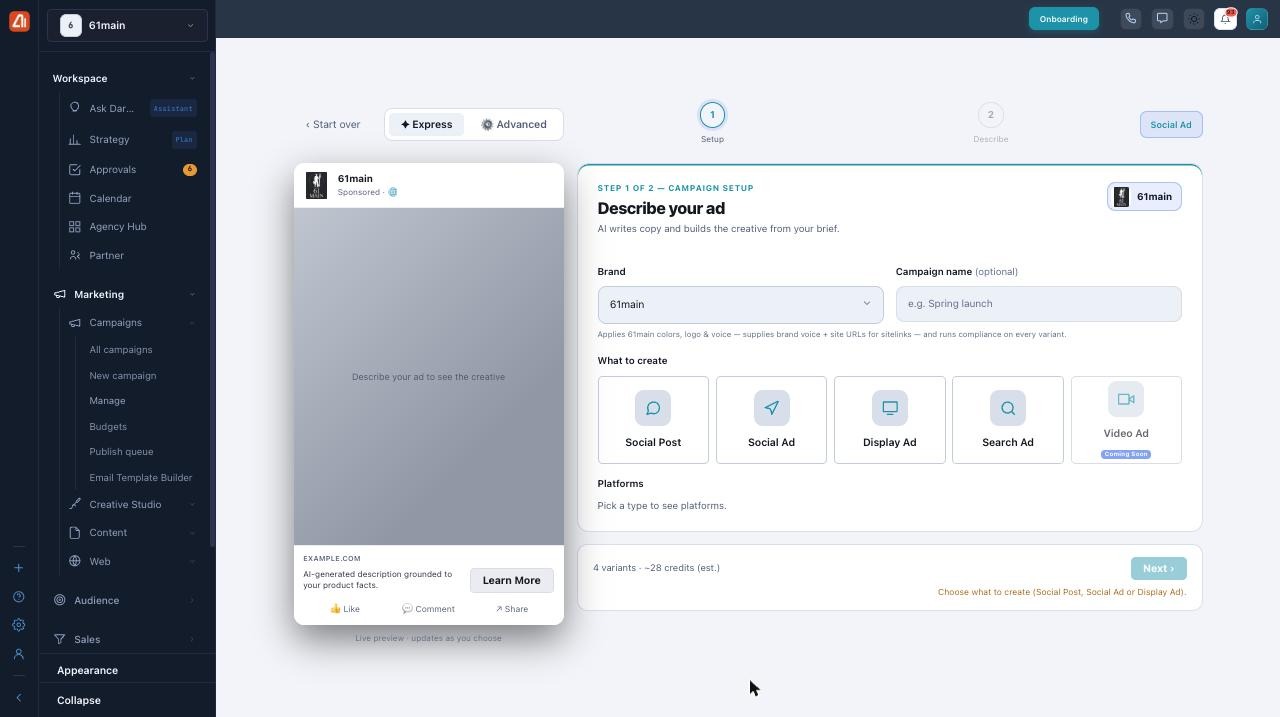
The Advanced builder. You answer a few guided steps and the AI writes the copy and builds the creative — grounded in your real product facts — with a live preview on the left. You can still edit everything.
Step 4 — Let Darwin build it
Darwin now writes your campaign. Depending on the type, it creates the words, suggests images, writes subject lines or hashtags, and fills in the basic settings. This takes just a few seconds.
Step 5 — Review and edit
You’re always in control. Read what Darwin wrote and change anything you like — the words, the images, the order. Nothing is sent yet. Your campaign is saved as a Draft, and you’ll see it under Recent Creations on the Create Campaign page.
Want Darwin to try again? Ask it to rewrite in a different tone, make it shorter, or start over — without losing your place.
Step 6 — Connect your accounts (if you haven’t yet)
If you skipped this earlier, now’s the time. Click Connect Accounts and sign in to the places you want to post or send. Darwin can’t send anything until at least one account is connected.
Step 7 — Launch or schedule
When it looks good, send it now or pick a date and time for later. Once your campaign is set to go out, its label changes from Draft to Ready.
That’s it — you made your first campaign! After it goes out, you can track how it did and let Darwin help you improve the next one.
Meet Darwin, your AI assistant
Darwin is with you the whole way
Darwin isn’t only for the first draft. Open Ask Darwin from the left menu any time and ask things like:
- “Make this post shorter and friendlier.”
- “Write three more subject lines for this email.”
- “Who should I target with this ad?”
Darwin knows your brand and your past campaigns, so its ideas fit your business.
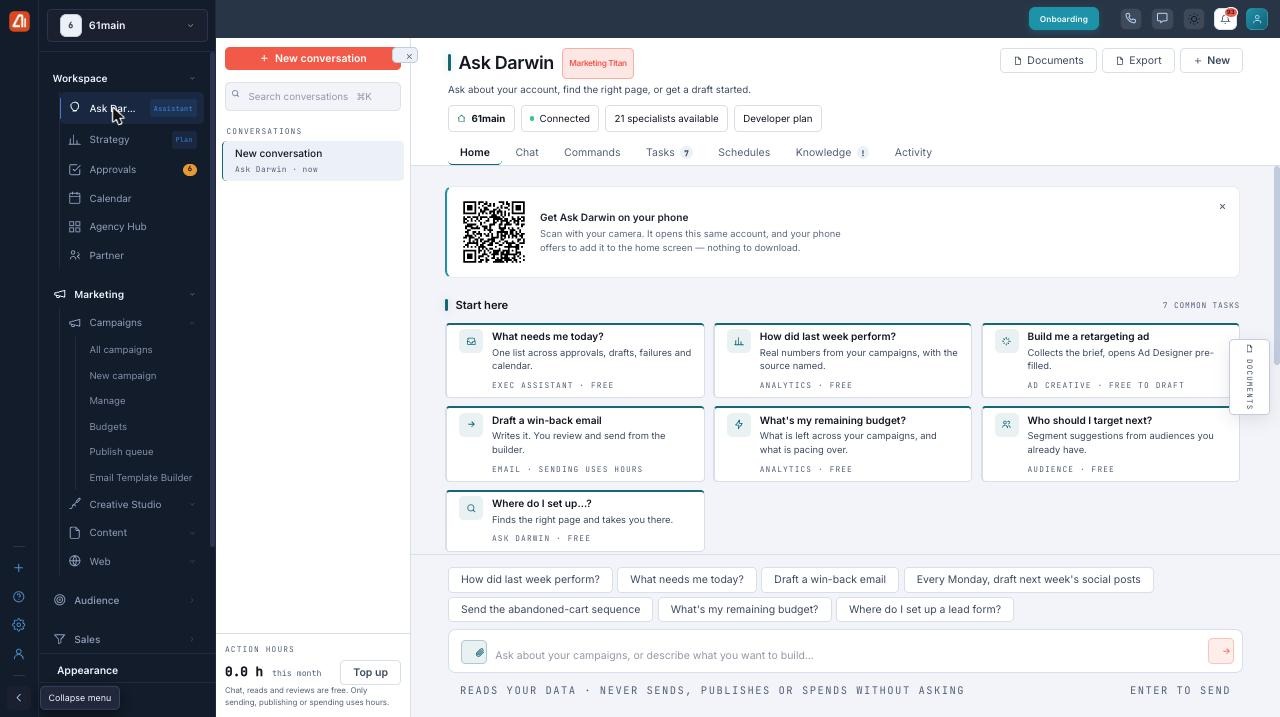
Ask Darwin. Start from a common task or type your own request. Darwin reads your data to help — but it never sends, publishes, or spends without asking you first.
Tips for a great first campaign
- Start with one clear goal — like “get more sign-ups” or “sell the summer collection.”
- Keep your message simple. One idea per campaign works best.
- Send a test to yourself first so you can see how it looks before it goes out.
- Trust the first draft, then make it yours. Darwin gets you most of the way — your edits add the final touch.
- Check the results. After it goes out, see what worked and do more of that next time.
Common questions
Do I have to connect my accounts before I start?
No. You can build a campaign first and connect accounts later. You just need at least one account connected before you send.
Can I change what the AI writes?
Yes, always. Everything Darwin creates is a starting point. Edit any word, swap any image, or ask Darwin to try again.
What’s the difference between Draft and Ready?
Draft means it’s saved but not going out yet. Ready means it’s set to send — either now or at a scheduled time.
Will my campaign go out the moment I finish?
Only if you choose “send now.” You can also schedule it for later, or leave it as a Draft and come back to it.
Can I make more than one campaign?
Yes. Make as many as you like. Each one shows up under Recent Creations so you can find it again.
What if I don’t like what Darwin made?
Ask it to try again, or start over with a clearer brief. You can also edit it by hand. Nothing is sent until you say so.
Having trouble?
Can’t send your campaign? Make sure at least one account is connected (the Connect Accounts button, top-right). If an account shows as disconnected, sign in to it again.
Darwin’s draft feels off? Your brief may be too short. Add more detail about who it’s for and what you want them to do, then generate again.
What’s next
- Connect your accounts so campaigns can go out
- Review and edit what the AI creates
- Schedule a campaign for later
- Track your campaign results