
Accounts is full of AI: ask it questions in plain English, watch each account’s health and churn risk, read its insights, and work an AI-powered follow-up dashboard.
Where to find it: Left menu → Sales → Pipeline → Accounts (the Ask AI bar, AI Insights, and AI Assist). Part of the Accounts guide.
The AI in Accounts — it grades health, flags churn, and tells you who to save.
Ask AI
Type a plain-English question in the Ask AI bar — for example “At-risk accounts with ARR over $50K” or “Renewals next 90 days” — and it builds the filter for you. Or tap a quick chip like high churn risk, ARR over $50K, grade A accounts, or healthy accounts with expansion potential. The result shows as removable pills; Clear all resets it.
AI Health, Churn & ICP Fit
Every account gets an AI Health signal, a Churn Risk, and an ICP Fit grade (how well it matches your ideal customer). The board rolls these up into Healthy, At Risk, and Critical counts, your NRR (net revenue retention), and Expansion Potential — so you can see at a glance who to save and who to grow. Each account also carries an AI Suggestion for the next best move.
AI Insights & Recommendations
The Account Insights & Recommendations panel (marked LIVE) surfaces what needs attention — for example “15 Accounts at Risk — $20,000 ARR at stake → Review at-risk accounts.” Refresh for new ones, or Dismiss any you’ve handled.
The Follow-up Dashboard
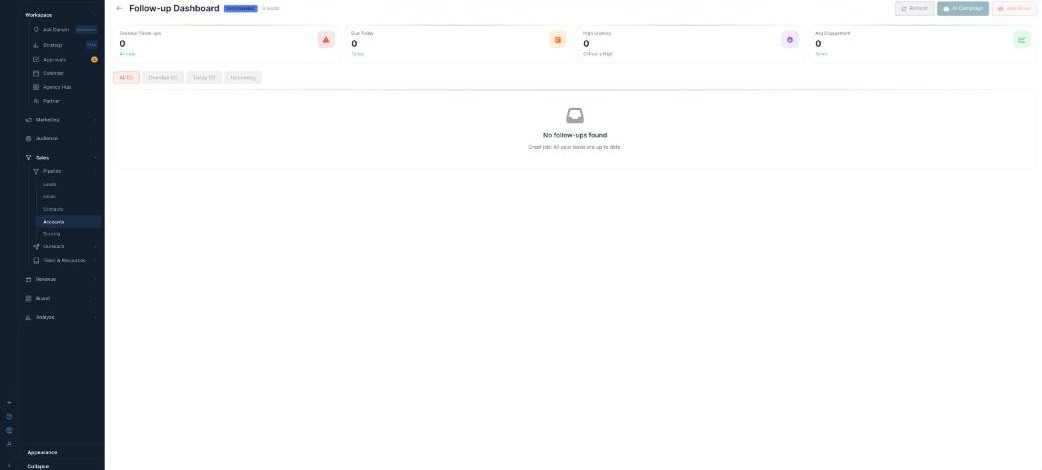
AI Assist opens the Follow-up Dashboard — the AI-powered list of which accounts to reach out to. It totals your Overdue Follow-ups, Due Today, High Urgency, and Avg Engagement, filters All / Overdue / Today / Upcoming, and lets you act with AI Auto-Schedule, Quick Call, Quick Email, or AI Campaign / Bulk Email.
What’s next
- Back to the Accounts overview.
- See The board & account types.
- See Groups & Advanced Filter.