
Accounts

Accounts - Groups & Advanced Filter

Organize accounts into groups and slice them with precise, saveable filters.

Beginner4 min read

Groups organize your accounts (by segment, tier, or however you like), and the Advanced Filter finds exactly the accounts you need — and can save that view.

Where to find it: Left menu → Sales → Pipeline → Accounts → Add Group / Advanced Filter. Part of the Accounts guide.
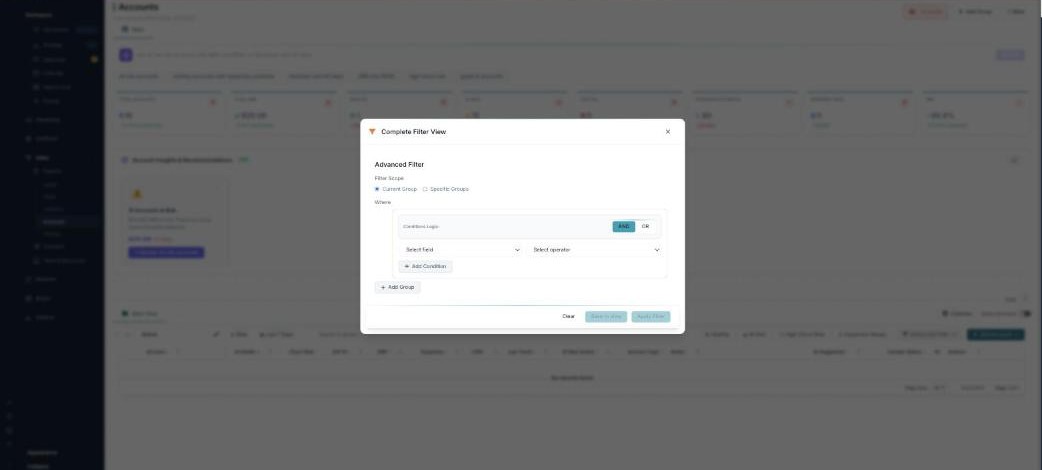
The Advanced Filter modal (Complete Filter View) over the Accounts board: Filter Scope (Current Group / Specific Groups), a Where section with AND/OR conditions logic, Select field and Select operator dropdowns, Add Condition, Add Group, and Apply Filter.

Groups organize your accounts; filters find exactly the ones you want.

Groups

Add Group creates a new group to sort your accounts into — for example by tier or region. Rename a group in place, reorder them, and delete ones you don’t need.

Advanced Filter

Open Advanced Filter (the Complete Filter View) to build a precise query:

  • Filter Scope — search the Current Group or Specific Groups.
  • Conditions — pick a field (ARR, churn risk, ICP fit, health, CSM…) and an operator, enter a value, and combine several with AND or OR. Add Condition for more, and Add Group to nest logic.
  • Apply Filter to filter now, Clear to reset.

Saving a view

Save to view keeps a filter for reuse: give it a name, choose who can see it (everyone, specific users, or private), and save it as a List View or a New Tab on the board.

What’s next

Keep reading

  • Accounts - AI Health, Churn & Follow-ups

    Ask AI in plain English, watch account health and churn risk, and work an AI follow-up dashboard.

  • Accounts

    Your CRM accounts board — track customer health, ARR, churn risk, and renewals for company and individual accounts, with AI scoring, insights, Ask AI, and a follow-up dashboard.

  • Accounts - The Board & Account Types

    Every account and its health, revenue, and churn risk in one table — with company and individual account types.

More ways to get help

These guides are the same ones that sit inside the app’s help center, next to the screens they describe. If you prefer to watch, the Marketing Titan Academy has short video courses recorded in the product. Signed in, you can also ask Darwin, the built-in assistant, to explain a screen or do the step for you. If something is not covered here, contact us and a person will answer.

Try it yourself

Every guide here describes the live product.

Start free and follow along: every core module, unlimited users, no card required.