
Click into any channel or ad to see the detail behind the numbers — trends, breakdowns, and per-campaign results.
Where to find it: Left menu → Analyze → Ad Insights. Part of the Ad Insights guide.
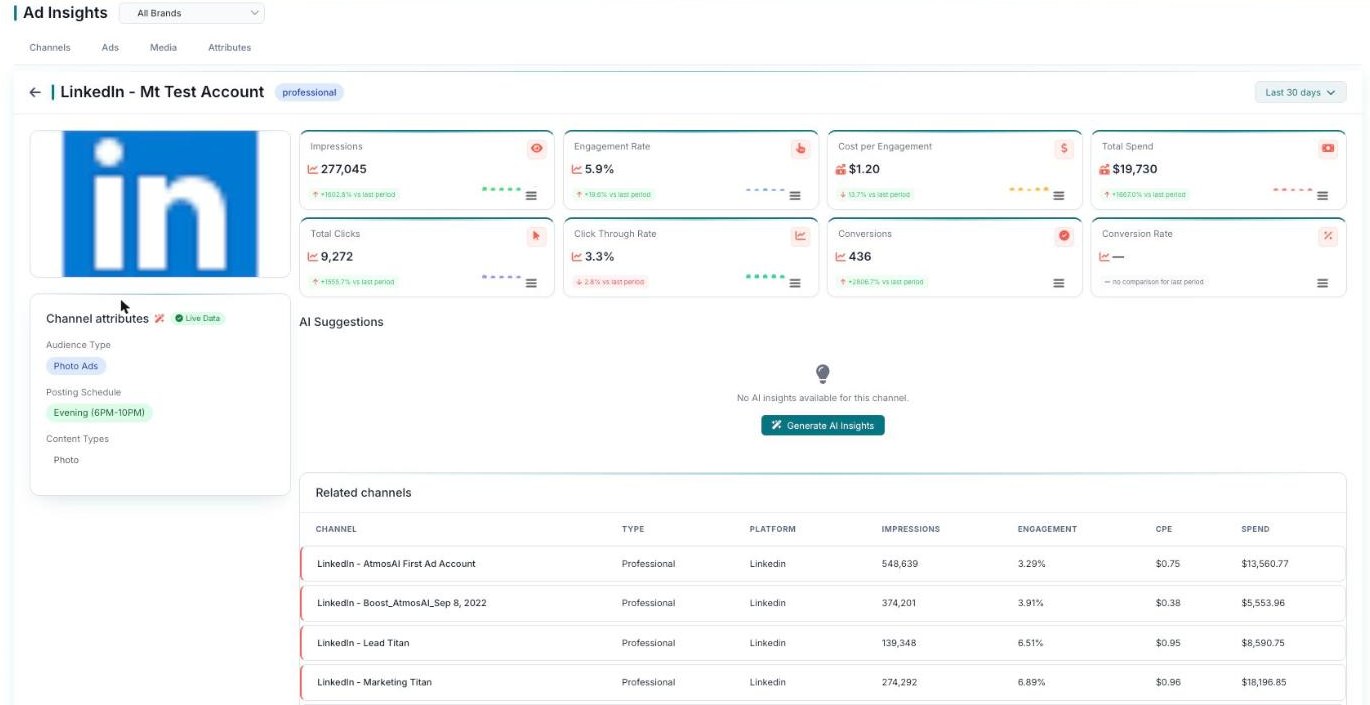
A channel's detail — the 8-metric grid, attributes, AI Suggestions, and related channels.
Dig into one channel or ad
The tabs give you the overview. When you want the full story on a single channel or ad, just click it to open its detail page.
Channel detail
Click a channel to open its detail page. Here you’ll see deeper metrics, including Impressions, Engagement Rate, Cost per Engagement, Total Spend, Total Clicks, CTR, Conversions, and Conversion Rate. There’s a Channel attributes panel and a Related channels table so you can compare. You can also Generate AI Insights to get suggestions for that channel.
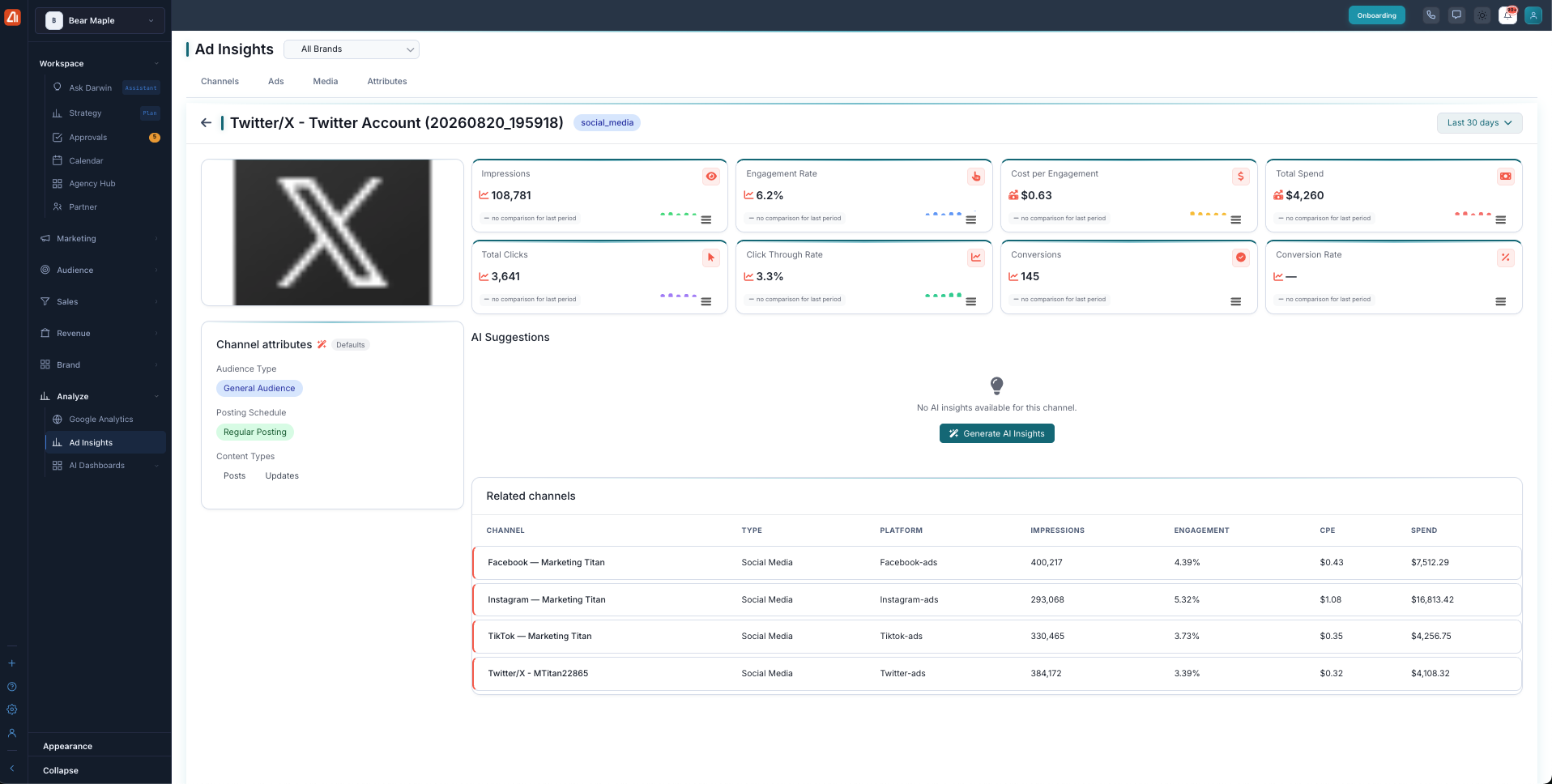
A channel’s detail page shows deeper metrics and lets you generate AI insights.
Ad and campaign detail
Click an ad to open its detail page. You’ll see metrics like Impressions, Engagement Rate, Cost per Click, Total Spend, Total Clicks, CTR, Conversions, and Conversion Rate. There’s a Campaign attributes panel that breaks down Platform, Content Style, Target Audience, Device Focus, and Performance, plus a Related campaigns table. And there’s a Generate AI Insights button for tailored suggestions.
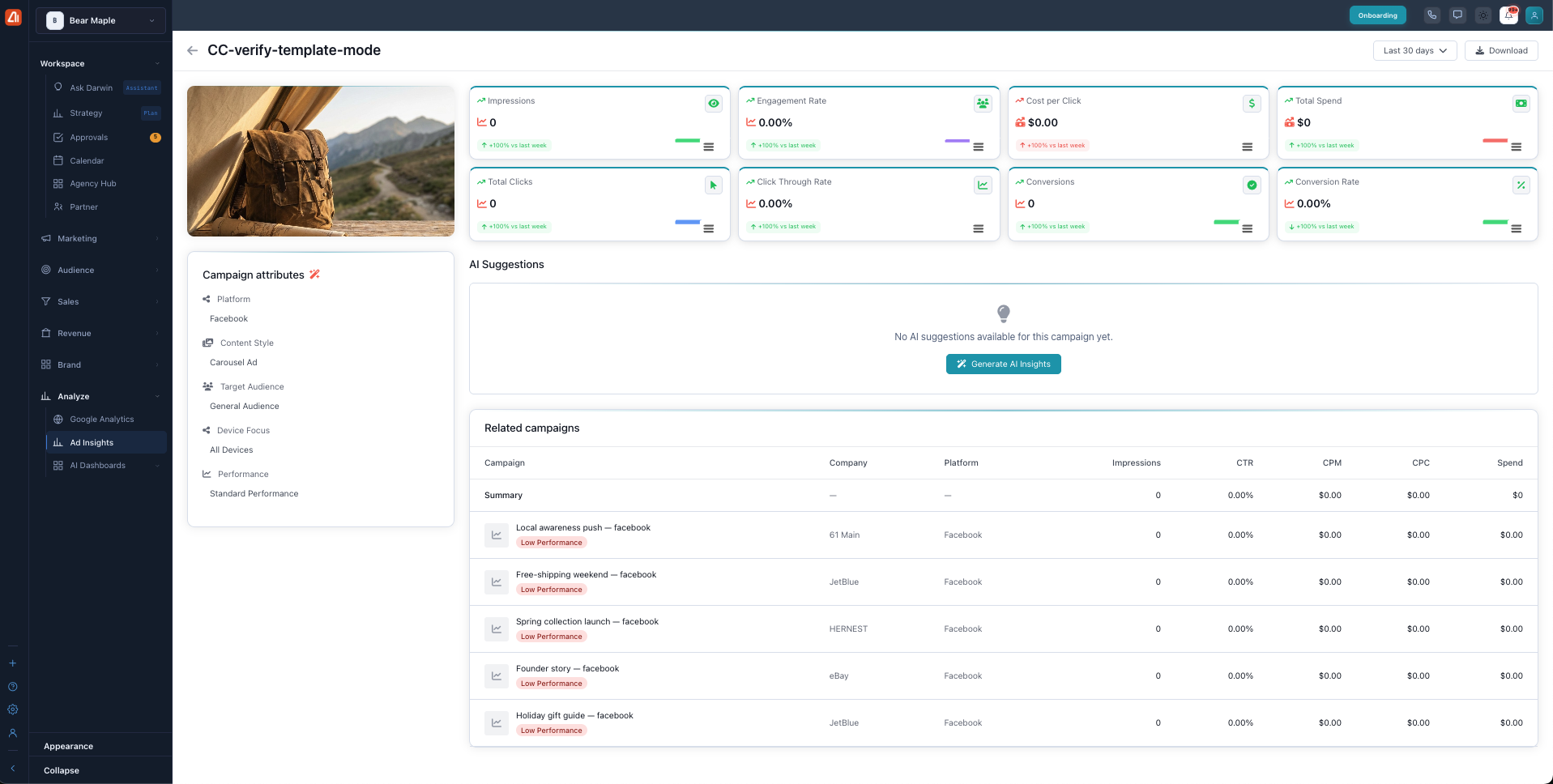
An ad’s detail page includes a campaign attributes panel and AI insights.
The AI “Generate AI Insights” button
On any channel or ad detail page, click Generate AI Insights and the AI reviews the numbers for you. It reads your metrics and creative, then writes plain-language suggestions for what to try next — like which styles to lean into or where your spend is working hardest. It’s a fast way to turn your data into a to-do list, without doing the analysis yourself.
What’s next
- Back to the Ad Insights overview.
- See The Four Tabs.
- See Metrics Explained.