
Ad Insights is where you see how all your ads are doing, in one place. It pulls the numbers from every ad account you have connected — LinkedIn, Instagram, Facebook, Twitter/X, TikTok, and more — so you don’t have to jump between tools. You can look at the big picture across channels, then dig into a single ad, a single image or video, or even the visual style inside your creative.
The best part is that the AI does more than show numbers. It reads what is actually in your ads, groups your creative by visual style, and can generate plain-language suggestions to help you improve. Think of it as a smart teammate who watches your ad performance for you and tells you what to try next.
Where to find it: In the left menu, go to
Analyze → Ad Insights. The Analyze area also includes Google Analytics and AI Dashboards, so it’s your home for all reporting.
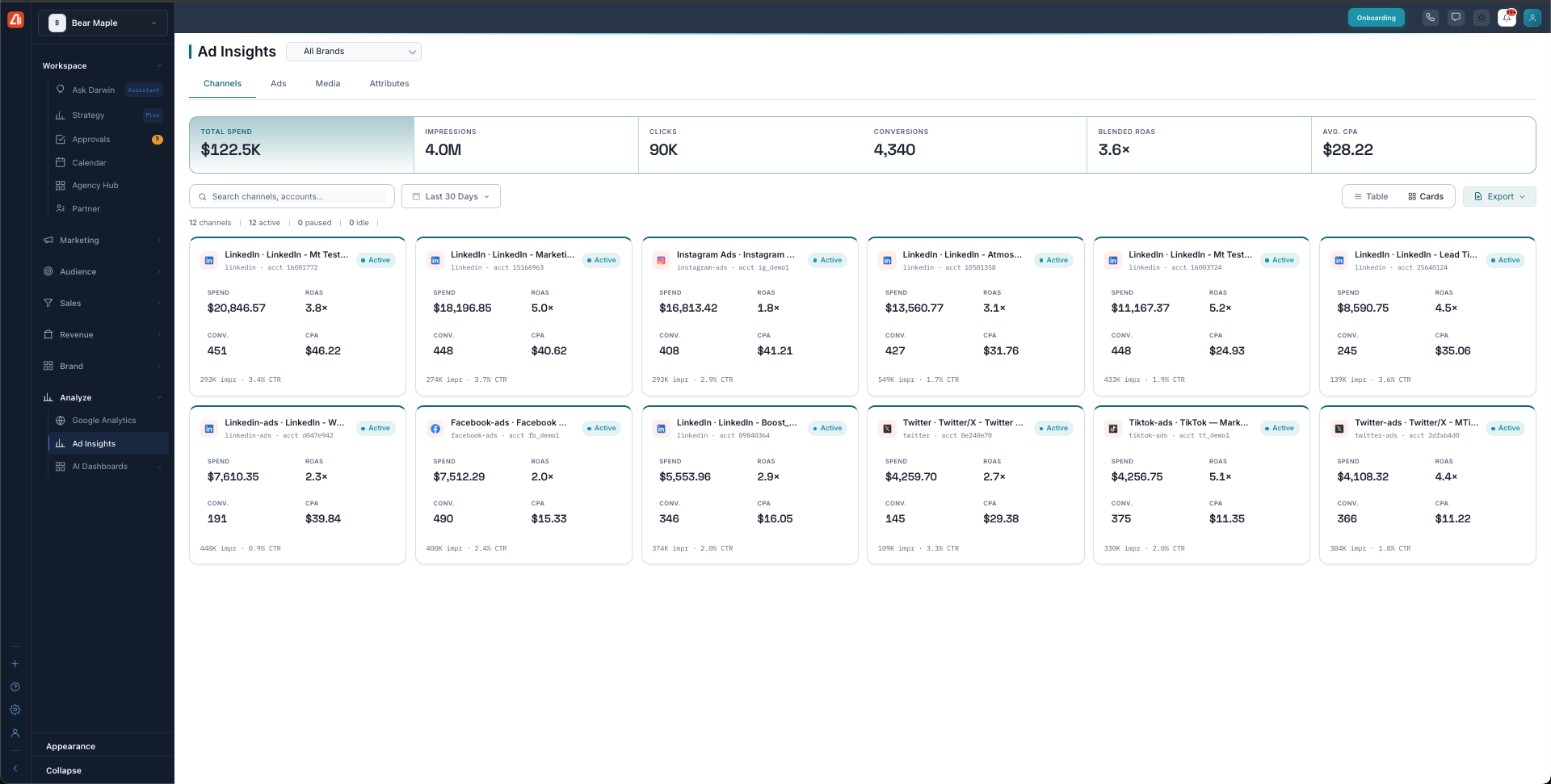
The Channels tab gives you a full view of every connected ad account at a glance.
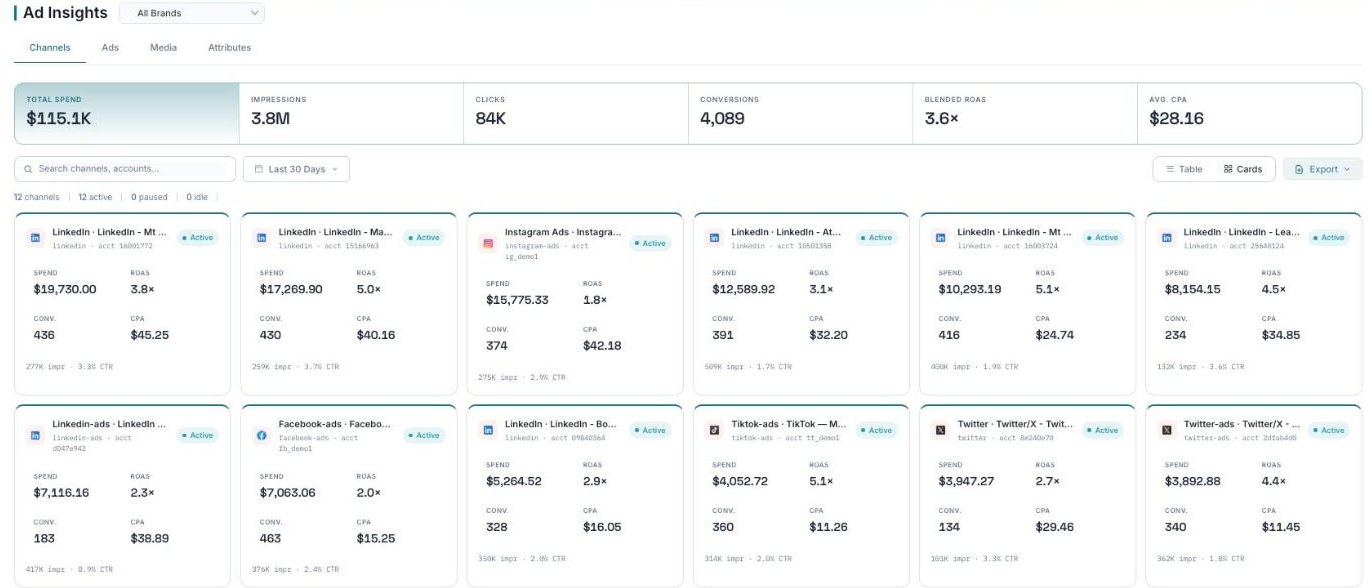
Channels — the KPI rollup up top, every channel as a card below.
What is Ad Insights?
Ad Insights shows how your ads are performing across every channel, lets you dig into individual ads, media, and creative attributes, and can generate AI suggestions to improve. At the top of the page you’ll find a Brand filter and a date-range picker, so you can focus on one brand and one time period.
Every tab also gives you a few handy tools:
- Switch between a Table view and a Cards view, whichever is easier to read.
- Use Search to find a specific channel, ad, or asset fast.
- Use Export to pull the data out for a report or a spreadsheet.
The sections — each has its own guide
Ad Insights is organized into the areas below. Open any one for the full, detailed walkthrough.
| Section | What it covers | Guide |
|---|---|---|
| The Four Tabs | Channels, Ads, Media, and Attributes — what each tab shows. | Open guide → |
| Channel & Campaign Detail | Drill into one channel, campaign, or ad. | Open guide → |
| Metrics Explained | Plain-English definitions of the common ad metrics. | Open guide → |
Frequently asked questions
Which ad channels can I connect?
Ad Insights works with LinkedIn, Instagram, Facebook, Twitter/X, TikTok, and more. Once an account is connected, it shows up as its own card on the Channels tab.
What’s the difference between the Media tab and the Attributes tab?
The Media tab shows each image or video and how it performed. The Attributes tab goes one level deeper: the AI looks at what’s inside your creative and groups it by visual style, so you can see which styles drive clicks across all your assets.
How do I focus on just one brand or one time period?
Use the Brand filter and the date-range picker at the top of the page. They apply across the tabs so you can zoom in on exactly what you want to see.
What does “Blended ROAS” mean?
Blended ROAS is your return on ad spend across all your channels combined, rather than for a single account. It gives you the big-picture view of how your total spend is paying off.
How do the AI insights work?
On a channel or ad detail page, click Generate AI Insights. The AI reviews your metrics and creative and writes suggestions in plain language for what to try next.
Can I get the data out of Ad Insights?
Yes. Each tab has an Export option, so you can pull the numbers into a report or spreadsheet.
Having trouble?
If a tab is empty or you see no numbers, it usually means your ad accounts aren’t connected yet. Head to the Integrations page and connect your ad accounts. Once they’re linked, your data will start showing up in Ad Insights.
What’s next
- Open the The Four Tabs guide.
- Open the Channel & Campaign Detail guide.
- Open the Metrics Explained guide.