
Not every item needs a slow, careful read. The Already decided view is your record of past decisions, and the bulk tools clear the safe, low-stakes items fast — without ever letting a risky one slip through.
Where to find it: Left menu → Workspace → Approvals → Already decided. Part of the Approvals guide.
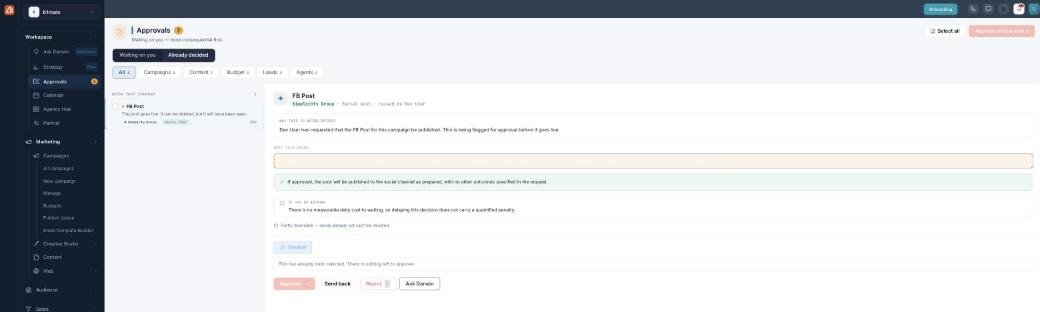
Already decided — your history, and the failed items to watch for.
The Already decided view
Switch to Already decided to see everything you’ve approved, rejected, executed, or that has expired. The one to watch for is failed — an item you approved that the platform then refused to run — because that’s the case that needs a second look. Opening a decided item shows the same rationale and consequence, with the actions grayed out.
Approve all low-risk
The header’s Approve all low-risk button clears everything in the “Low risk — safe to bulk approve” band at once. It’s deliberately safe: the system refuses to bulk-approve anything that spends money, needs two approvers, is an unknown type, or has gone stale — those come back for you to open individually.
Selecting several yourself
Use Select all (or tick individual rows) to build your own batch, then Approve or Reject the selection from the bulk bar. The same guardrails apply. If you bulk-undo a batch, it’s all or nothing — a single irreversible item in the group means the whole batch can’t be undone.
What’s next
- Back to the Approvals overview.
- See Reviewing & deciding.
- See Who can approve & the safeguards.