
Selecting an item opens its decision panel on the right. It’s written to help you decide fast, and every action is one click away — but the risky ones make you look first.
Where to find it: Left menu → Workspace → Approvals → an item. Part of the Approvals guide.
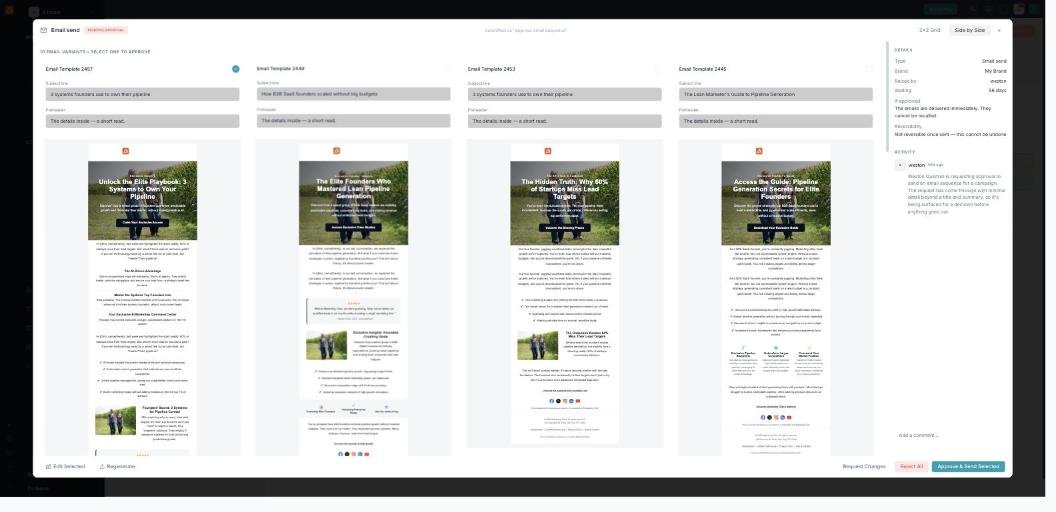
Review the content — see exactly what goes out before you approve it.
The decision panel
Each item explains itself in plain language: Why this is being raised, What this sends (or spends, or publishes), If approved (exactly what happens), and If you do nothing (the cost of waiting). A line at the bottom tells you whether it’s reversible — e.g. “Not reversible once sent.”
Review the content
Review opens the real thing — not a summary. For an email or sequence you see the actual email variants side by side and pick the one to approve; for a paid ad you see the creatives; for items with nothing to render (lead routing, a budget shift, an agent permission) you see the exact snapshot facts the decision rests on. Every item is reviewable.
Review-first for anything costly or irreversible
If an item spends money or can’t be undone, you must review it before you can approve — clicking Approve opens the content first, and you approve from inside it. Reversible items approve in one click.
The four decisions
Every item gives you the same set of choices:
| Action | What it does |
|---|---|
| Approve | Signs it off. When money is involved you type the exact amount to confirm — the server re-checks it. |
| Reject | Declines it — a reason is required (it trains the agent that raised it). |
| Send back for changes | Returns it to the requester with a note on what to fix. |
| Ask Darwin | Asks a question, answered from the item’s own facts — without deciding. |
Changed your mind?
If you approved something that hasn’t run yet, you can Undo (revoke) it and it drops back into the queue. Once an item has actually sent or spent, it can’t be undone — which is why review-first exists. Power users can also work the queue by keyboard: j / k to move, a to approve, r to reject.
What’s next
- Back to the Approvals overview.
- See Who can approve & the safeguards.
- See Already decided & bulk actions.