
Open on any budget row goes to its detail page — the deeper view for enforcement, reconciling with the ad platform, and setting the limits on how much can be moved automatically.
Where to find it: Left menu → Marketing → Campaigns → Budgets → a budget → Open. Part of the Budgets guide.
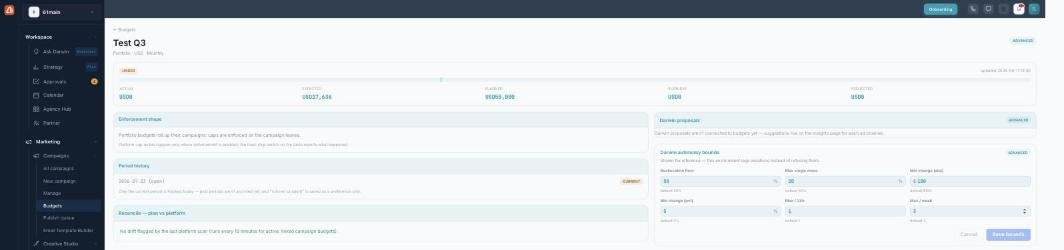
The budget detail — enforcement, drift, and the limits on automated moves.
Enforcement — and what’s live today
Caps are enforced at the campaign level (the leaves); portfolios and channels roll those up. A hard stop on a campaign is meant to write that platform’s native cap. Today, platform cap writes are gated off by default — so Budgets currently plans and tracks, and hard stop / reconcile record your intent rather than changing Meta/LinkedIn/Google directly. The switch reports what actually happened.
Reconcile — plan vs platform
A background scan (about every 15 minutes, for active linked campaign budgets) checks whether your plan matches the ad platform’s live cap. Any drift is listed here so you can push your plan to the platform or accept the platform’s number.
Guardrails on moving money
Darwin autonomy bounds limit how budget can be reallocated — a reallocation floor (default keep ≥ 50%), a max single move (default 20%), a minimum change, and caps on moves per day and per week. These keep automated or bulk reallocations sane; you can tune them per workspace.
Darwin proposals & history
The detail page also surfaces Darwin proposals (suggested budget increases, decreases, or reallocations based on what’s performing) and a period history. Note that only the current period is tracked today — past periods aren’t archived yet, and some proposal wiring still points you to the Insights page per channel.
What’s next
- Back to the Budgets overview.
- See Creating a budget.
- See Pacing, spend & alerts.