
Once a budget is active, the page tracks your real ad spend against it and shows whether you’re pacing to stay within the plan. Here’s how to read it.
Where to find it: Left menu → Marketing → Campaigns → Budgets. Part of the Budgets guide.
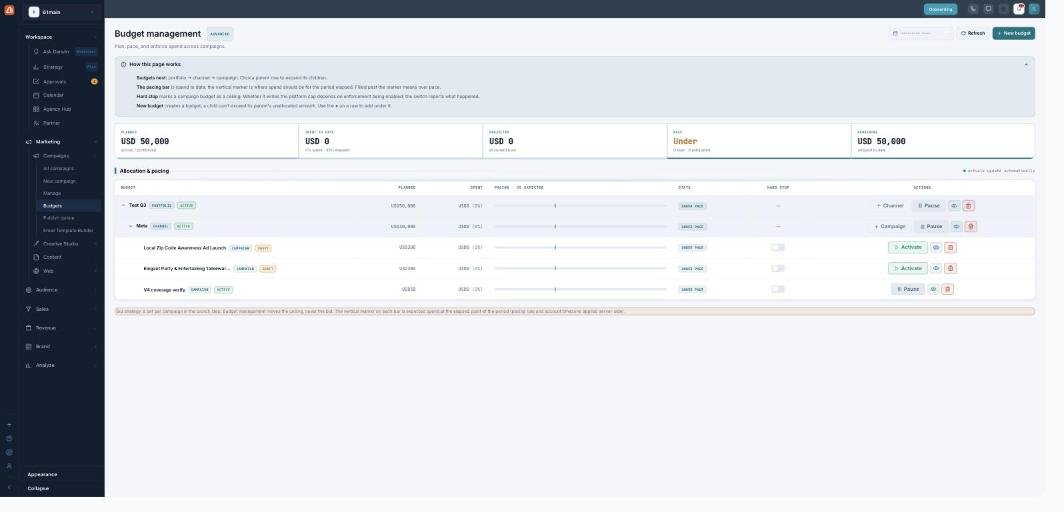
Pacing — is your spend on track for the period so far?
The pacing bar
Each row has a pacing bar. The fill is how much you’ve spent so far; the vertical marker is where spend should be for how much of the period has elapsed (following the budget’s pacing rule). Filled past the marker means you’re spending too fast.
The four states
The State column turns that into a word:
| State | Meaning |
|---|---|
| On pace | Spend is close to expected. |
| Under pace | Spending slower than planned (under ~90% of expected). |
| Over pace | Spending faster than planned (over ~110% of expected). |
| Exhausted | You’ve hit or passed the planned amount. |
The KPI tiles at the top roll this up: Spent to date shows % spent vs % elapsed (and turns amber if you’re ahead), and Projected estimates the full-period total at your current burn — it isn’t capped, so an overspend shows honestly.
Where the numbers come from
Spend is pulled from your connected ad accounts through the platform’s Ad Insights feed — Budgets doesn’t poll the platforms itself. It refreshes about every 15 minutes for active budgets, and each budget shows a freshness note (updated / stale / awaiting first actuals). Campaign budgets get real spend; channels and portfolios roll their children up.
Two kinds of status
Don’t confuse the two:
| Status type | What it tracks |
|---|---|
| Lifecycle (badge) | Draft, Active, Paused, Exhausted, Ended — whether the budget is switched on. |
| Pacing state (column) | On / Under / Over / Exhausted — the live spend read. |
A Draft budget is inert — nothing tracks, paces, or alerts until you Activate it (which cascades down the tree).
Alerts
When spend crosses each alert mark (75% / 90% / 100%) you get an in-app notification — once per budget, per mark, per period — and the top of the page shows an over-pace banner summarizing anything running hot. It links straight to the budget.
What’s next
- Back to the Budgets overview.
- See Creating a budget.
- See Enforcement, reconcile & guardrails.