
Budgets is where you plan, pace, and (when enabled) enforce your ad spend on external platforms — Meta, LinkedIn, and Google. You build a money tree, set a ceiling at each level, and the page tracks real spend against it. (This is your ad spend, not your Marketing Titan credits or subscription.)
Where to find it: Left menu → Marketing → Campaigns → Budgets.
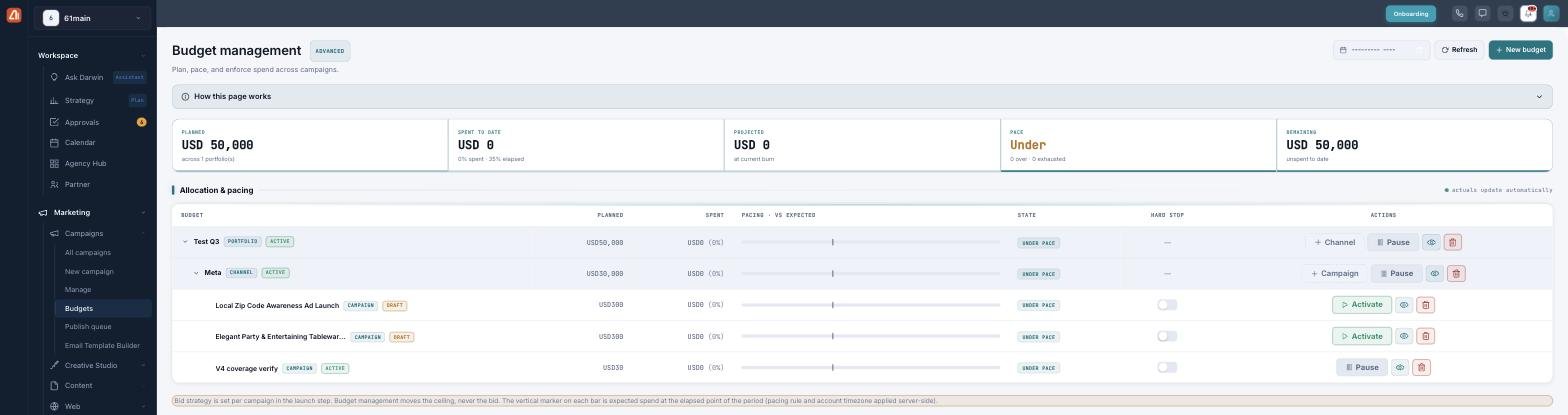
Budget management — your spend plan, pacing, and remaining, at a glance.
The money tree: portfolio → channel → campaign
Budgets nest in three levels. A Portfolio is your top total; it splits into Channels (one per ad platform); each channel holds Campaign budgets tied to live campaigns. Money flows down (a child can’t exceed its parent’s unallocated amount) and spend rolls up. Click a parent row to expand its children.
The five numbers at the top
| Tile | What it tells you |
|---|---|
| Planned | Your total ceiling across all budgets. |
| Spent to date | Actual spend, with % spent vs % of period elapsed. |
| Projected | Where you’ll land at the current burn rate. |
| Pace | On / Under / Over — plus how many budgets are over or exhausted. |
| Remaining | What’s left unspent. |
The allocation & pacing table
Each row shows the budget name and level, its Planned and Spent, a pacing bar (with a marker for expected spend), its State, a Hard stop toggle (on campaign rows), and Actions: add a Channel or Campaign under it, Activate / Pause, Open the detail, or Delete. A month picker filters the period, and the page shows an AI-first or Advanced posture chip reflecting your Darwin autonomy setting.
How budgets connect to your campaigns
Budgets don’t sit in isolation. When you launch a campaign, it’s automatically linked to the matching channel budget, and the launch step shows how much of that budget is still available — it won’t let you publish an ad above its remaining plan. So a budget here becomes a real guardrail on what you can spend when you go live.
Learn each part
| Topic | What it covers | Guide |
|---|---|---|
| Creating a budget | The New Budget form, levels, and the nesting rule. | Open → |
| Pacing, spend & alerts | The pacing bar, states, where spend comes from, and alerts. | Open → |
| Enforcement & guardrails | The detail page: platform enforcement, reconcile, and move limits. | Open → |
Plan and track first, enforce later
In the current release, Budgets plans and tracks your ad spend and alerts you on pacing. Actually writing caps back to Meta/LinkedIn/Google (hard stop, reconcile) is gated and off by default — so today it’s your spend dashboard and early-warning system.
What’s next
- Start by creating a budget.
- Learn to read pacing and alerts.
- Go deeper with enforcement & guardrails.