
The Campaigns list is every campaign in one table, with the statuses and types explained so you can find and manage anything.
Where to find it: Left menu → Workspace → Campaign Center → Campaigns. Part of the Campaign Center guide.
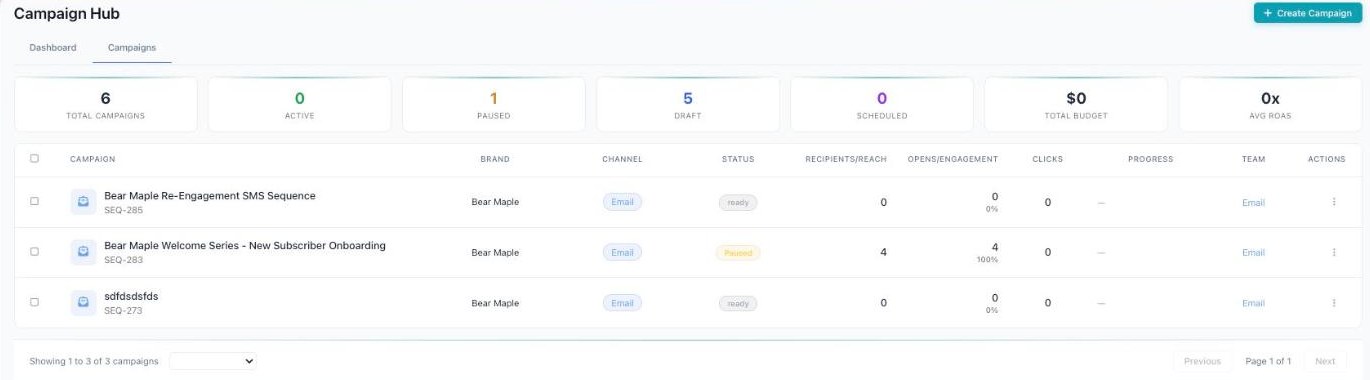
The Campaigns tab — a sortable table with Total Budget and Avg ROAS.
Campaigns: the list view
The Campaigns tab shows the exact same campaigns as a sortable table. This is the view to use when you want to sort, compare numbers side by side, and act on many campaigns at once.
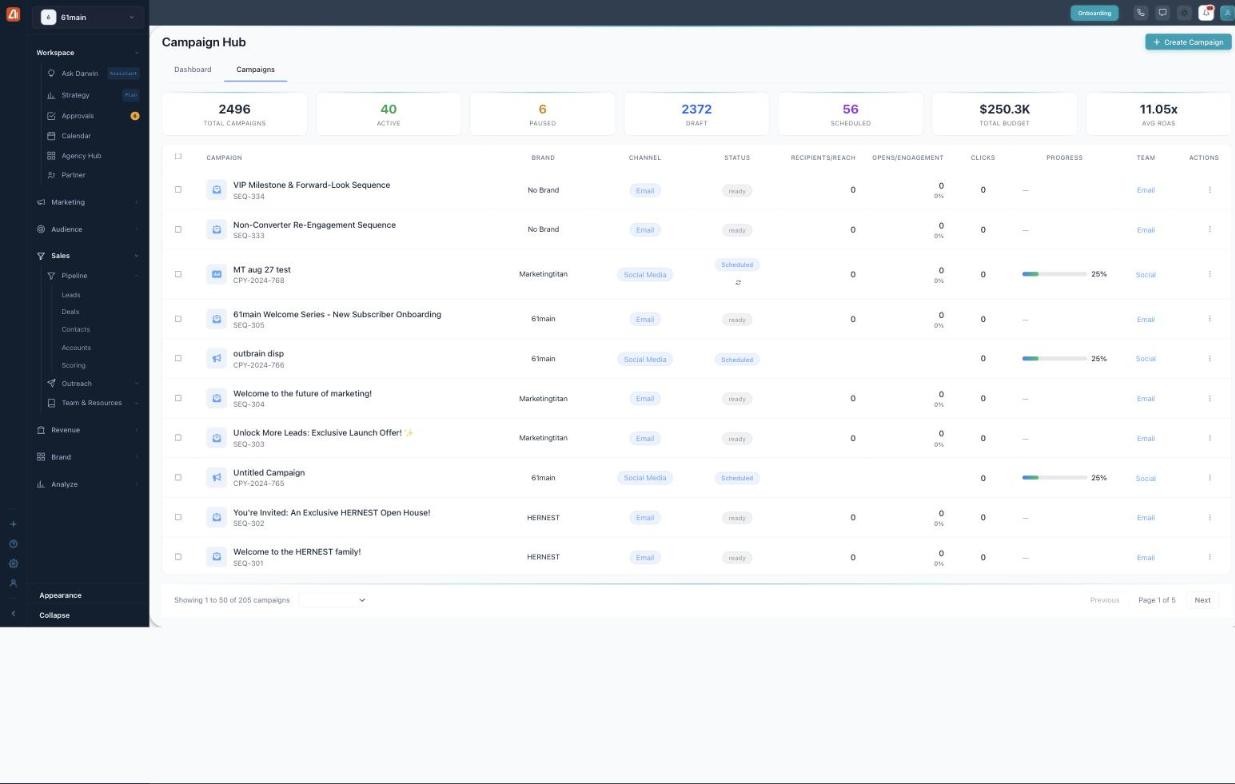
The Campaigns tab — the same campaigns as a sortable list with budget and ROAS.
At the top are summary cards: Total Campaigns, Active, Paused, Draft, Scheduled, plus Total Budget and Avg ROAS (blended return on ad spend).
The table columns mean:
| Column | What it shows |
|---|---|
| Campaign | The name plus a code, like CPY-2024-766 or SEQ-305. |
| Brand | Which brand the campaign belongs to. |
| Channel | Where it runs — Email or Social Media. |
| Status | ready, Scheduled, or Failed. |
| Recipients/Reach | How many people it went to or could reach. |
| Opens/Engagement | Opens for email, engagement for social. |
| Clicks | How many people clicked. |
| Progress | How far along the campaign is, as a percent. |
| Team | The team tag — Email or Social. |
| Actions | Open, edit, or manage the campaign. |
A footer at the bottom shows “Showing 1 to 21 of 21 campaigns” with paging, so you always know where you are in a long list.
Dashboard vs. Campaigns view
Both tabs show the same campaigns — they just help with different jobs.
| Use the… | When you want to… |
|---|---|
| Dashboard (card view) | Scan everything quickly, see status and progress at a glance, and ask AI to find campaigns. |
| Campaigns (list view) | Sort the table, compare budget and ROAS, and act on many campaigns in bulk. |
If you’re just checking in, start on the Dashboard. When you need to compare numbers or clean up a backlog of drafts, switch to the Campaigns list and sort by the column you care about.
Statuses & types
Here’s what the labels mean so nothing is a mystery.
| Status | Meaning |
|---|---|
| ready | Built and good to go. |
| Scheduled | Set to send or start at a future time. |
| Failed | Something went wrong — open it to see why. |
| Draft | Still being built; not sent yet. |
| Active | Running right now. |
| Paused | Stopped for now; you can resume it. |
| Type / channel | What it is |
|---|---|
| A one-time or series email campaign. | |
| Social | Posts and ads on social platforms. |
| Search | Search ads (Search_Ad). |
| Display | Display banner ads (Display_Ad). |
| Sequence | A multi-step flow that runs one step at a time. |
How Darwin helps here
Darwin is your AI marketing assistant, built into the Campaign Hub. Use the Ask AI bar to find campaigns in plain English — try “show all active campaigns” or “find draft campaigns” and Darwin pulls them up for you. Beyond search, Darwin helps you build, schedule, and track campaigns from start to finish, and it runs your sequences step by step so each message goes out at the right time.
What’s next
- Back to the Campaign Center overview.
- See Dashboard tab.