
The Dashboard is the visual card view of your campaigns — scan them at a glance and jump into any one.
Where to find it: Left menu → Workspace → Campaign Center → Dashboard. Part of the Campaign Center guide.
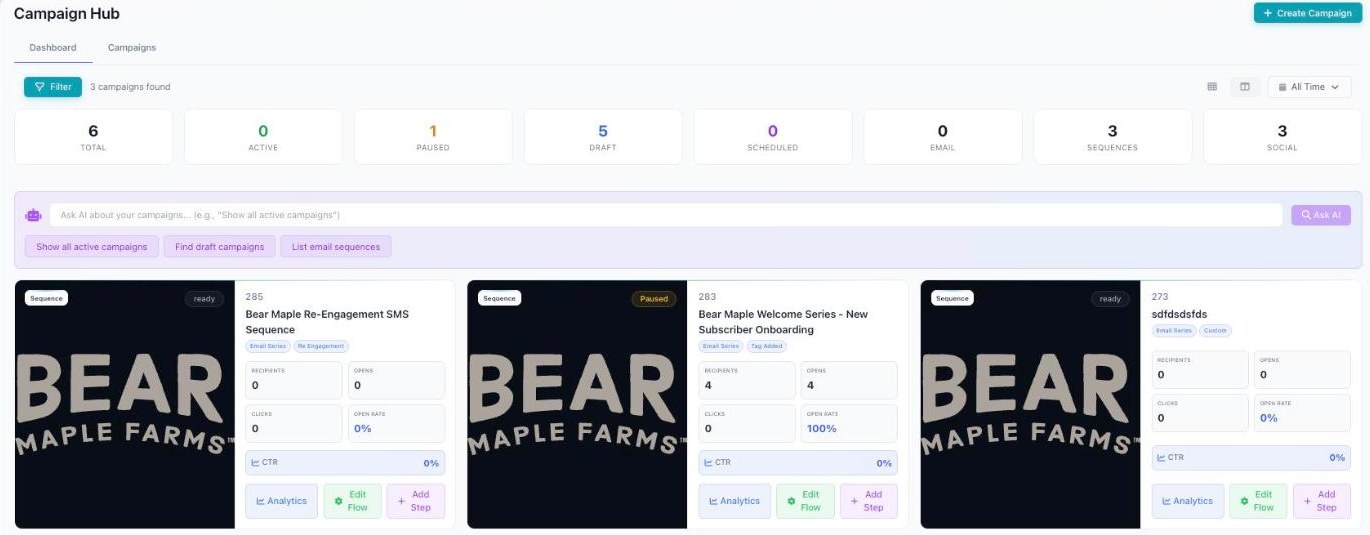
The Dashboard — stat tiles, Ask AI, and a card per campaign.
Dashboard: the card view
The Dashboard tab is the visual, at-a-glance view. Each campaign shows up as a card, so you can scan status and health quickly without reading a table.
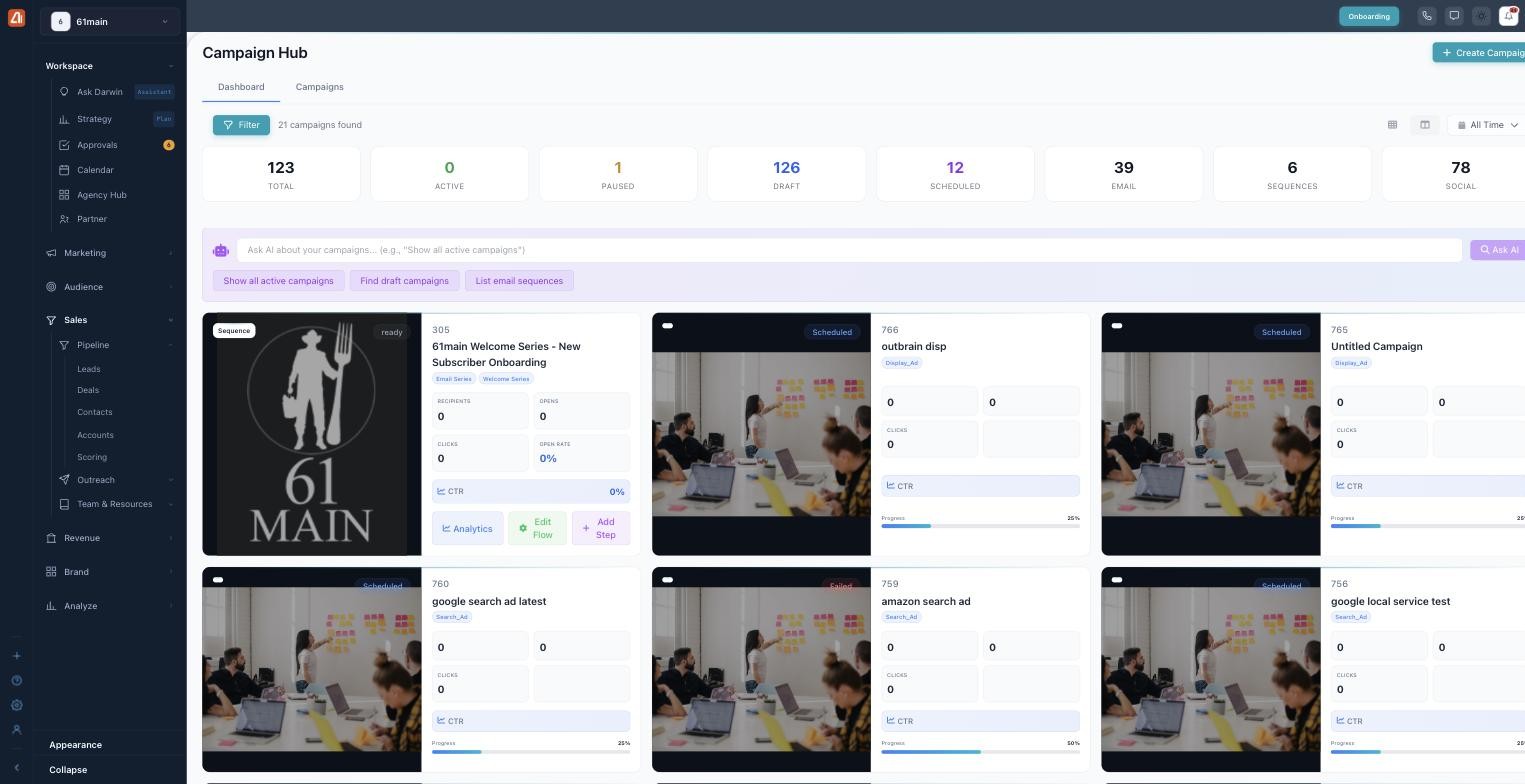
The Dashboard — every campaign as a card, with Ask AI up top.
Across the top you’ll find summary tiles that total up your campaigns at a glance:
- Total 123 — every campaign in the account.
- Active 0 — campaigns running right now.
- Paused 1 — campaigns you’ve stopped for now.
- Draft 126 — campaigns still being built.
- Scheduled 12 — set to send or start at a future time.
- Email 39, Sequences 6, Social 78 — totals by channel.
Just below the tiles is the Ask AI bar (“Ask AI about your campaigns…”). Type a plain-English question and Darwin answers. To get you started, there are quick chips you can tap: Show all active campaigns, Find draft campaigns, and List email sequences.
You also get a Filter toggle, a live count (“21 campaigns found”), a grid/list toggle, and an All Time date filter so you can narrow the view to a window that matters to you.
Each campaign card shows:
- An id and a status badge (Scheduled, Failed, or ready).
- The campaign name and a type tag (Email Series, Display_Ad, Search_Ad, and more).
- Key metrics — Recipients, Opens, Clicks, Open Rate, and CTR.
- A Progress bar so you can see how far along it is.
- Quick actions — Analytics, Edit Flow, and (for sequences) Add Step.
What’s next
- Back to the Campaign Center overview.
- See Campaigns tab.