
A List is a named group of contacts — the people you send a campaign to. The Lists board is where you build and manage those groups, separate from your full contact database.
Where to find it: Left menu → Audience → Contacts, then the Lists tab. Part of the Contacts guide.
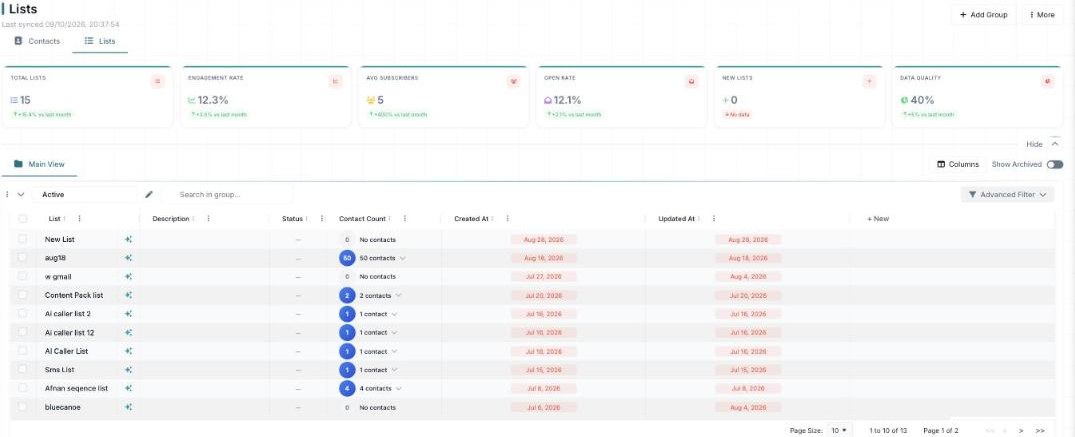
The Lists board — your mailing groups, each with a contact count and health.
Lists vs. contacts
Your Contacts tab holds everyone. The Lists tab holds groups you’ve made from those contacts — “AI caller list,” “Content Pack list,” a newsletter audience, and so on. You send campaigns to a list, not to your whole database.
The numbers at the top
Stat cards summarize your lists at a glance:
- Total Lists — how many groups you have.
- Engagement Rate — how active your list members are.
- Avg Subscribers — the typical list size.
- Open Rate — how often list members open your email.
- New Lists — lists added recently.
- Data Quality — how clean and complete your list data is.
The lists table
Each row is a list, showing its name, description, status, contact count, and when it was created and updated. Use Add Group to create a new list, the search box to find one, Advanced Filter and Columns to shape the view, and Show Archived to include retired lists.
Why lists matter
Clean, well-named lists are what make a campaign land with the right people. Group by interest, source, or lifecycle stage, and each campaign can target exactly the audience it’s written for.
What’s next
- Back to the Contacts guide.
- Target a list in your email campaigns.