
An email campaign is a single send to a list — here’s how to build and send one, the express way or with full control.
Where to find it: Left menu → Marketing → Campaigns. Part of the Email Marketing guide.
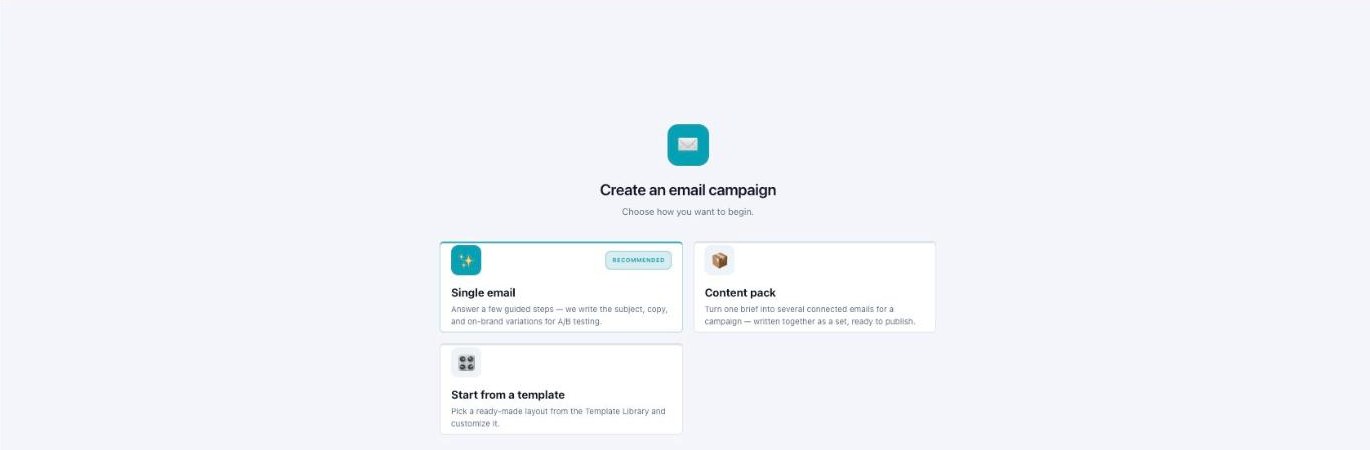
Create an email campaign — a single email, a content pack, or a template.
Send a one-time email (Email Campaign)
An Email Campaign starts in the AI Email Builder. You’ll see a simple prompt: “Describe what you want to create and I’ll build it.” Type your idea, or tap a type to get going faster.
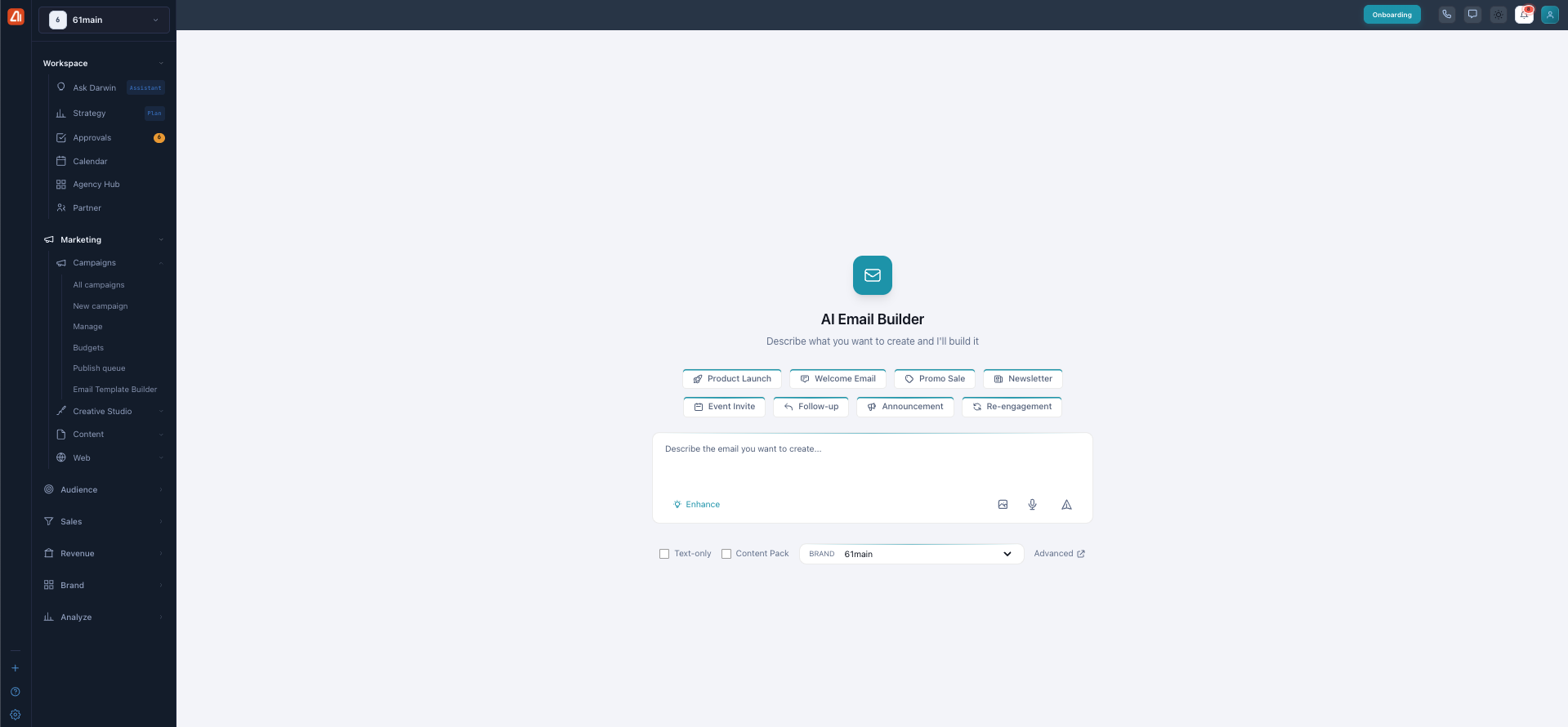
The AI Email Builder — describe your email, or tap a type to start.
The quick types are Product Launch, Welcome Email, Promo Sale, Newsletter, Event Invite, Follow-up, Announcement, and Re-engagement — or just type your own. You can also pick a Text-only option to skip images, choose a Content Pack, select your Brand, or open the Advanced path.
Express mode
Express is the fast way. You describe your email and watch a live preview update on the left as Darwin works. You choose how the creative is built — AI Create (the default, where the AI designs the whole creative) or Choose a template (browse ready-made layouts). Then pick your Brand and Audience (a persona), optionally add products and images, and hit Generate Email.
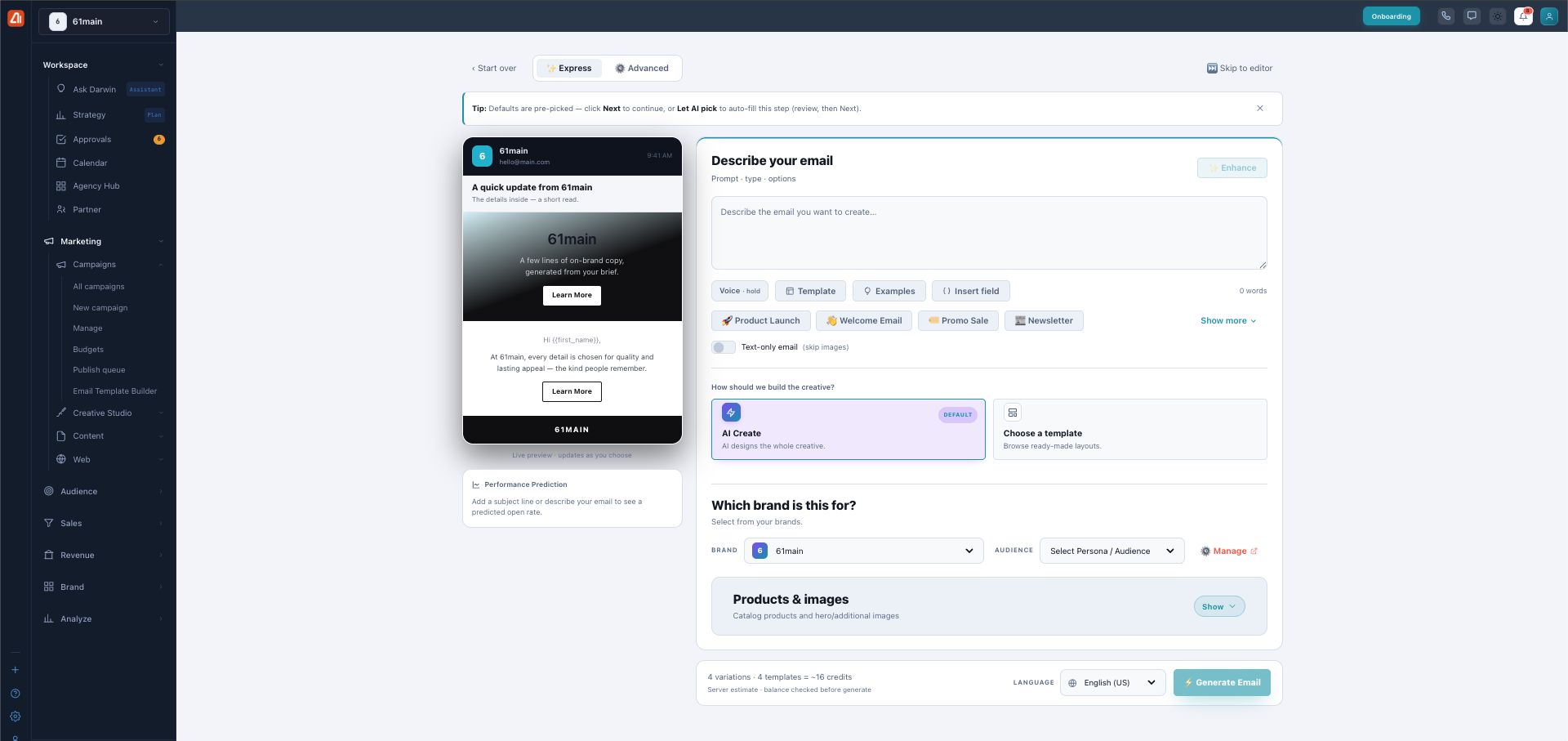
Express mode — a live preview plus AI Create or a template, brand, and audience.
A typical run makes 4 variations and costs about 16 credits. Once you add a subject line, a Performance Prediction shows a predicted open rate so you know how your email might do before you send.
Advanced mode
Advanced gives you a guided path with clear steps: Brand → Subject → Content → CTA. On the last step, Call to action & output, you set the button text and destination URL (and can add a second button). You also pick an output mode: 4 variations for A/B testing, or Per product for product showcases. Then Generate Email.
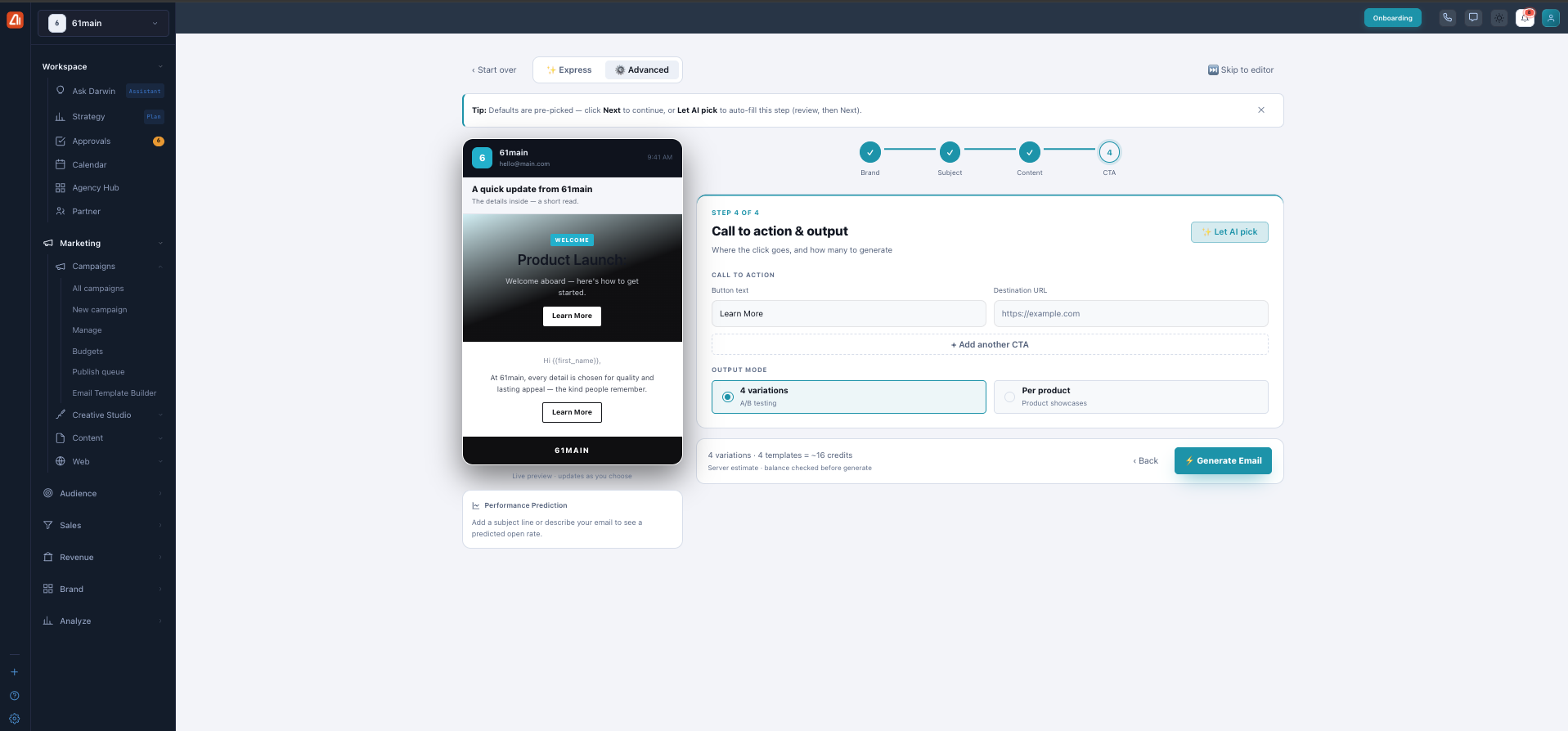
Advanced mode — set your button and choose an output mode on the final step.
Want the full walkthrough? See the Create Email Campaigns guide.
What’s next
- Back to the Email Marketing overview.
- See Sequences.
- See Template Builder.
- See Track Results & Tips.