
/creative-studio-v2
Overview
The Downloads tab in Creative Studio is your central hub for accessing all completed creations and downloaded assets. Every image you generate, design you create, or asset you download from the platform is automatically saved here for easy access and reuse.
Step 1: Navigate to Downloads
From the sidebar, click Creative Studio, then select the Downloads tab at the top of the page. Your most recent downloads appear first, making it easy to find recently created content.
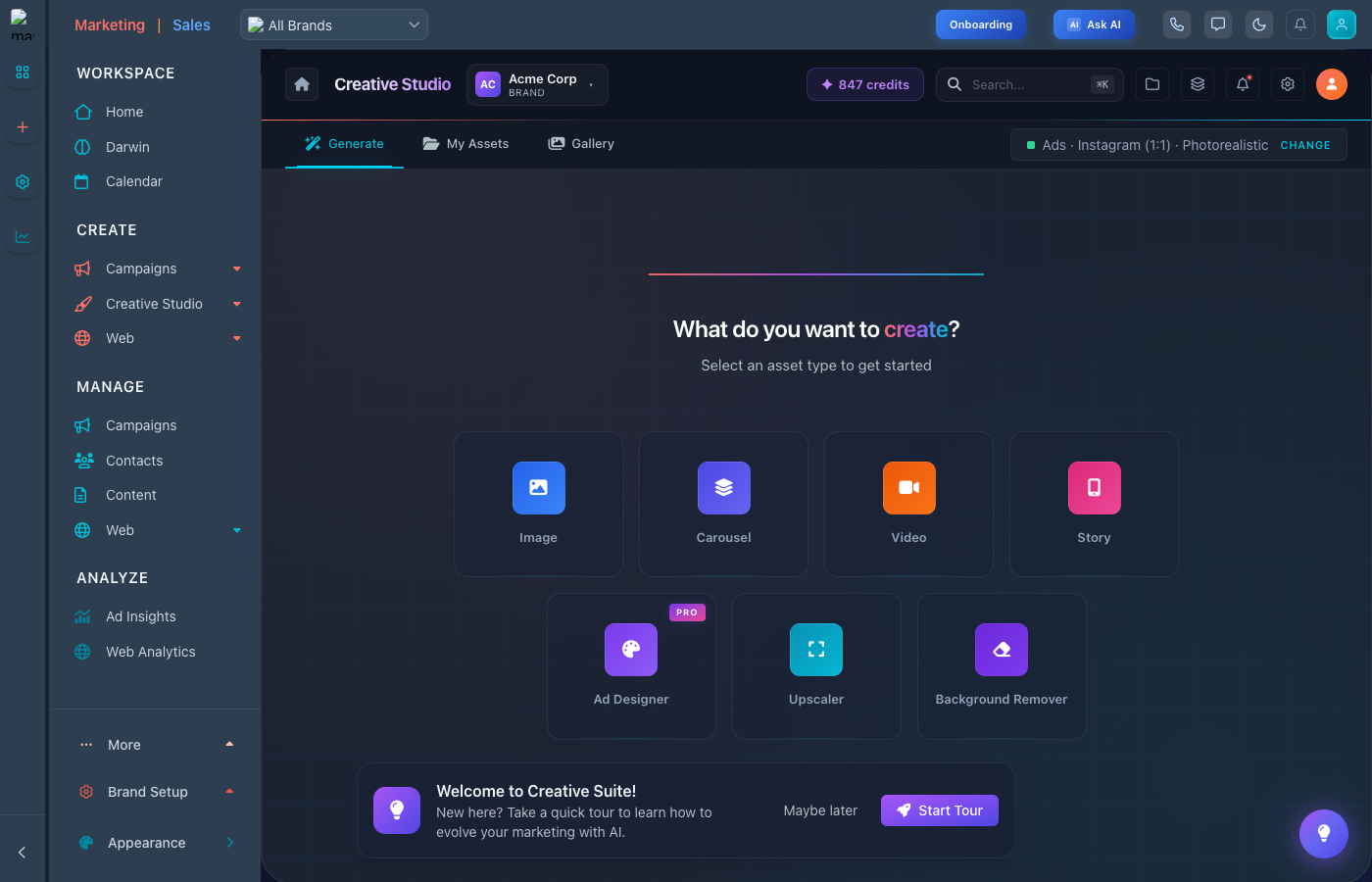
The Downloads tab showing your saved creations and assets
Step 2: Browse Your Downloads
Your downloads are organized in a visual grid layout:
- Thumbnail previews - See quick previews of each asset
- File type badges - Identify PNG, JPG, SVG, and other formats
- Creation date - Sort by when assets were downloaded
- Quick actions - Download, share, or delete with one click
Step 3: Search and Filter
Use the search bar to find specific downloads by name. Filter options let you narrow results by:
- File type - Images, videos, or documents
- Date range - Today, this week, this month, or custom
- Project - Filter by the project or campaign they belong to
Step 4: Manage Your Downloads
Click any download to open detailed options:
- Re-download - Download the file again to your device
- Copy link - Get a shareable link for the asset
- Use in design - Open directly in Design Canvas
- Move to folder - Organize into custom folders
- Delete - Remove from your downloads
Tips for Downloads
- Create folders - Organize downloads by campaign or project for easier access
- Star favorites - Mark frequently used assets for quick access
- Bulk select - Hold Shift to select multiple items for batch operations
- Check file sizes - Hover to see dimensions and file size before downloading