
Content is your workspace’s asset library — one private, searchable place to keep and reuse every image, video, and document your marketing uses, plus tabs for Templates and Experiences. Think of it as the shelf everything else pulls from.
Where to find it: Left menu → Marketing → Content → Library (the page is titled Content).
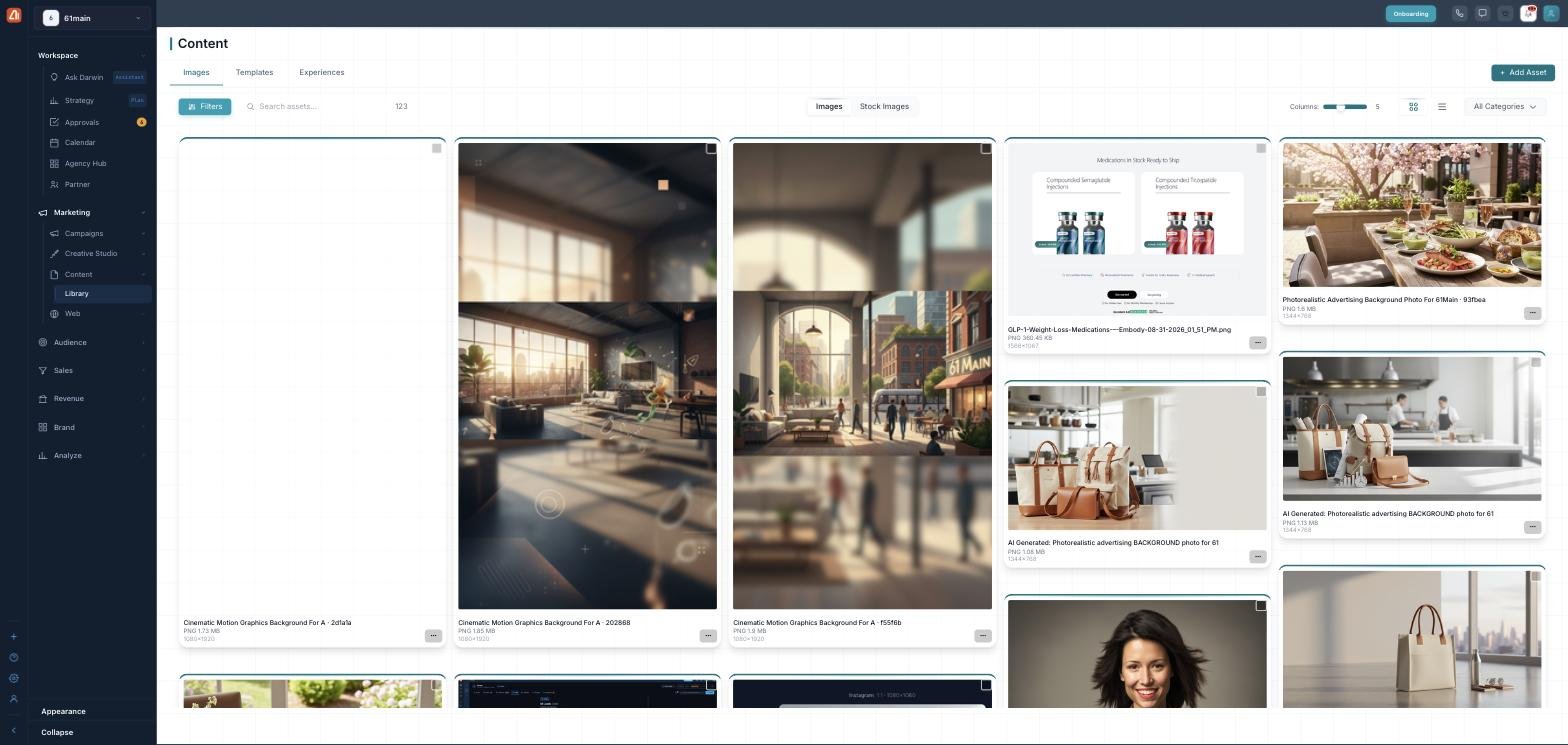
The Content library — every image, video, and document, searchable in one place.
The three tabs
| Tab | What’s in it |
|---|---|
| Images | Your uploaded and AI-made images, videos, and documents (this page). |
| Templates | Ready-made email, ad, and social templates. |
| Experiences | A gallery of finished creatives across channels. |
The Images library
The Images tab is a grid of your assets, each with a thumbnail, name, and file type/size (videos show a play icon, PDFs a document thumbnail). Switch between Images (yours) and Stock Images (royalty-free photos from Unsplash), change how many Columns show, flip between grid and list, and search by name.
Finding things
Open Filters for a side panel, or use the All Categories dropdown. The filters:
| Filter | Options |
|---|---|
| Category | All Categories, plus the categories set up for your workspace. |
| File Format | Image, Video, Audio, Document, or Text / Copy. |
| Date Created | Today, Last 7 Days, Last 30 Days, or a Custom Range. |
| Brand & Campaign | Narrow to a specific brand or campaign. |
| Uploaded By, Tags, Colors | Filter by who added it, its tags, or its colors. |
What you can do with an asset
Hover an asset for quick actions — View details, Edit image (opens the Image Editor, for images), Download, and Copy URL. You can rename an asset in place, and its ⋮ menu covers View and Delete. Tick several assets to Download all or Delete them together.
Open View details for the full panel: edit the name and description, run Smart Tags (Analyze with AI adds attributes, objects, colors, and style so search finds it), see its marketing context (campaign, brand, personas), and — for AI images — the prompt that made it.
Approvals
Assets carry an approval status so nothing off-brand slips through. From an asset you can Submit for Review; a reviewer then Approves it or Rejects it with a reason, and you can fix and resubmit.
Learn each part
| Topic | What it covers | Guide |
|---|---|---|
| Adding assets | Upload your own images, videos, and documents. | Open → |
| Editing & enhancing | Crop, remove backgrounds, and upscale in the Image Editor. | Open → |
| Templates | Browse, use, and generate templates. | Open → |
| Experiences | The gallery of finished creatives across channels. | Open → |
Everything is private and safe
Your files live on secure (SOC-2) storage and are only ever served through short-lived, private links — never a public URL. Approvals keep off-brand assets out of live work.
What’s next
- Add your own assets.
- Edit & enhance an image.
- Start from a template.
- Browse your experiences.