
Your deals live on a board with two views: a detailed table and a visual Kanban of pipeline stages. Switch with the Main and Kanban tabs.
Where to find it: Left menu → Sales → Pipeline → Deals → Main / Kanban. Part of the Deals guide.
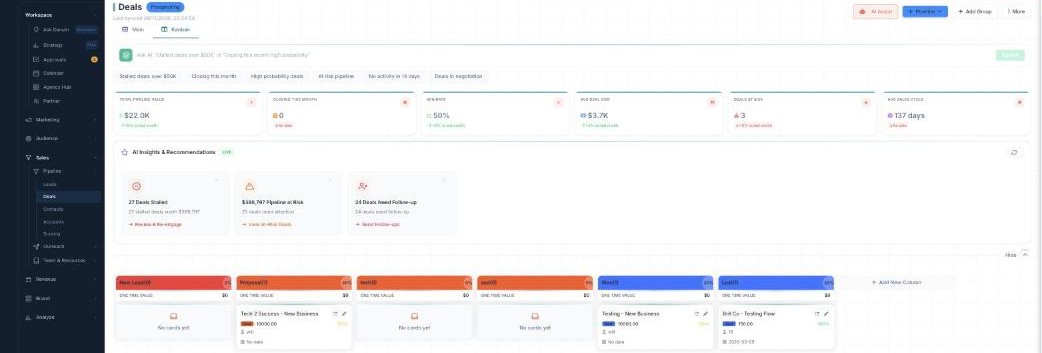
Two views of your pipeline — a value table, or a Kanban you drag.
The table (Main)
The Main view is a spreadsheet-style grid built for deals: columns like Deal, Deal Health, Deal $ (value), AI Win %, Pipeline, Stage, AI Next Action, Velocity, Owner, and Deal Length. Click a cell to edit in place, choose which columns show with Columns (or Show Archived), and add a deal with Add Deal.
Quick filters
Each group has deal-specific quick filters — Win Prob 70%+, At Risk, and Accelerating — plus All / Last 7 Days and a Search in group box.
Doing things in bulk
Tick several deals to open the action bar: Bulk Tags, Change Status, Bulk Email, Bulk SMS, Duplicate, Move to another stage, Enrich Data, Archive, or Delete.
The Kanban
The Kanban view is your pipeline as a board. Pick a pipeline at the top (for example Prospecting); its stages become the columns (New Lead, Proposal, Won, Lost, and so on), each with a deal count and total value. Every card shows the deal’s value and AI win %. Drag a card to the next stage as it progresses; empty stages read “No cards yet.”
What’s next
- Back to the Deals overview.
- See Pipelines & Advanced Filter.
- See AI win scoring, insights & follow-ups.