
Find the right experience fast by filtering on channel and time, and learn what each tag and status is telling you.
Where to find it: Left menu → Content → Experiences. Part of the Experiences guide.
Find the right experience
With lots of creatives, the controls at the top help you zero in fast. Open the All Channels filter to focus on one channel, or use the date filter to look at a time window.
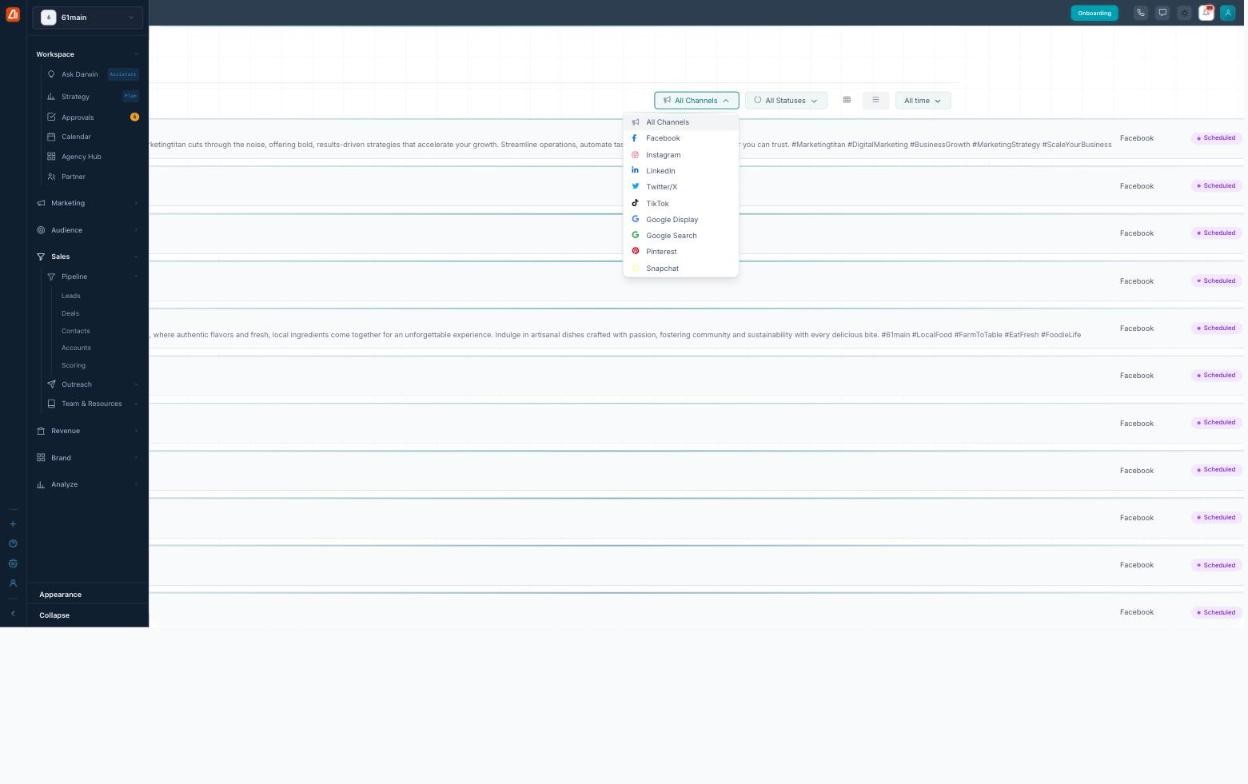
Filter by the channel you care about.
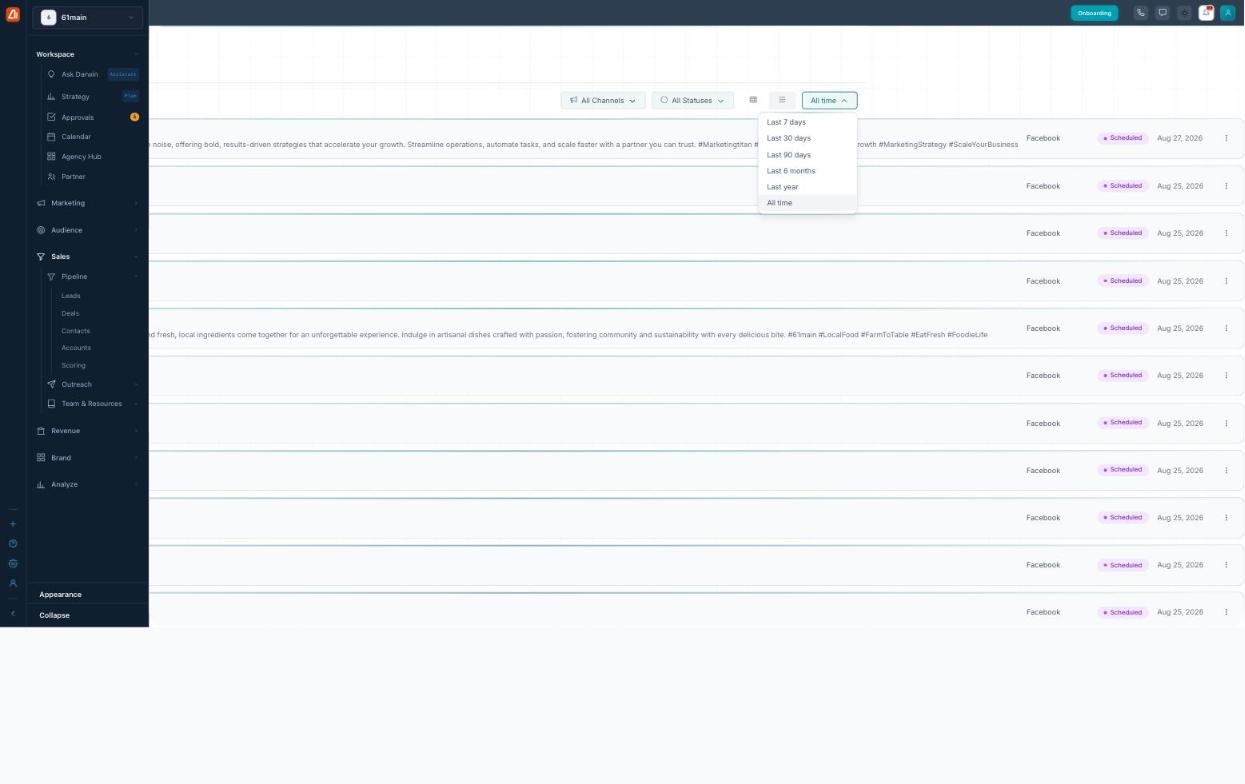
Narrow to a time window.
| Control | What it does |
|---|---|
| Filter toggle | Turns the filter controls on, with a live count (“177 experiences”) of what matches. |
| All Channels | Pick a channel: All Channels, Facebook, Instagram, LinkedIn, Twitter/X, TikTok, Google Display, Google Search, Pinterest, or Snapchat. |
| All Statuses | Narrow to creatives with a certain status, like Scheduled. |
| Columns slider | Set how many cards fit in a row, so you can go denser or larger. |
| Grid / list toggle | Switch between card view and list view. |
| Date range | Choose Last 7 days, Last 30 days, Last 90 days, Last 6 months, Last year, or All time. |
What the tags & statuses mean
Two things tell you a lot about each experience: where it came from (the source tag) and where it stands (the status).
| Tag or status | What it means |
|---|---|
| Creative Studio (source) | You built this creative yourself. |
| AI Generated (source) | Darwin built this creative for you. |
| Scheduled (status) | The creative is set to go out at a planned time. |
How Darwin builds your experiences
Darwin does the heavy lifting. It generates on-brand creatives and copy tailored to each channel — the right size, tone, and message for Facebook, Instagram, LinkedIn, and more. Every one lands here as an experience. Your job is the easy part: review them, filter to what you need, and put them to use.
What’s next
- Back to the Experiences overview.
- See Card & List Views.