
See your creatives the way that suits the task — a visual card view for browsing, or a compact list for scanning.
Where to find it: Left menu → Content → Experiences. Part of the Experiences guide.
Card view vs. list view
You can look at your experiences two ways. Card view shows large image thumbnails with the title, channel, status, and source tag — great for seeing the visuals. List view shows compact rows with the title and the actual ad copy, so you can read the words fast.
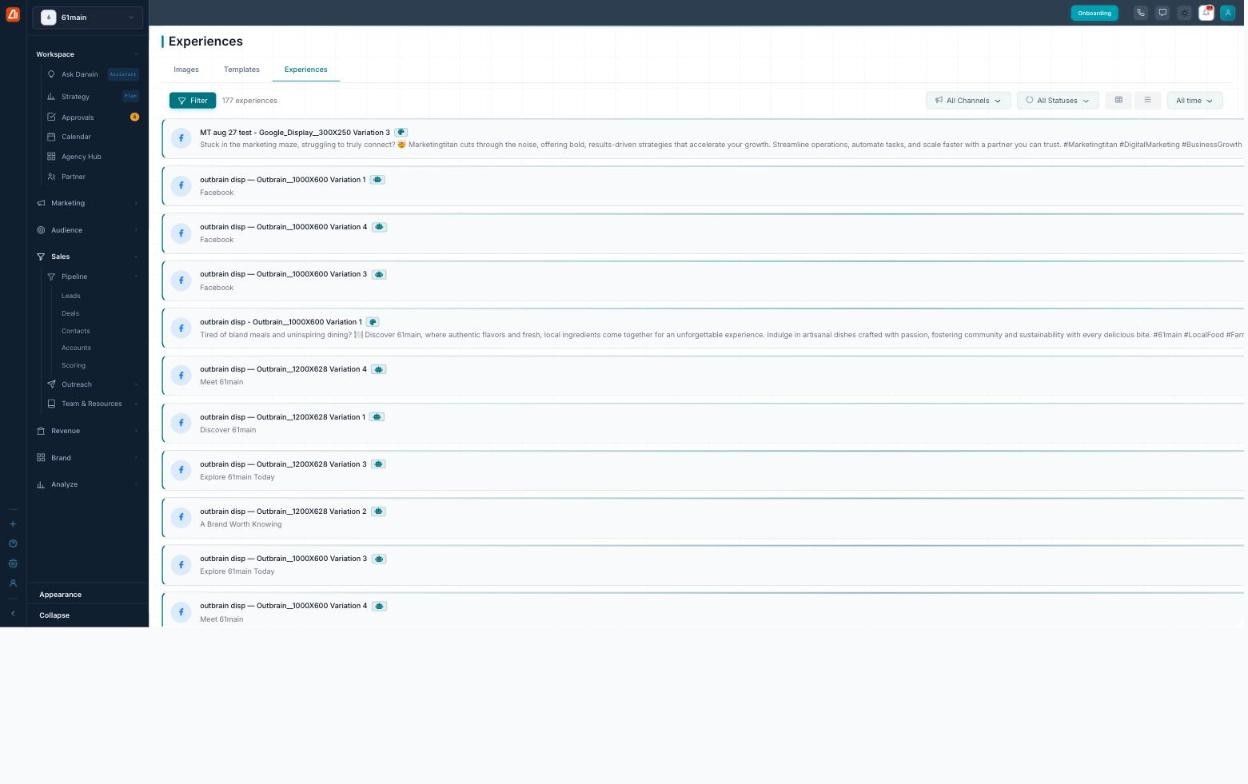
Switch to list view to scan the actual ad copy.
Use card view when you want to judge the look of a creative. Switch to list view when you want to read and compare the copy across many experiences at once.
What’s next
- Back to the Experiences overview.
- See Finding & Filters.