
Connecting a tool takes a couple of clicks. Here’s how it works, and what you can do with the ones you’ve already linked.
Where to find it: Left menu → Settings → Integrations. Part of the Integrations guide.
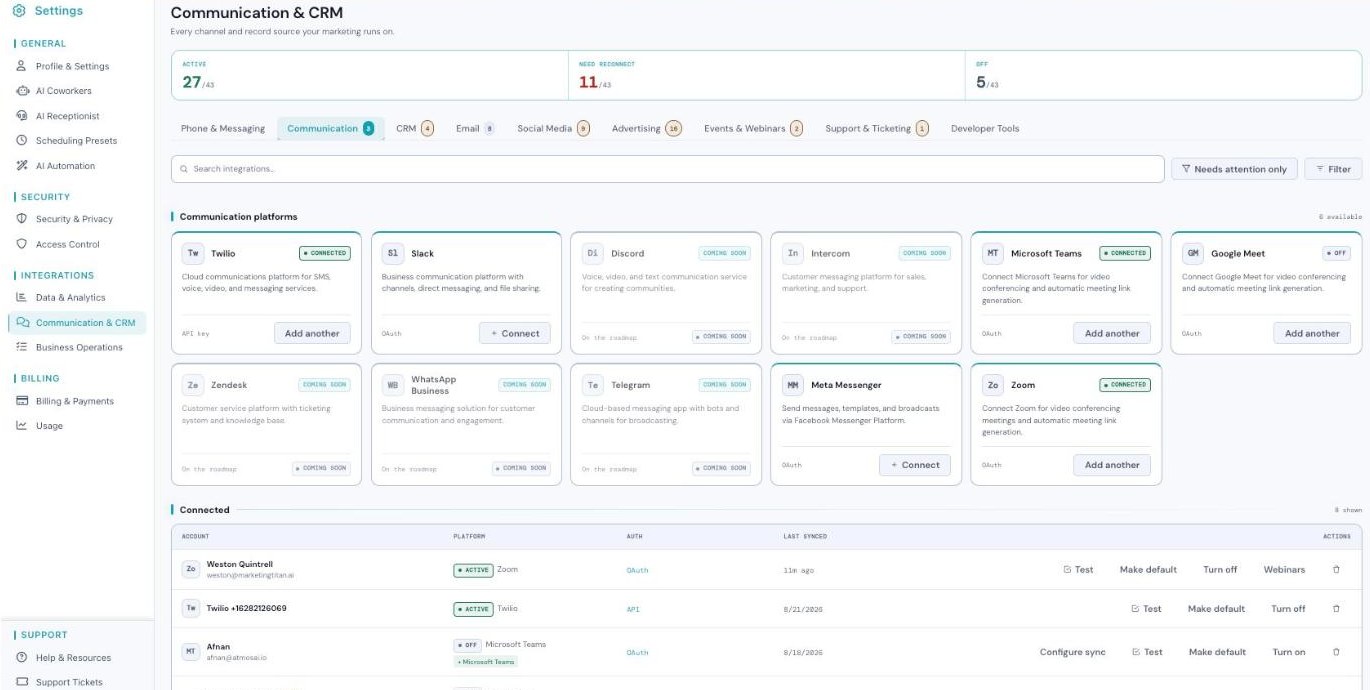
The Integrations screen — each connection shows its status so you can spot what needs a fix.
How connecting works
Every tool connects in one of two ways. Which one it uses depends on the provider, and the card tells you which before you start.
| Connection type | What it means |
|---|---|
| OAuth | Sign in with the provider. You’re taken to their login page, you approve access, and you’re brought back — no password stored here. |
| API key | Paste a key you copy from the provider’s settings. Best for services that don’t offer a sign-in flow. |
Every tool appears as a card with its icon and name, a status badge, a one-line description, the connection type in the bottom-left, and an action button in the bottom-right.
To connect a tool for the first time:
- Open the group and category tab for the tool you want.
- Find its card and check the connection type in the bottom-left.
- Click + Connect in the bottom-right.
- For OAuth, sign in with the provider and approve access. For API key, paste your key and save.
- The badge turns to Connected and the tool appears in the Connected list below.
Already connected and want a second account on the same platform? The button reads Add another instead of + Connect. Click it and connect the extra account the same way.
Connect your CRM and email first — they feed Darwin the records and the sending channel it needs most. Everything else builds on top.
Status badges
The badge on each card (and in the Connected list) tells you where a connection stands.
| Badge | What it means |
|---|---|
| Connected / Active (green) | Working. Darwin can use it right now. |
| Needs attention / Expired (orange or red) | The connection stopped. Reconnect it to get it working again. |
| Coming soon | On the roadmap, not available to connect yet. |
| Unavailable | Not open on your plan or in your region yet. |
The action button matches the badge: + Connect to connect for the first time, Add another when you’re already connected, or a grayed-out Coming soon / Unavailable when you can’t connect yet.
The Connected list & what you can do
Below the cards sits the Connected list — a table of everything you’ve linked. It has these columns:
- Account — the specific account you connected (for example, the email address or handle).
- Platform — the tool it belongs to, with an Active or Expired badge.
- Auth — how it’s connected (OAuth or API key).
- Last synced — the last time data flowed in or out.
- Actions — the buttons below.
Each row gives you these actions:
| Action | What it does |
|---|---|
| Test | Check the connection is working. |
| Reconnect | Fix an expired or needs-attention connection by signing in again. |
| Configure sync | Choose what data flows in and out. Shown on email and CRM connections. |
| Webhook config | Set up webhooks so a connected store or tool can send events to Marketing Titan. Shown on commerce connections. |
| Make default | When you have several accounts on one platform, pick the one to use by default. |
| Turn off | Pause a connection without deleting it. |
| Remove (trash icon) | Delete the connection entirely. |
What’s next
- Back to the Integrations overview.
- See What You Can Connect.
- See Fixing a Connection.