
Integrations are how you connect the outside tools your marketing already runs on — your CRM, your email service, your social accounts, your ad platforms, and more. The Integrations hub is one place to link them all and see, at a glance, what’s working and what needs attention.
Here’s the best part: you connect a tool once, and Darwin uses it everywhere. Darwin is the AI at the heart of Marketing Titan. Once a tool is connected, Darwin can pull records from your CRM, send email through your provider, publish to your social accounts, run ads across every network, and keep it all in sync — automatically. You connect. Darwin does the rest.
To find it, open the left menu → Settings → Integrations. There are three integration groups — Communication & CRM, Data & Analytics, and Business Operations — and all three work exactly the same way. Start in Communication & CRM.
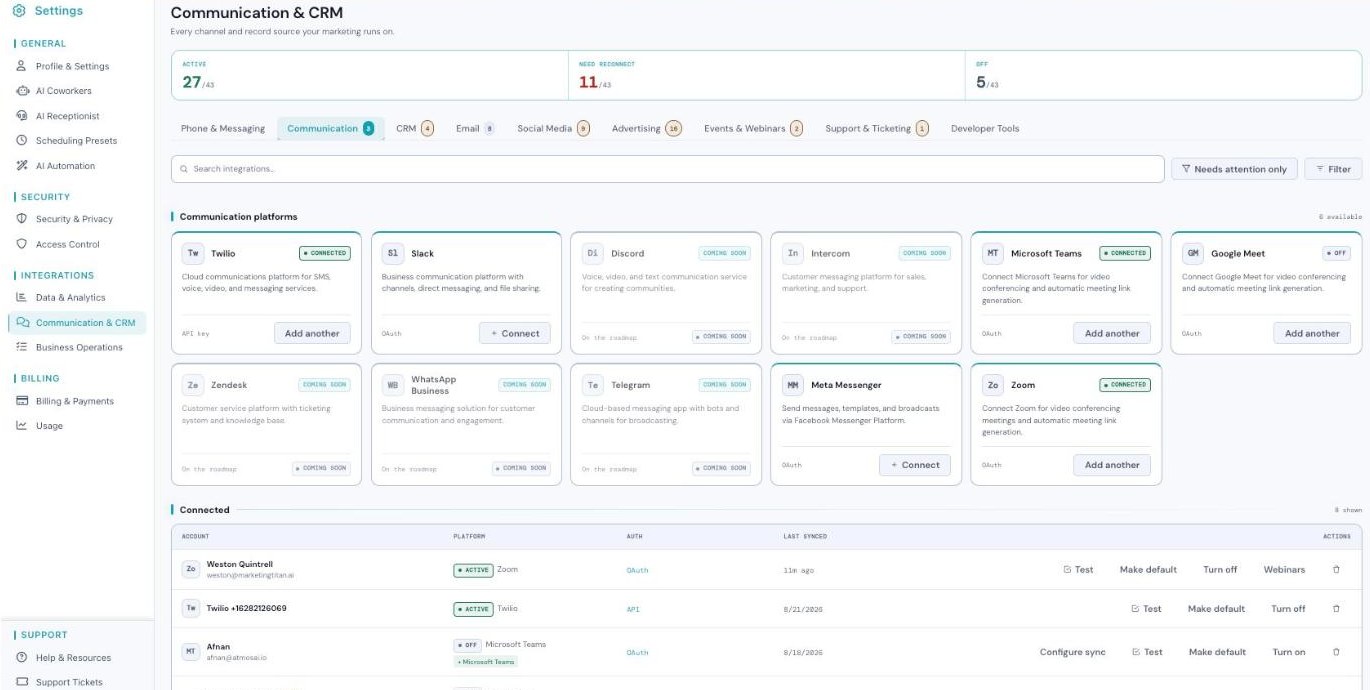
An integrations hub — category tabs up top, platform cards you connect, and a connected list.
Your integrations at a glance
Each group opens a page with the same simple layout. At the top you’ll see the page title — for example, “Communication & CRM — Every channel and record source your marketing runs on” — and three summary cards that tell you the health of your connections in one look.
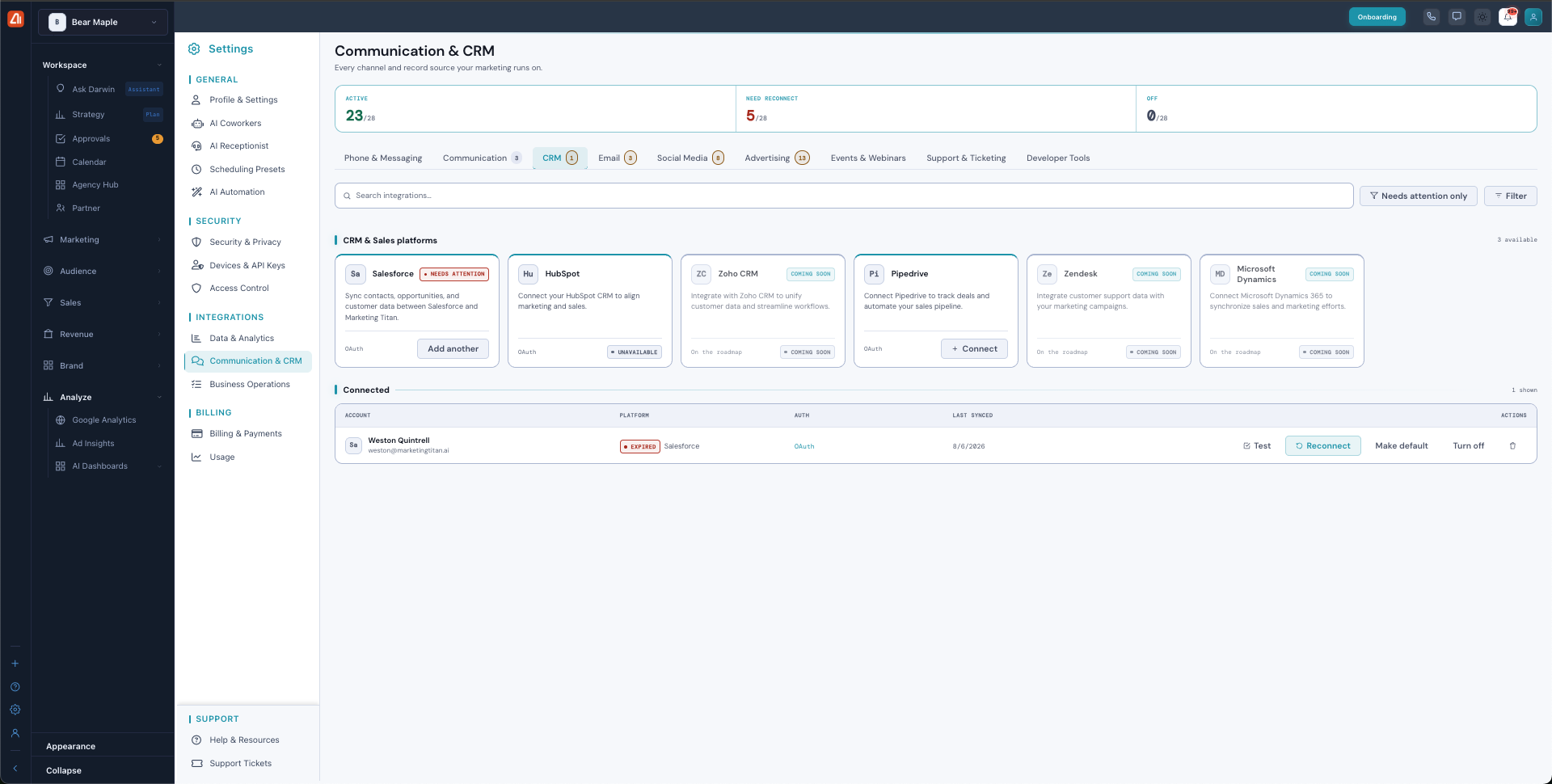
The Integrations page. Notice the three summary cards up top, the category tabs with count badges across the middle, and the Connected list at the bottom.
The three summary cards are:
- Active (for example, 23/28) — connections working right now.
- Need reconnect (for example, 5/28) — connections that stopped and need your attention.
- Off (for example, 0/28) — connections you turned off on purpose.
Below the cards, category tabs run across the page. Each tab has a small number badge showing how many tools you have connected there. The tabs are: Phone & Messaging, Communication, CRM, Email, Social Media, Advertising, Events & Webinars, Support & Ticketing, and Developer Tools.
To help you find things fast, there are three controls: a Search integrations box, a Needs attention only toggle that hides everything except the connections that need fixing, and a Filter button.
The sections — each has its own guide
Integrations is organized into the areas below. Open any one for the full, detailed walkthrough.
| Section | What it covers | Guide |
|---|---|---|
| How Connecting Works | Connect an integration and manage the ones you've linked. | Open guide → |
| What You Can Connect | Every category of tool you can link — CRM, email, social, ads, and more. | Open guide → |
| Fixing a Connection | What to do when a connection needs attention. | Open guide → |
Common questions
What’s the difference between OAuth and API key?
OAuth means you sign in with the provider and approve access — no password is stored here. API key means you paste a key you copy from the provider’s settings. The card tells you which one a tool uses.
Why does a connection say “Needs attention” or “Expired”?
Providers expire sign-ins over time for security. It doesn’t mean anything is broken — just click Reconnect and sign in again.
Can I connect more than one account on the same platform?
Yes. Once you’re connected, the button changes to Add another. Click it to connect a second account on the same platform.
What does “Make default” do?
When you have several accounts on one platform, Make default picks the one Darwin uses by default. Find it in the row actions of the Connected list.
A tool shows “Coming soon” — can I use it?
Not yet. Coming soon means it’s on the roadmap but not available to connect. Its button stays grayed out until it’s ready.
Does turning a connection off delete my data?
No. Turn off just pauses the connection without deleting it. To delete it entirely, use Remove (the trash icon) instead.
How do I test a connection?
In the Connected list, click Test in the row’s actions. Marketing Titan checks the connection and confirms it’s working.
Where do webhooks and the API live?
Under the Developer Tools tab. There you’ll find Webhooks, the REST API, and Zapier (coming soon) for custom, code-level integrations. On a connected store, you can also use the Webhook config action in the Connected list to set up webhooks for that store.
Having trouble? If a connection expired, click Reconnect and sign in again. If you can’t find a platform, try the Search integrations box or check another integration group (Data & Analytics or Business Operations). If a card is grayed out, it’s Coming soon or Unavailable on your plan or region — you can’t connect it yet. And if a Test fails, click Reconnect to fix it.
What’s next
- Open the How Connecting Works guide.
- Open the What You Can Connect guide.
- Open the Fixing a Connection guide.