
If a connection shows a warning, it’s usually a quick fix — here’s how to get it healthy again.
Where to find it: Left menu → Settings → Integrations. Part of the Integrations guide.
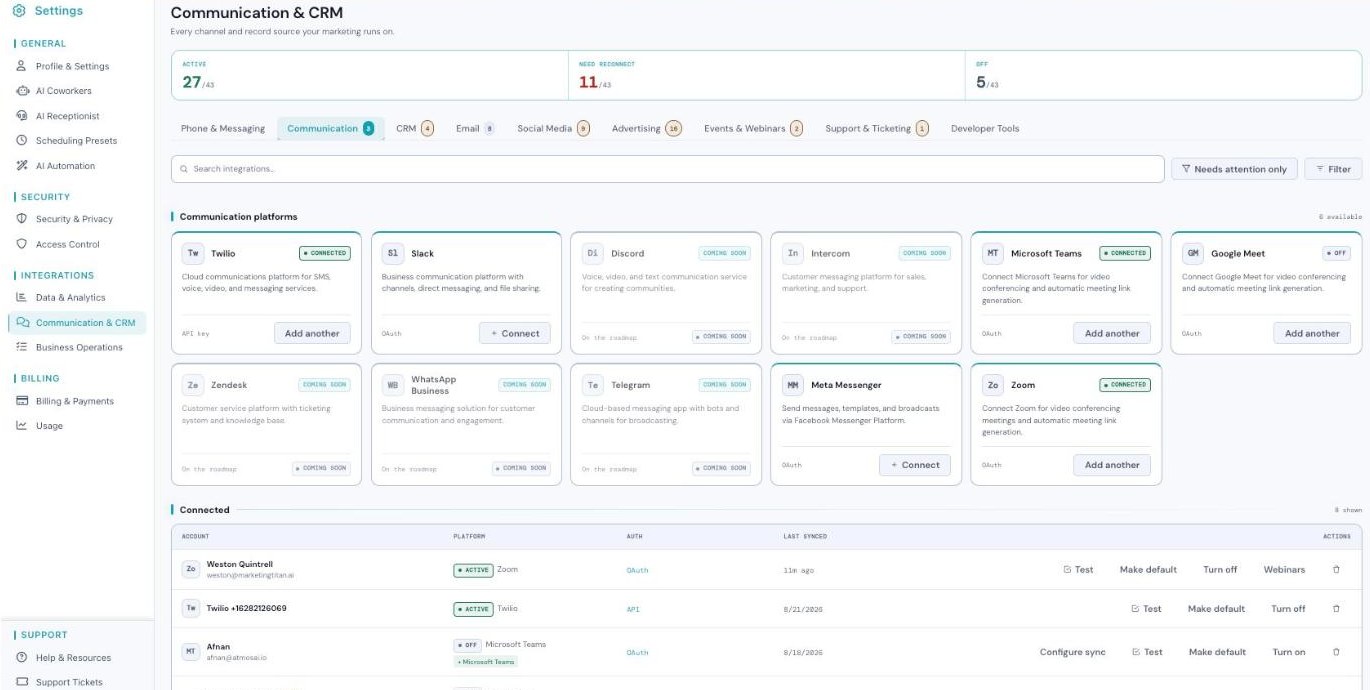
The Integrations screen — each connection shows its status so you can spot what needs a fix.
Fixing a connection that needs attention
Connections don’t last forever. Providers expire sign-ins for security, so from time to time a connection will show a Needs attention or Expired badge. That’s normal, and it’s a quick fix.
- Turn on the Needs attention only toggle to find the connections that need fixing fast.
- On the tool that stopped, click Reconnect and sign in again.
- Click Test to confirm it’s working. The badge turns back to Active.
Connections expire over time — it doesn’t mean anything is broken. A quick re-sign-in through Reconnect gets Darwin back to work in seconds.
How Darwin uses your integrations
Every tool you connect becomes something Darwin can use. Your CRM and email become record sources, so Darwin knows your contacts and deals. Your email, social, and ad accounts become channels, so Darwin can send, publish, and run campaigns. And everything stays in sync automatically in the background. You connect the tools once — Darwin does the rest, everywhere it works for you.
What’s next
- Back to the Integrations overview.
- See How Connecting Works.
- See What You Can Connect.