
Leads is full of AI: ask it questions in plain English, let it score every lead, read its insights, and work an AI-powered follow-up dashboard.
Where to find it: Left menu → Sales → Pipeline → Leads (the Ask AI bar, AI Insights, and AI Assist). Part of the Leads guide.
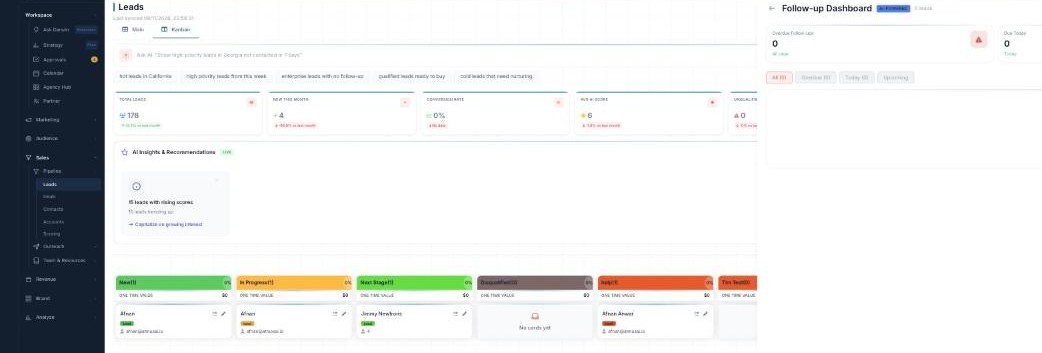
The AI in Leads — it scores, it suggests, and it tells you who to chase.
Ask AI
Type a plain-English question in the Ask AI bar — for example “Show high-priority leads in Georgia not contacted in 7 days” — and it builds the filter for you. Or tap a quick chip like hot leads in California or qualified leads ready to buy. The result shows as removable pills; Clear all resets it.
AI Score
Every lead gets an AI Score from 0–100, based on how well it fits and how engaged it is — the board shows your Avg AI Score, and you can sort or filter by it. (The Scoring page under Pipeline is where you tune how the score is calculated.)
AI Insights & Recommendations
The AI Insights & Recommendations panel (marked LIVE) surfaces things to act on — for example “15 leads with rising scores → Capitalize on growing interest.” Refresh for new ones, or Dismiss any you’ve handled.
The Follow-up Dashboard
AI Assist opens the Follow-up Dashboard — the AI-powered list of who to chase. It totals your Overdue Follow-ups, Due Today, High Urgency, and Avg Engagement, and you can filter All / Overdue / Today / Upcoming. Each lead shows its urgency, follow-up type (Call, Email, Meeting, Demo), last contact, and engagement. Act with AI Auto-Schedule, Quick Call, Quick Email, or Bulk Call / Bulk Email — and opening a lead gives you an AI-drafted follow-up you accept or reject.
What’s next
- Back to the Leads overview.
- See Table & Kanban views.
- See Groups & Advanced Filter.