
Groups are your pipeline stages (they’re also the Kanban columns), and the Advanced Filter finds exactly the leads you need — and can save that view.
Where to find it: Left menu → Sales → Pipeline → Leads → Add Group / Advanced Filter. Part of the Leads guide.
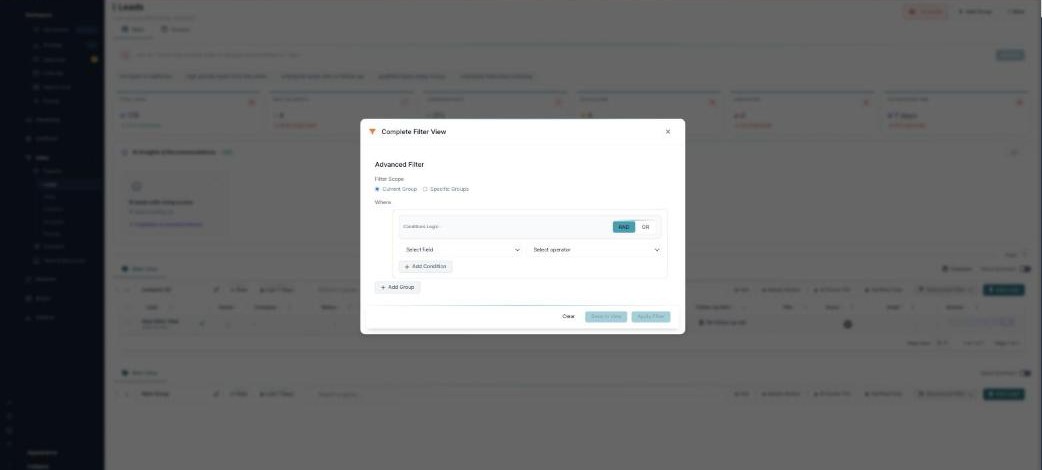
Groups organize your pipeline; filters find exactly the leads you want.
Groups (your stages)
Add Group creates a new stage — for example New, In Progress, Next Stage, or Disqualified. Rename a group in place, reorder them, and delete ones you don’t need. The same groups appear as columns in the Kanban.
Advanced Filter
Open Advanced Filter (the Complete Filter View) to build a precise query:
- Filter Scope — search the Current Group or Specific Groups.
- Conditions — pick a field and an operator, enter a value, and combine several with AND or OR. Add Condition for more, and Add Group to nest logic.
- Apply Filter to filter now, Clear to reset.
Saving a view
Save to view keeps a filter for reuse: give it a name, choose who can see it (everyone, specific users, or private), and save it as a List View or a New Tab on the board.
What’s next
- Back to the Leads overview.
- See Table & Kanban views.
- See AI scoring, insights & follow-ups.