
Your leads live on a board with two views: a detailed table and a visual Kanban. Switch between them with the Main and Kanban tabs.
Where to find it: Left menu → Sales → Pipeline → Leads → Main / Kanban. Part of the Leads guide.
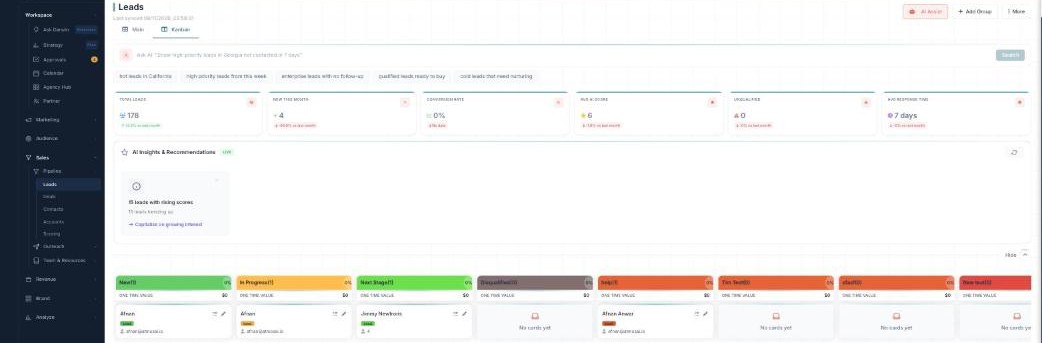
Two views of your pipeline — a table, or a Kanban you drag.
The table (Main)
The Main view is a spreadsheet-style grid: columns like Lead, Owner, Company, Status, AI Score, Contact, engagement, Last Contact, Follow-up, and Tags. Click a cell to edit it in place, drag columns to reorder, and use Columns to choose which show (or Show Archived). Add a lead any time with Add Lead.
Groups & quick filters
Leads are organized into groups (your pipeline stages). Each group has quick-filter chips — All, New, Last 7 Days, and more — plus a Search in group box and an Advanced Filter.
Doing things in bulk
Tick several leads to open the action bar: Bulk Tags, Change Status, Bulk Email, Bulk SMS, Duplicate, Move to another stage, Enrich Data, Add to SDR, Archive, or Delete.
The Kanban
The Kanban view shows each pipeline stage as a column with a lead count and value. Drag a card from one stage to the next as a lead progresses. Empty stages read “No cards yet”, and you can fold a column to tidy the board.
What’s next
- Back to the Leads overview.
- See Groups & Advanced Filter.
- See AI scoring, insights & follow-ups.