
Build a persona in a few guided steps — who they are, what they care about, and how to reach them.
Where to find it: Left menu → Build → Personas. Part of the Persona Builder guide.
Build a persona, step by step
Click + Build Persona in the top-right (or the Create New Persona card) and the Add new Persona window opens. First pick the Brand the persona is for, then choose how you want to add it:
| Way to add | Best for |
|---|---|
| AI Generate | The fastest way. Give a few basics and the AI builds the whole persona for you. |
| Upload PDF’s | Have a research doc or brief? Upload a PDF and the AI turns it into a persona. |
| Create Manually | Fill in every detail yourself, field by field. |
You can also Upload a Persona Image to personalize the preview.
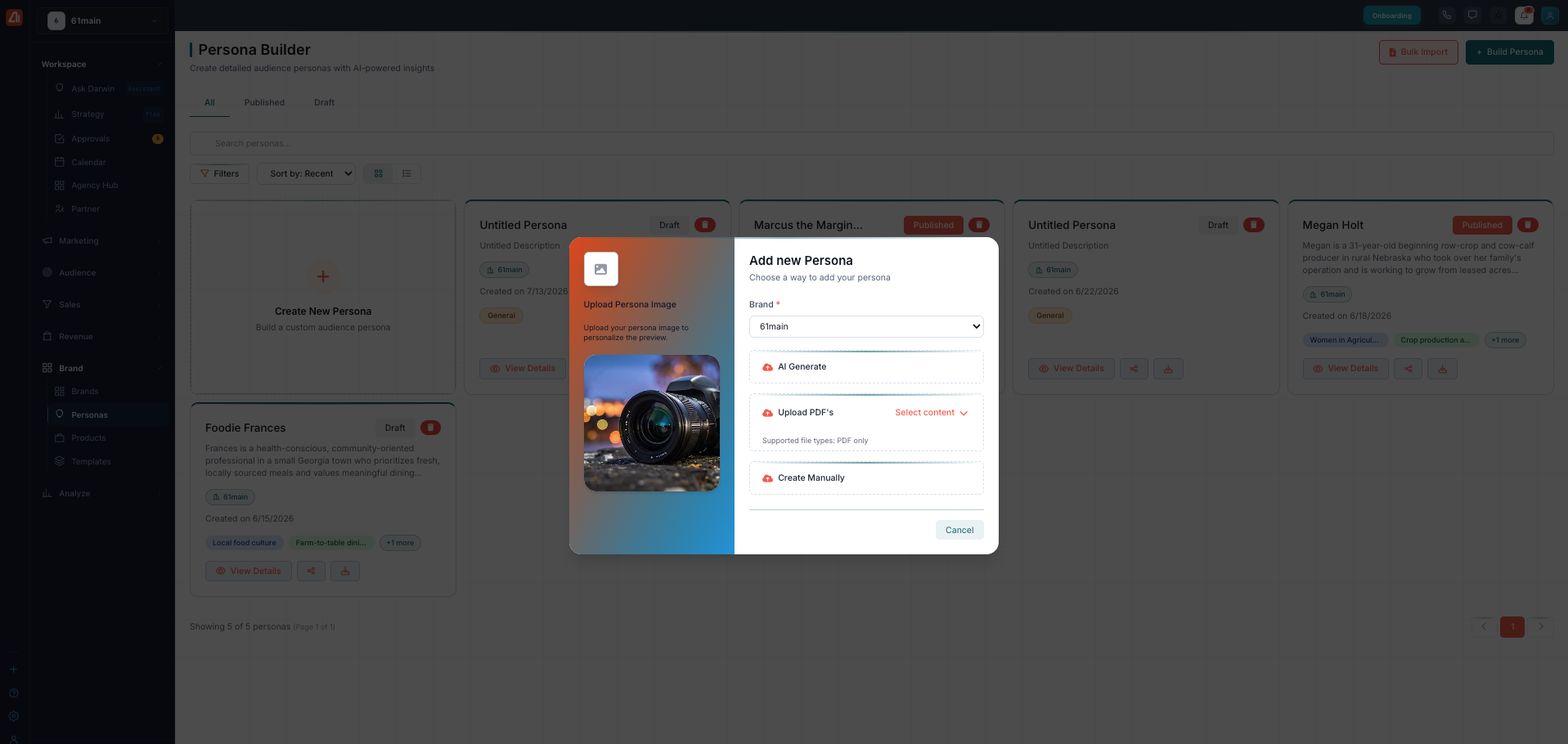
Adding a persona. Pick the brand, then let the AI generate it, upload a PDF, or build it by hand.
New to personas? Choose AI Generate. Give clear, honest basics about who you want to reach — the more the AI knows, the sharper the persona it builds. You can edit everything after.
What’s next
- Back to the Persona Builder overview.
- See Persona Details.
- See Bulk Import & Publishing.