
The Persona Builder helps you describe the people you want to reach. You give a few basic details about a customer, and the AI builds out a full picture of them — their goals, interests, and background.
Once you have a persona, you can point your campaigns at that kind of customer. That way Darwin writes and aims your marketing at the right audience, instead of guessing.
Where to find it: In the left menu, go to
Persona Builder. It lives under the Audience area.
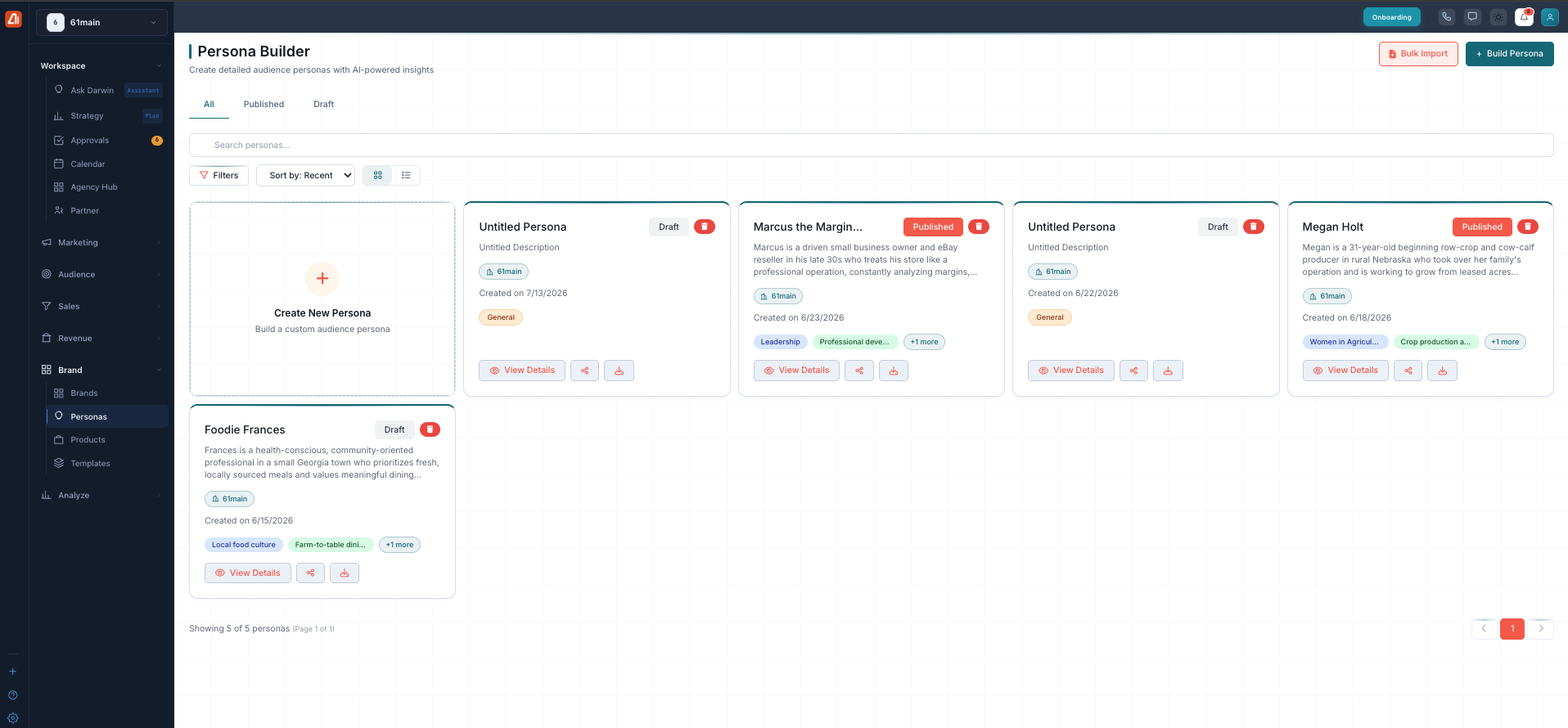
The Persona Builder. Start a new one with Build Persona or the Create New Persona card, or add many at once with Bulk Import. Each card is a persona you can view, edit, or share.
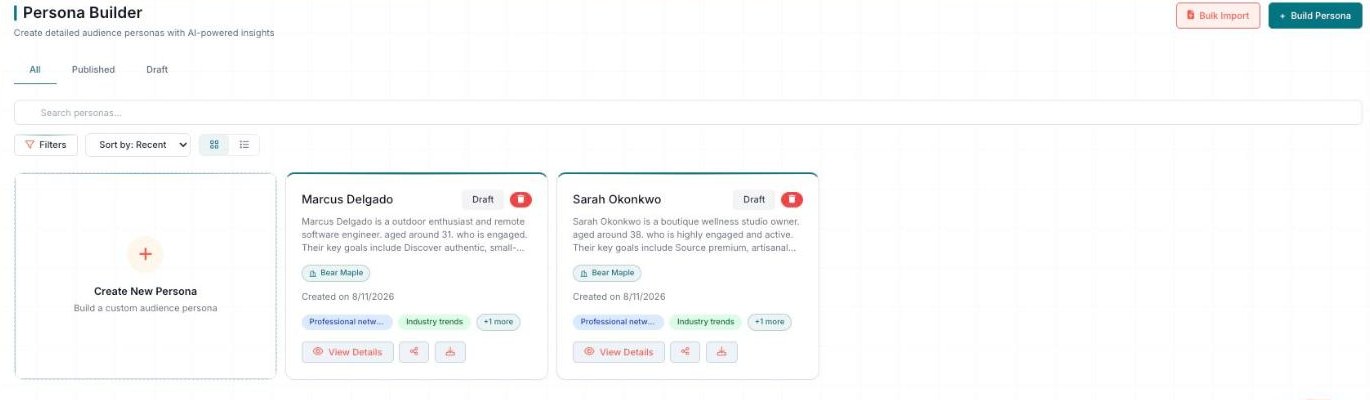
The Persona Builder — All / Published / Draft, with a card for each persona.
What is a persona?
A persona is a detailed picture of one kind of customer you want to reach. It describes their goals, interests, and background — so it feels like a real person instead of a vague group.
The Persona Builder creates these audience personas with AI-powered insights. You give a few details, and the AI fills in the rest. This helps you target your marketing better, because you know exactly who you are talking to.
Think of a persona as one clear example of your ideal customer. Many businesses build a few personas — one for each main type of customer they serve.
The Persona Builder page
The page header reads “Persona Builder — Create detailed audience personas with AI-powered insights.” Here is what you’ll see:
- Bulk Import and + Build Persona buttons in the top-right corner.
- Tabs to filter your view: All, Published, and Draft.
- A Search personas box to find one by name.
- A Filters button to narrow the list.
- A Sort by menu (for example, “Recent”).
- A grid/list view toggle to switch how personas are shown.
- A Create New Persona card to start a fresh one.
Each persona you build shows up as a card. A card includes:
- The persona’s name.
- A Draft or Published badge.
- A short description.
- The brand it belongs to.
- The date it was created.
- A few tags.
- Buttons to View Details, share, and download.
The sections — each has its own guide
Persona Builder is organized into the areas below. Open any one for the full, detailed walkthrough.
| Section | What it covers | Guide |
|---|---|---|
| Build a Persona | Create a persona step by step. | Open guide → |
| Persona Details | Demographics, psychographics, behavior, and channels. | Open guide → |
| Bulk Import & Publishing | Import many at once, and draft vs. published. | Open guide → |
Common questions
Do I have to fill in every detail myself?
No. You give a few basics about who you want to reach, and the AI fills in the rest with details and insights. You can then review and edit anything before you save.
Can I edit a persona after the AI builds it?
Yes. After the AI creates the persona, you can review and change anything. When it looks right, save it as a Draft or Publish it.
What’s the difference between a Draft and a Published persona?
A Draft is a work in progress (still fully usable in campaigns); Published marks it as finished. Use the tabs at the top to view each group.
How do I add a lot of personas quickly?
Use the Bulk Import button in the top-right. It lets you add many personas at once instead of building them one by one.
How do I find a persona I made before?
Use the Search personas box to find one by name, or use the Filters and Sort by options to narrow the list. You can also switch between grid and list views.
What do the buttons on a persona card do?
Each card has View Details to open the full persona, plus share and download buttons. The card also shows the name, status badge, description, brand, created date, and tags.
Having trouble? If a persona isn’t showing up, check that you’re on the right tab — a persona you saved as a Draft won’t appear under Published. Try the All tab, or use the Search personas box. If a persona can’t be used in a campaign, make sure it’s Published, not still a Draft.
What’s next
- Open the Build a Persona guide.
- Open the Persona Details guide.
- Open the Bulk Import & Publishing guide.