
Add personas in bulk, understand draft vs. published, and put a persona to work in your campaigns.
Where to find it: Left menu → Build → Personas. Part of the Persona Builder guide.
Bulk Import: add many at once
If you already have research on several personas, you don’t have to build them one by one. Click Bulk Import in the top-right, pick the brand, and drop in your files. The Bulk Import Personas window lets you drag and drop or browse for up to 5 PDF files (500MB total), and the AI turns each PDF into its own persona.
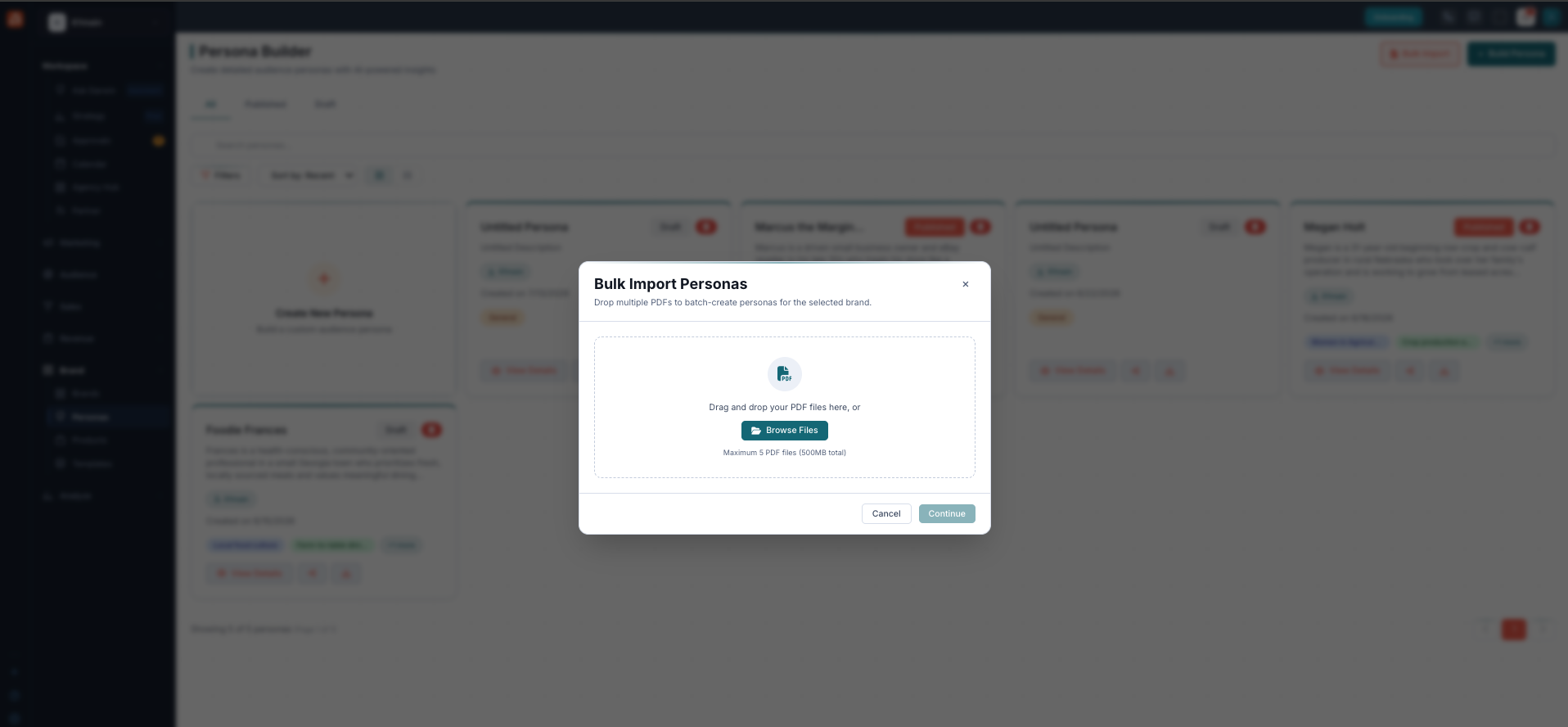
Bulk Import. Drop up to 5 PDFs at once and the AI creates a persona from each one.
Bulk Import is a great time-saver when you’re setting up your audience for the first time and want several personas ready quickly.
How the AI adds insights
You don’t need to fill in every field yourself. When you give the basics about a customer, the AI builds out the full persona — adding details and insights about their goals, interests, and background. You stay in control: review what the AI wrote, edit anything, and save when it looks right.
Draft vs. Published
Every persona is either a Draft or Published:
| Status | What it means |
|---|---|
| Draft | Saved but not finished or active yet. A good place to keep a work in progress. |
| Published | Ready to use in your campaigns. |
The tabs at the top let you view All, Published, or Draft personas, so you can quickly see what’s ready and what still needs work.
Using a persona in your campaigns
Once a persona is published, you can target your campaigns at that kind of customer. This tells Darwin who your audience is, so it writes and aims your campaigns for the right people.
Publishing marks a persona as finished and moves it to the Published tab. Drafts are still fully usable in your campaigns — publishing simply signals it’s ready.
What’s next
- Back to the Persona Builder overview.
- See Build a Persona.
- See Persona Details.