
Inside a persona, the detail tabs capture everything that shapes your message — demographics, psychographics, behavior, and channels.
Where to find it: Left menu → Build → Personas → a persona. Part of the Persona Builder guide.
Inside a persona: the details tabs
When you open or build a persona, you land on the persona editor. Everything about that customer is organized into tabs across the top: Demographics, Psychographics, Behavior, Goals, Channels, Voice, and Guidelines. You can edit any field, and the AI Suggestions button on each section fills in smart ideas for you. When you’re done, click Save Persona.
Demographics
The basics of who they are — age range, location, income level, and education.
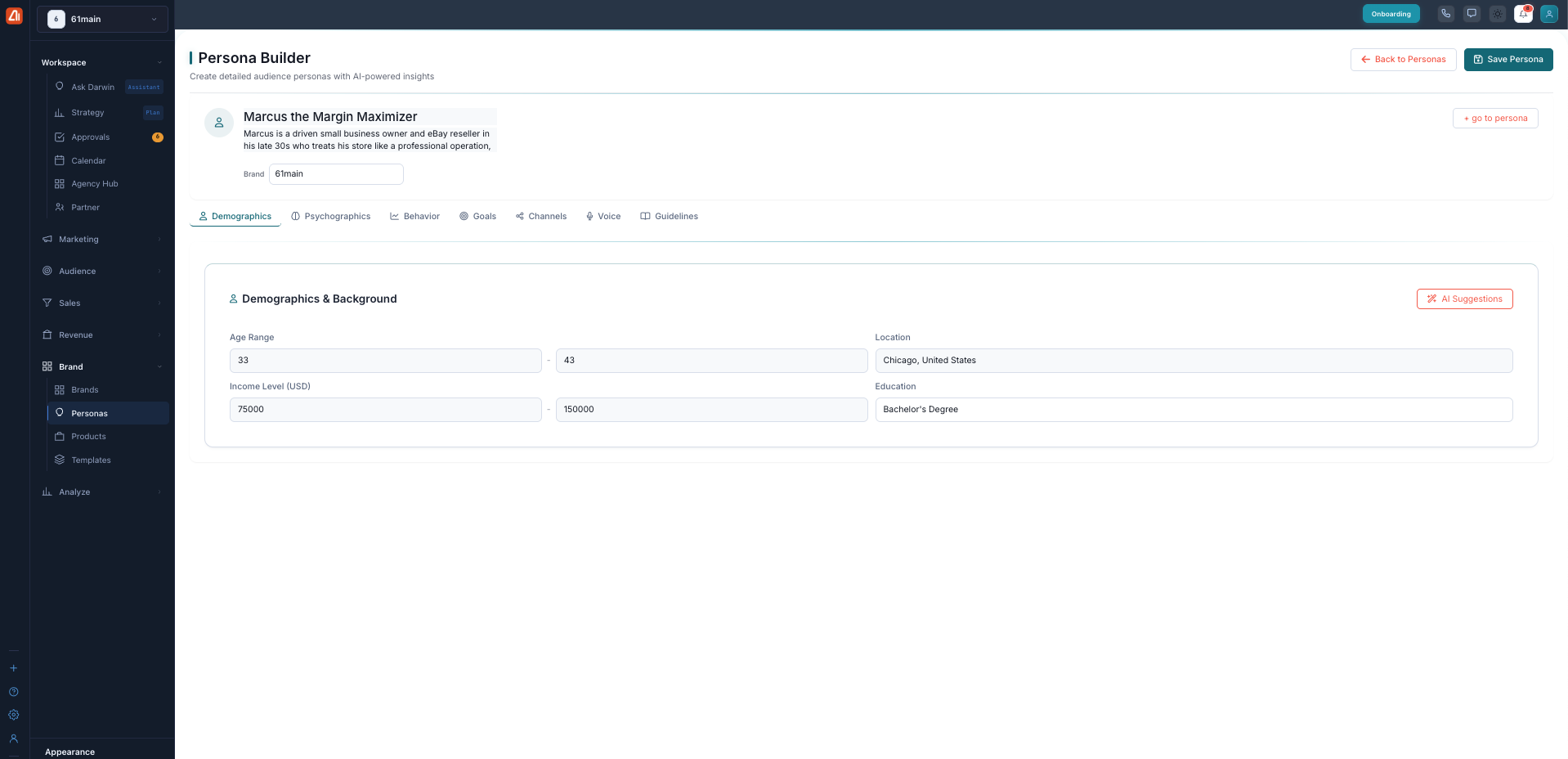
Demographics & Background. Set the age range, location, income, and education — or let AI Suggestions fill them in.
Psychographics
What makes them tick — their values and beliefs, interests and hobbies, lifestyle, and aspirations. You add these as simple tags you can edit any time.
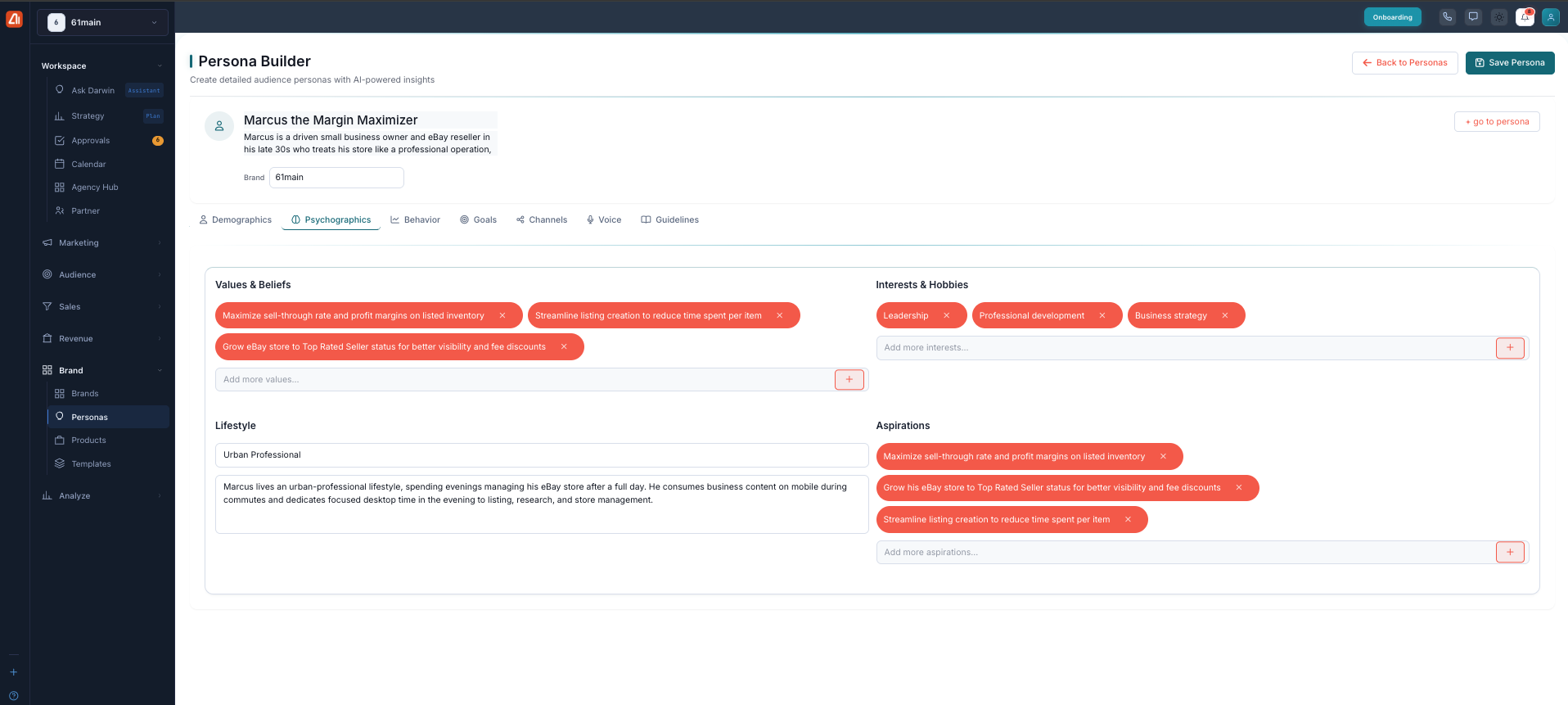
Psychographics. Capture values, interests, lifestyle, and goals as easy-to-edit tags.
Behavior
How they shop and spend time online — their decision-making style, price sensitivity, content preferences, the devices they use, and when they’re most active.
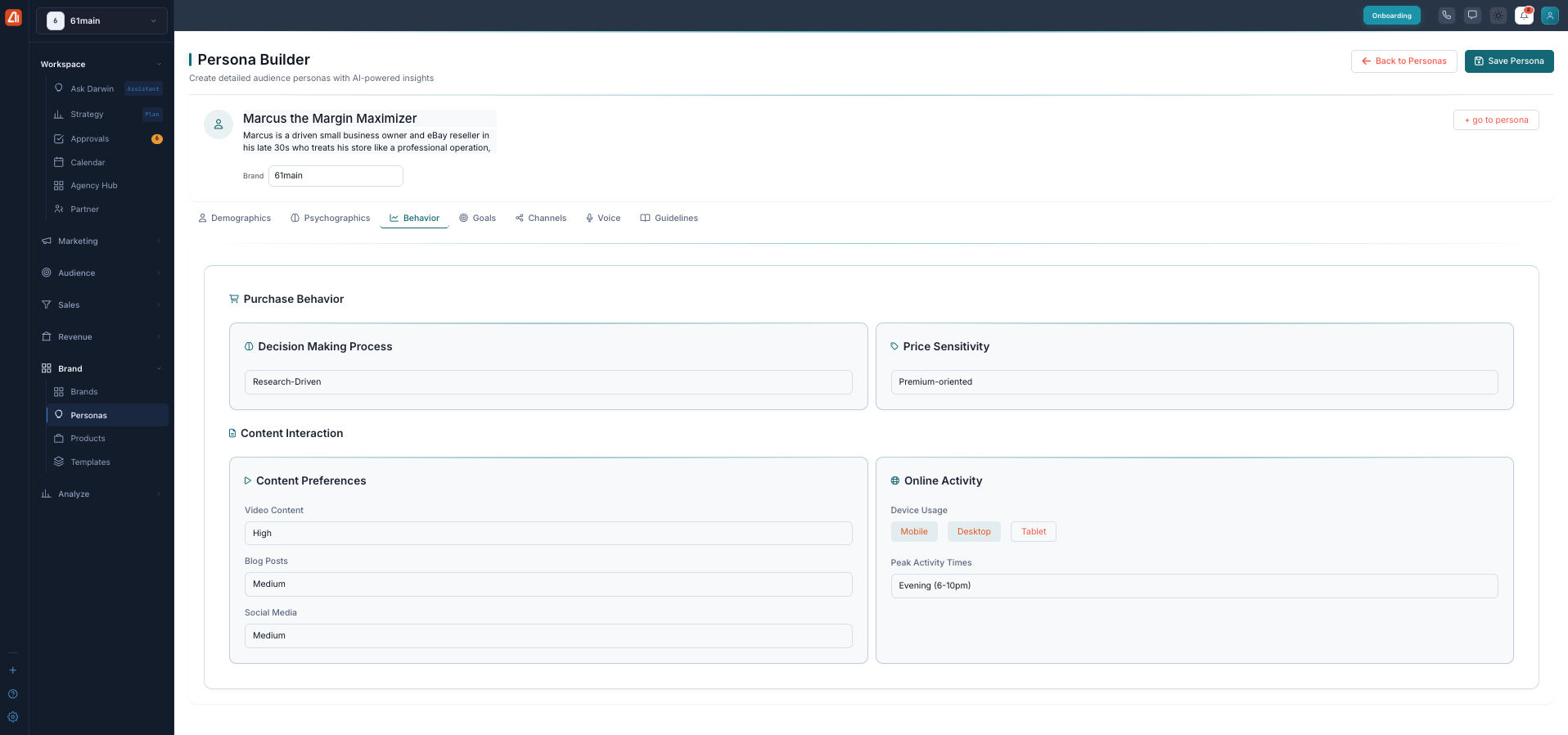
Behavior. See how they decide, what content they like, and when they’re online.
Channels
Where to reach them — the content types they prefer and their main communication channels, each with a priority of High, Medium, or Low.
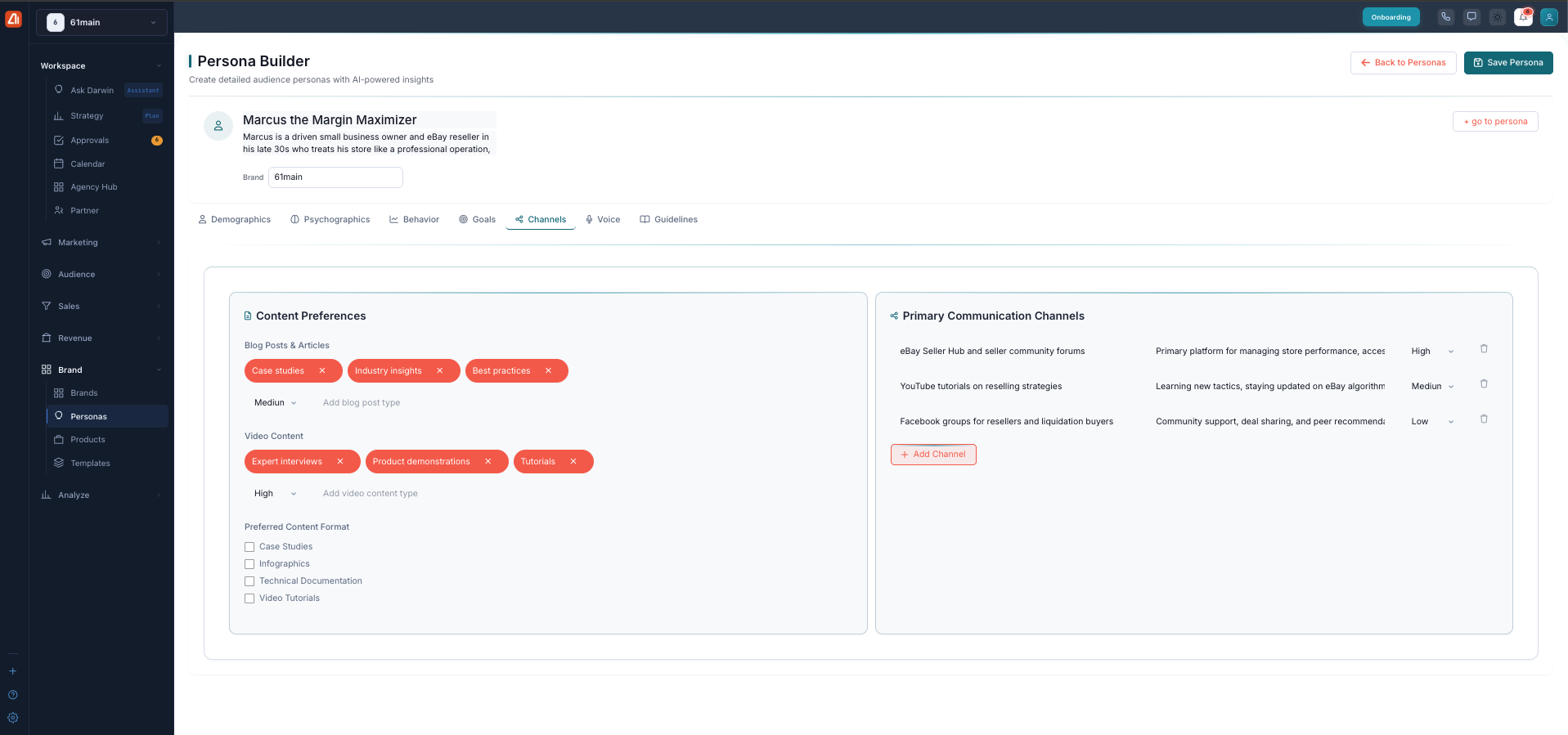
Channels. Set the content they respond to and the best places to reach them.
The last three tabs — Goals, Voice, and Guidelines — capture what this customer is trying to achieve, the tone that works best for them, and any do’s and don’ts for your marketing. Fill in what you know, then let Darwin use it to write for this audience.
What’s next
- Back to the Persona Builder overview.
- See Build a Persona.
- See Bulk Import & Publishing.