
The same deliveries can be shown three ways, toggled at the top right. Pick whichever fits what you’re doing.
Where to find it: Left menu → Marketing → Campaigns → Publish queue (the page is titled Publishing). Part of the Publishing guide.
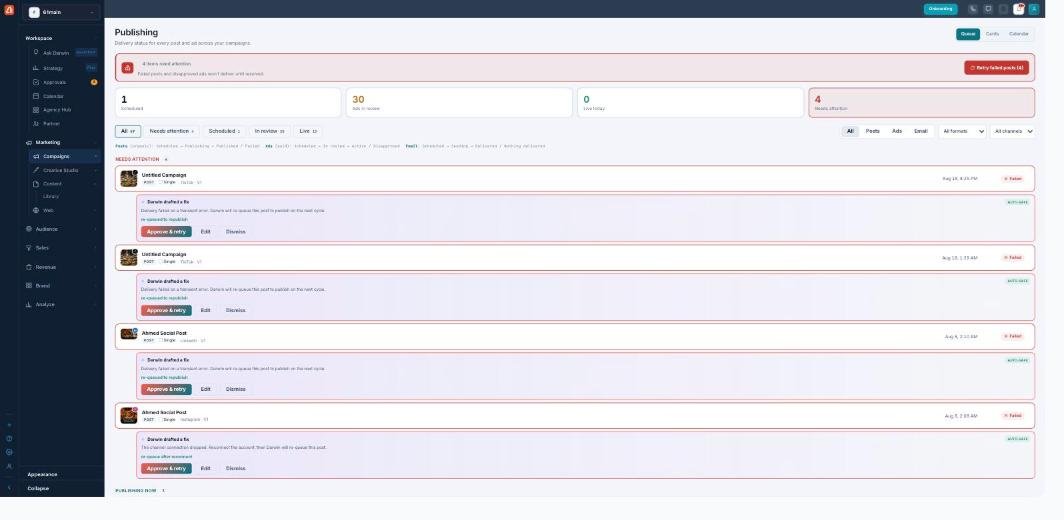
Queue view — every delivery as a grouped list, most urgent first.
Cards
The default. A visual gallery — each post or ad is a card with its creative thumbnail, status, channel, format (Single / Carousel / Video / Display / Email), version, and reach or spend. Best for scanning what your content actually looks like.
Queue
A grouped list, one row per delivery, organized by status band: Needs attention, Publishing now, In network review, Scheduled, Live & published, Awaiting approval, and Status not reported. Best for working through everything methodically, especially fixing what’s failed.
Calendar
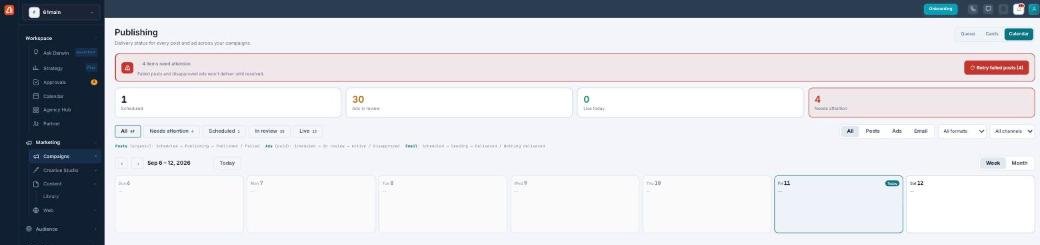
Calendar view — what's going out, by day, in Week or Month.
A week or month grid showing deliveries on the day they’re scheduled. Toggle Week / Month and use Today and the arrows to move around. Best for spotting gaps or clusters in your posting cadence. (Drafts that won’t send aren’t shown here.)
Which view for what
All three show the same deliveries — pick by the job:
| View | Reach for it when you want to… |
|---|---|
| Cards | See what your content actually looks like — thumbnails, formats, at a glance. |
| Queue | Work through everything in order, especially clearing what’s failed. |
| Calendar | Check timing — what’s going out which day, and where the gaps are. |
Your filters (status, type, format, channel) stay applied as you switch views.
Opening a delivery
This page is read-only, so to actually change something you click the delivery — it takes you straight to where it was made (the social composer, the ad campaign, or the email tool) so you can edit, reschedule, or fix it there.
What’s next
- Back to the Publishing overview.
- See Statuses & filters.
- See Fixing failures.