
Click any card in your library to open Recording Details — a side panel to preview, edit, and act on that recording.
Where to find it: Left menu → Marketing → Creative Studio → Record→ a recording card. Part of the Recordings guide.
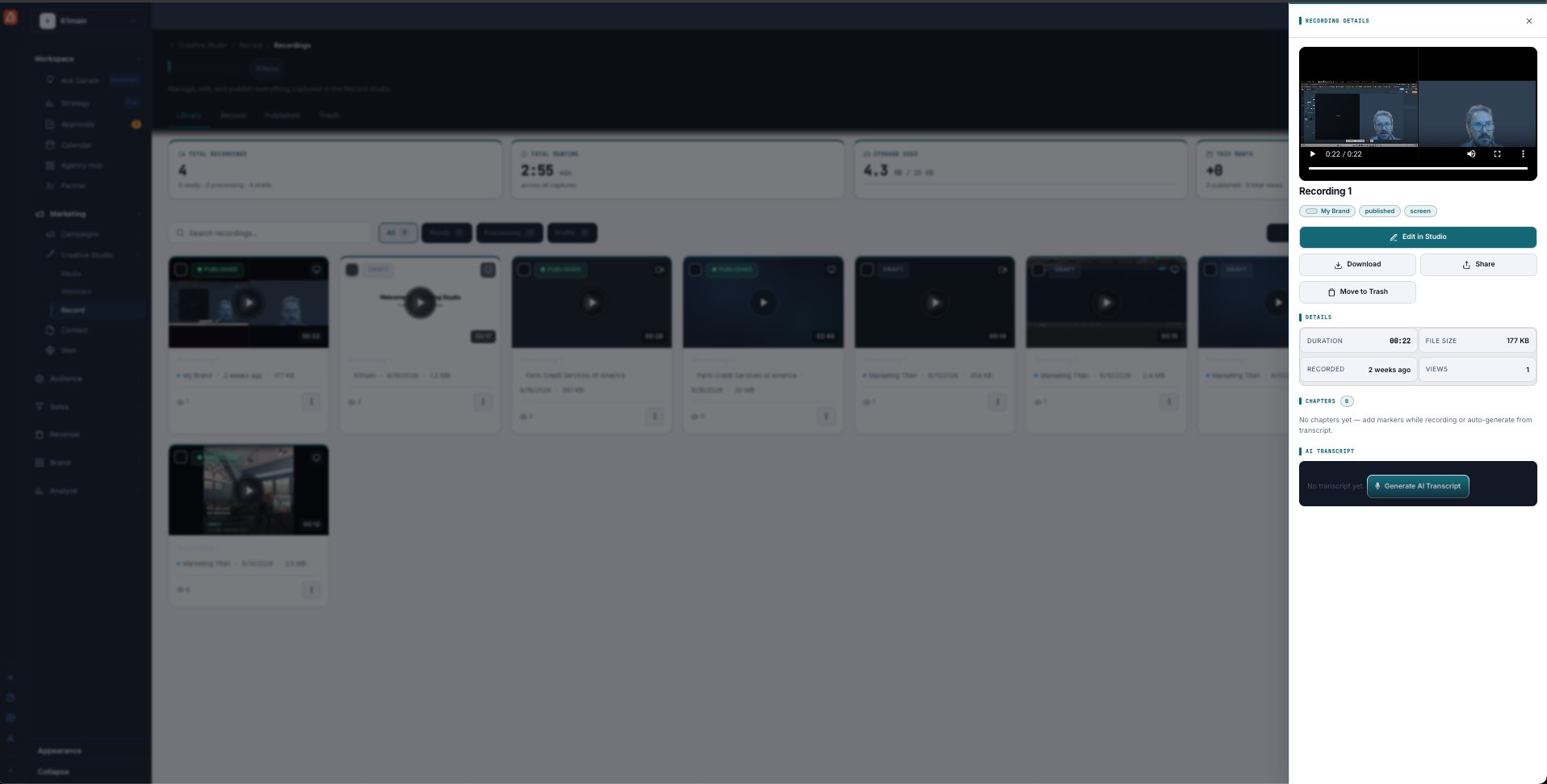
Recording Details — play it, edit in the studio, and publish, share, or transcribe.
Preview & edit
The panel opens with a video preview you can play, plus its tags (brand, published/draft, screen/camera). Edit in Studio reopens the recording in the full editor to trim, add chapters, or re-arrange clips.
Download, publish & share
Download saves the file to your computer. Share gives you a link to send. Publishing a draft (from the card menu or after editing) moves it to the Published tab and makes the share link live.
Delete
Move to Trash removes the recording — it lands in the Trash tab, where you can restore it or delete it for good. Nothing is lost by accident.
Details, chapters & AI transcript
The Details grid shows Duration, File Size, Recorded date, and Views. Chapters lists the markers you dropped (or auto-generates them from the transcript). Generate AI Transcript turns the audio into searchable text you can read, search, and base chapters on.
What’s next
- Back to the Recordings overview.
- See The recording studio.
- See Recording settings.