
Inside a score you add rules. Each rule awards points when its conditions match a record. Build your own, or start from a ready-made template.
Where to find it: Left menu → Sales → Pipeline → Scoring → open a score. Part of the Scoring guide.
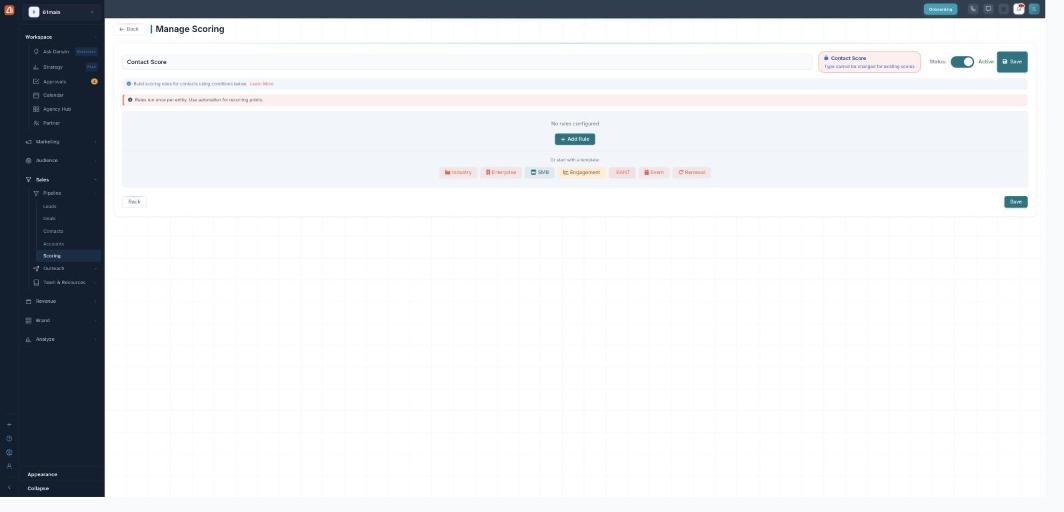
Inside a score — add a rule, or start from a template.
Rules and points
Click + Add Rule. Each rule reads “If {lead/contact/deal} matches:” and carries a Points value from 1 to 100. A live impact label sits next to it — Minimal (under 5), Low (5–14), Medium (15–29), or High Impact (30+) — so you can see how much weight a rule carries.
Conditions: field, operator, value
A rule matches when its conditions are true. Each condition is three parts — a Field, an Operator, and a Value. Pick a field (such as name, email, company, status, source, score, plus AI and company/firmographic fields), choose an operator, and enter the value to compare against. + Add condition adds more.
Operators
The operators are equals, not equals, contains, not contains, is empty, and is not empty — and for number fields, greater than and less than. The value box disappears for is empty / is not empty, since those don’t need one. The value control also adapts to the field (a dropdown for status fields, true/false for checkboxes, a date picker for dates, and so on).
AND / OR logic
When a rule has more than one condition, you choose how they combine: AND (every condition must match) or OR (any one is enough). Use + Add New Rule to add another rule — a record can match several rules, and their points add up.
Start from a template
When a score has no rules yet, skip the blank page: pick a quick-start template — Industry, Enterprise, SMB, Engagement, BANT, Event, or Renewal. It pre-fills a set of rules you can then edit to fit.
Point Allocation Guidelines
A helper panel suggests how many points to give different kinds of signal: 5–15 pts for basic demographics, 15–25 pts for engagement signals, and 25–40 pts for buying intent. It’s guidance, not a rule — you set whatever points you like (1–100).
What’s next
- Back to the Scoring overview.
- See Score types & creating a score.
- See Scores, bands & the board.