
A score is a set of rules for one kind of record. You create one by choosing its type — Lead, Contact, or Deal — then naming it and turning it on.
Where to find it: Left menu → Sales → Pipeline → Scoring → + Score. Part of the Scoring guide.
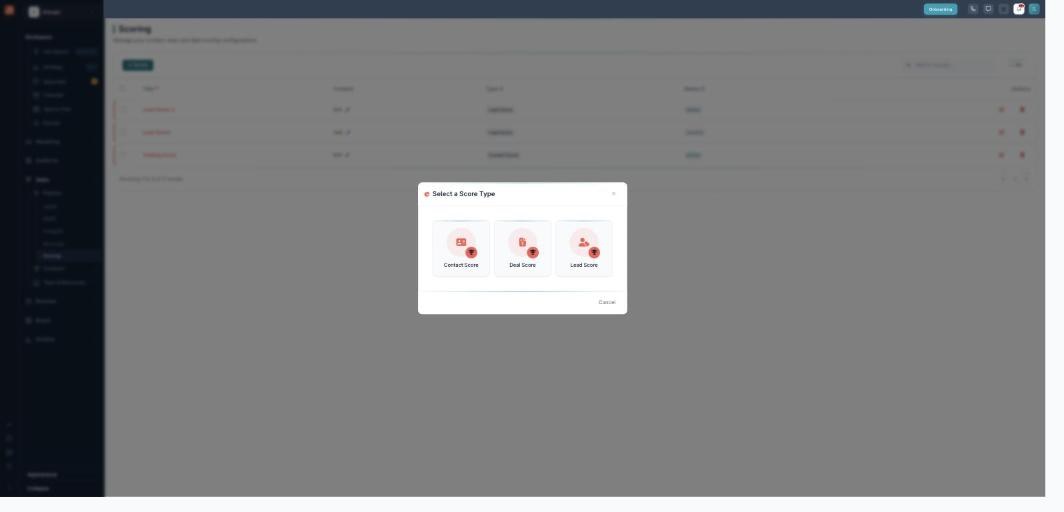
Pick a score type — Contact, Deal, or Lead.
Add a score
Click + Score. The Select a Score Type window opens with three cards — Contact Score, Deal Score, and Lead Score. Pick one and it opens the score editor (Manage Scoring).
The three types
Each score targets one board:
- Lead Score — scores records on the Leads board.
- Contact Score — scores records on the Contacts board.
- Deal Score — scores records on the Deals board.
A score can only use the fields that belong to its own record type.
Name and status
Give the score a Title and, if you like, a short Content description of what it measures (you can also edit that description inline from the list). A Status toggle switches it between Active and Inactive — new scores start Inactive, and only Active scores are actually calculated.
Type is set once
You choose the type when you create the score, and it’s locked afterwards — the editor notes that “type cannot be changed for existing scores.” To score a different record type, create a new score. Each Title must be unique within its type.
What’s next
- Back to the Scoring overview.
- See Building rules.
- See Scores, bands & the board.