
The Attributes tab is where the AI shines. It looks at what is actually in your creative and groups it into attributes so you can see which visual styles perform.
Where to find it: Left menu → Analyze → Ad Insights → the Attributes tab. Part of the Ad Insights guide.
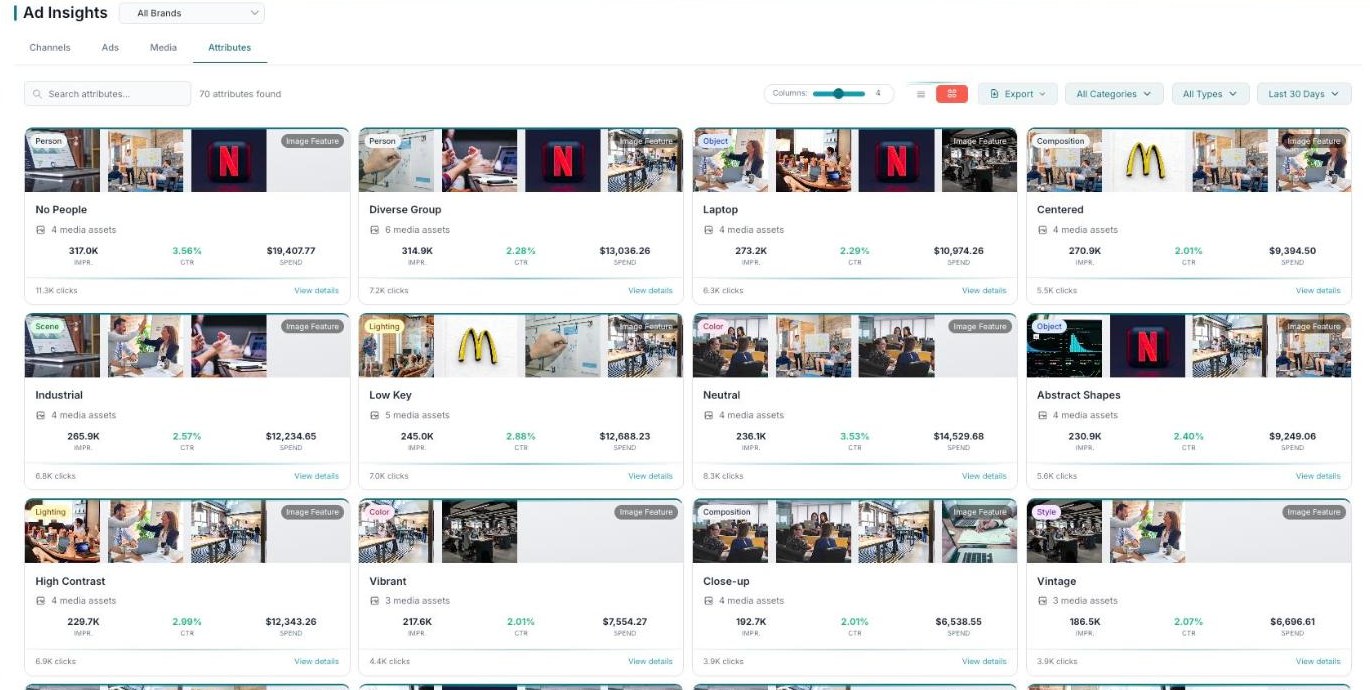
Attributes — AI-detected visual styles in your creative, ranked by what actually drives clicks.
What the AI detects
Attributes are things like No People, Diverse Group, Laptop, Centered, Industrial, Low Key, Neutral, Vibrant, and High Contrast. They’re sorted into categories such as Person, Object, Composition, Scene, Lighting, Color, and Style.
Which styles work
Each attribute shows how many media assets have it, plus its impressions, CTR, and spend, with a View details link. This tells you which visual styles actually drive clicks — so you can make more of what works and less of what doesn’t.
What’s next
- Back to the Ad Insights overview.
- See the Channels tab.
- See the Ads tab.
- See the Media tab.