
The Channels tab shows how each connected ad account (Facebook, LinkedIn, TikTok, Google, and more) is performing, plus your combined totals.
Where to find it: Left menu → Analyze → Ad Insights → the Channels tab. Part of the Ad Insights guide.
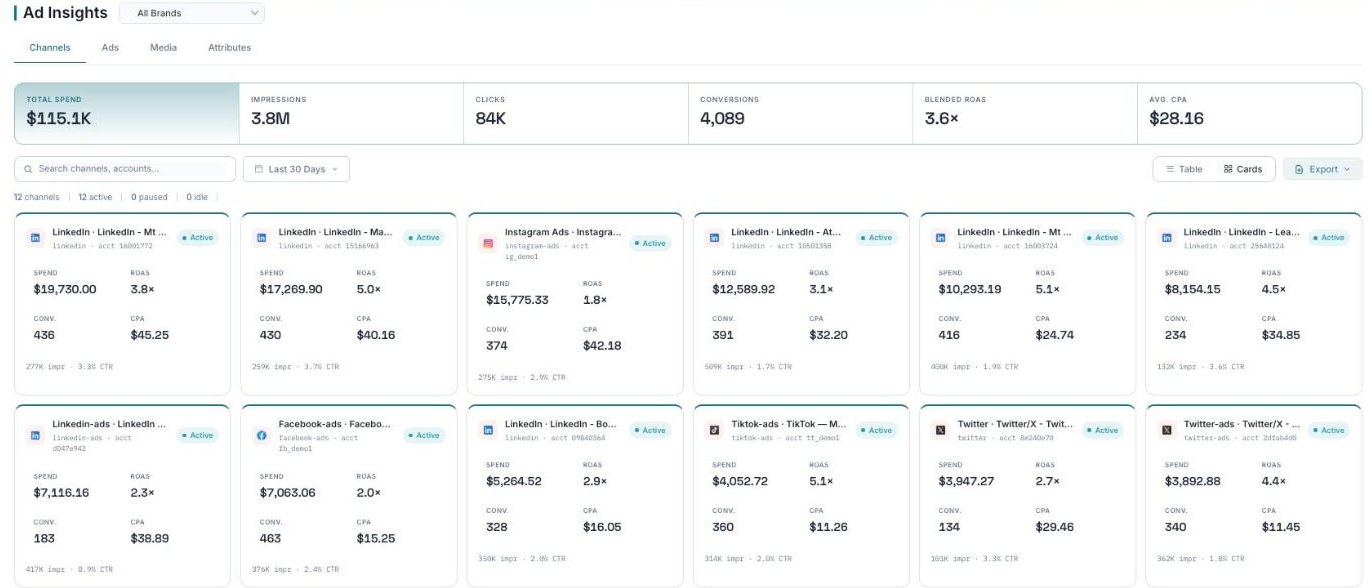
Channels — your overall totals and a card for each connected ad account.
Your top-line totals
Across every account, the tab starts with:
- Total Spend — how much you spent in total.
- Impressions — how many times your ads were shown.
- Clicks — how many times people clicked.
- Conversions — how many desired actions were completed.
- Blended ROAS — return on ad spend across all channels combined.
- Avg CPA — your average cost for one conversion.
Per-account cards
Below the totals, each connected account gets its own card showing that account’s Spend, ROAS, Conversions, CPA, impressions, and CTR, plus a status like Active. A counter tells you how many channels are active right now.
What’s next
- Back to the Ad Insights overview.
- See the Ads tab.
- See the Media tab.
- See the Attributes tab.