
Ad Insights turns your ad data into a clear performance picture — organized into four tabs, each answering a different question about your ads.
Where to find it: Left menu → Analyze → Ad Insights.
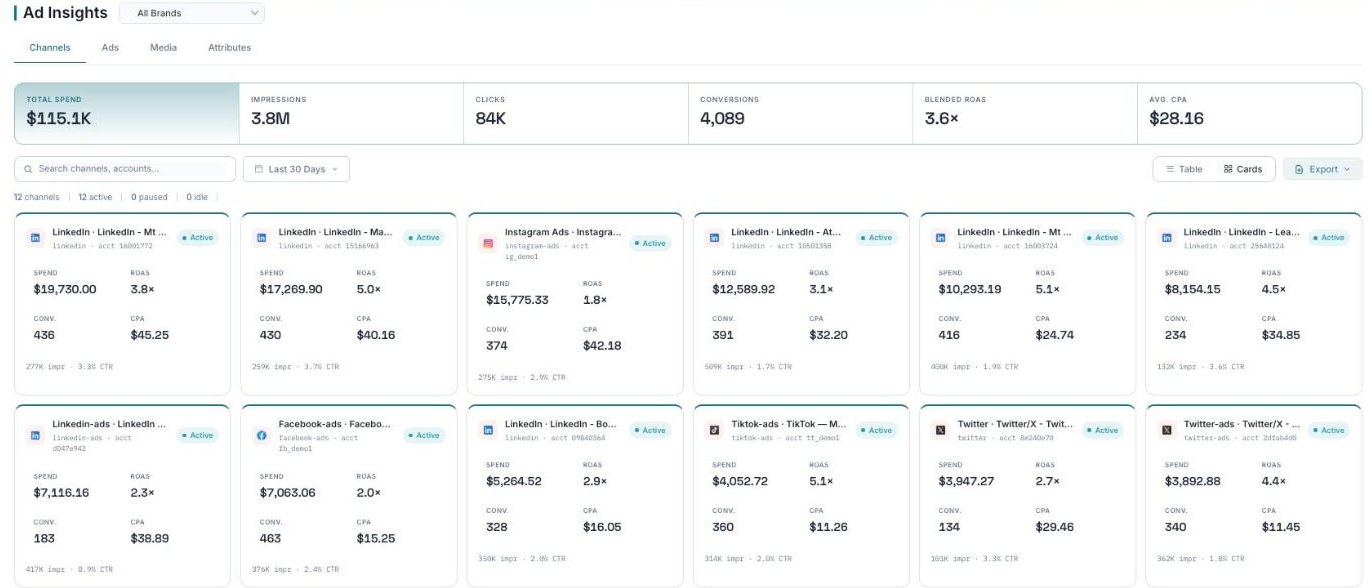
Ad Insights opens on Channels — your totals and each connected account.
The four tabs — each has its own guide
| Tab | What it shows | Guide |
|---|---|---|
| Channels | How each connected ad account performs, plus your overall totals. | Open → |
| Ads | Every individual ad, with its creative preview and numbers. | Open → |
| Media | Your ad images and videos, and how each asset performs. | Open → |
| Attributes | The visual styles the AI finds in your creative, and which drive clicks. | Open → |
What’s next
- Start with the Channels tab.
- Dig into Attributes to see what your best creative has in common.