
The Calls tab is the record of every phone call on your number — inbound and outbound — with its status, how long it lasted, whether it hit voicemail, and when it happened.
Where to find it: Left menu → Sales → Outreach → Calling → Calls. Part of the Calling guide.
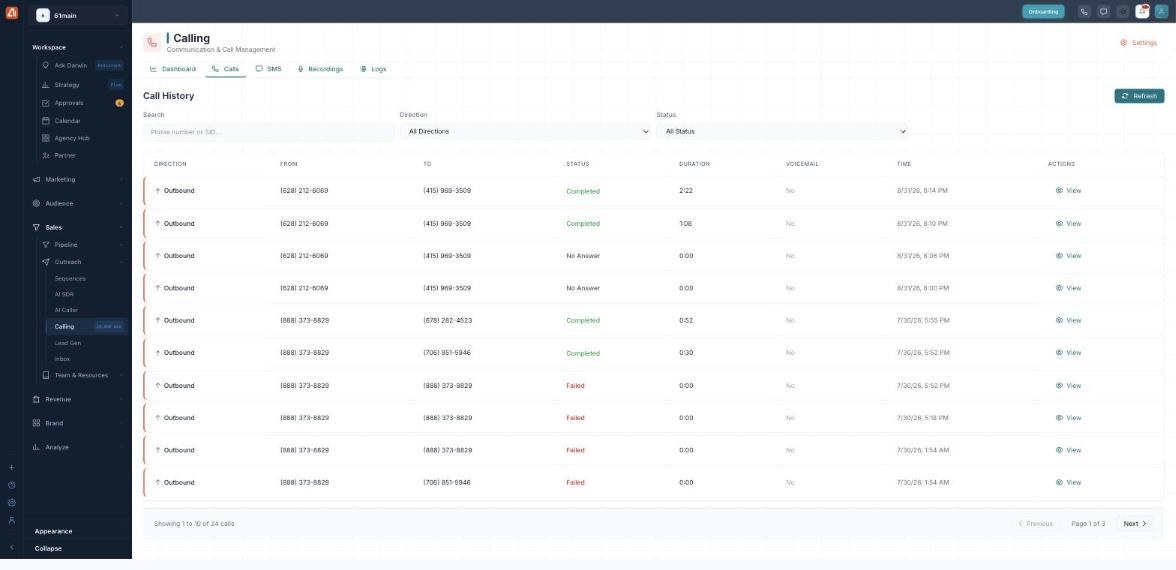
Every call with its direction, status, duration and time.
How to find a call
- Open Calling → Calls.
- Filter by Direction (Inbound or Outbound) and Status.
- Or type a phone number or SID into Search.
- Click View on a row to open the full call detail.
- Use Refresh to pull in the latest calls.
The columns
| Column | What it shows |
|---|---|
| Direction | Inbound (received) or Outbound (placed). |
| From / To | The calling and receiving numbers. |
| Status | How the call ended (see below). |
| Duration | How long the call lasted. |
| Voicemail | Whether it reached voicemail. |
| Time | When the call happened. |
| Actions | View opens the call detail. |
What the statuses mean
| Status | Meaning |
|---|---|
| Completed | The call connected and finished normally. |
| In Progress / Ringing | The call is live or still ringing. |
| No Answer / Busy | Nobody picked up / the line was busy. |
| Failed / Canceled | The call couldn’t connect, or was stopped. |
| Voicemail | The call reached voicemail. |
💡 Tip: Filter by Status = Failed to spot delivery problems fast — then open the Logs tab for the underlying Twilio reason.
FAQ
What’s the difference between No Answer and Failed?
No Answer means the phone rang and nobody picked up. Failed means the call couldn’t be placed at all (a bad number or a carrier error).
Can I see AI Caller calls here?
Yes — every call, including those placed by AI Caller, appears in this list.
What does View show?
The full detail for that single call — the numbers, timing, status and any recording or voicemail.