
The Recordings tab is where recorded calls and their transcriptions live, so you can listen back, review what was said, and search across them.
Where to find it: Left menu → Sales → Outreach → Calling → Recordings. Part of the Calling guide.
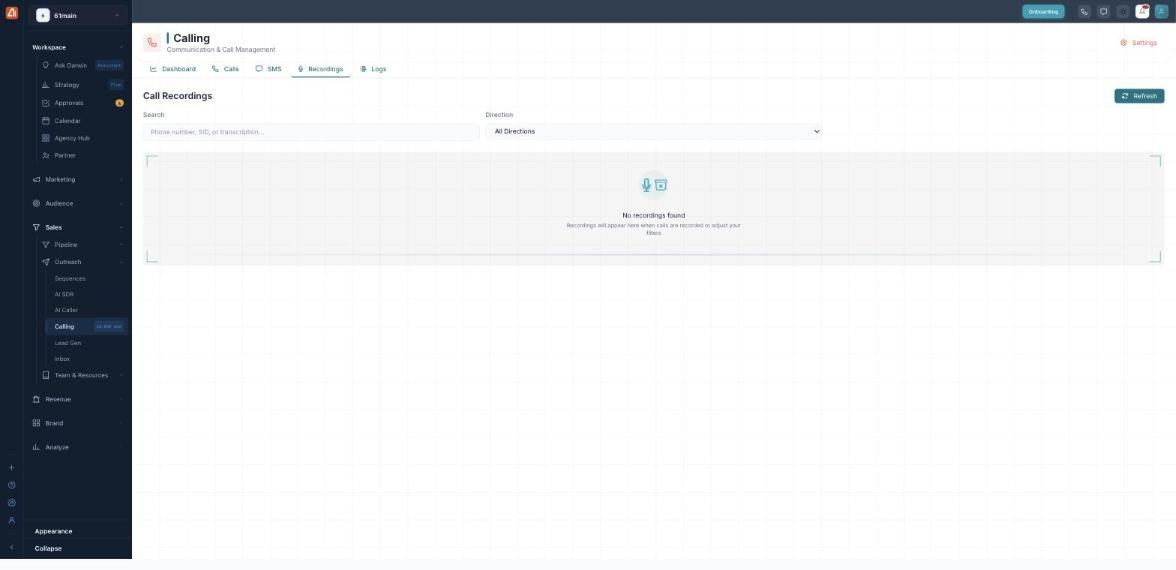
Recorded calls appear here once call recording is turned on.
How to find a recording
- Open Calling → Recordings.
- Filter by Direction, or search by phone number, SID, or transcription text.
- Play a recording from its row, or open it to read the transcription.
- Use Refresh to pull in new recordings.
What you can search and filter
| Control | What it does |
|---|---|
| Search | Match a phone number, a Twilio SID, or words from the transcription. |
| Direction | Show only Inbound or only Outbound recordings. |
| Play | Listen to the recording from its row. |
| Transcription | Read what was said, when a transcription is available. |
Why the list can be empty
Recordings only appear once a call is actually recorded. If you see “No recordings found”, either no calls in range were recorded, or call recording isn’t switched on yet. You can enable recording for AI Caller calls in AI Caller Setup; the Dashboard shows your Recording Rate.
💡 Good to know: Search accepts transcription text, so you can find a call by something that was said on it — not just the number or date.
FAQ
Why don’t I have any recordings?
Call recording has to be enabled, and only recorded calls show here. Check your Recording Rate on the Dashboard.
Can I read what was said?
Yes — recorded calls can be transcribed, and you can search the transcription text.
Are voicemails here too?
Voicemail transcriptions are counted on the Dashboard’s Call Quality panel; recorded calls live on this tab.