
The SMS tab is the record of every text message on your number, and it’s where you send a text to many people at once with Send Bulk SMS.
Where to find it: Left menu → Sales → Outreach → Calling → SMS. Part of the Calling guide.
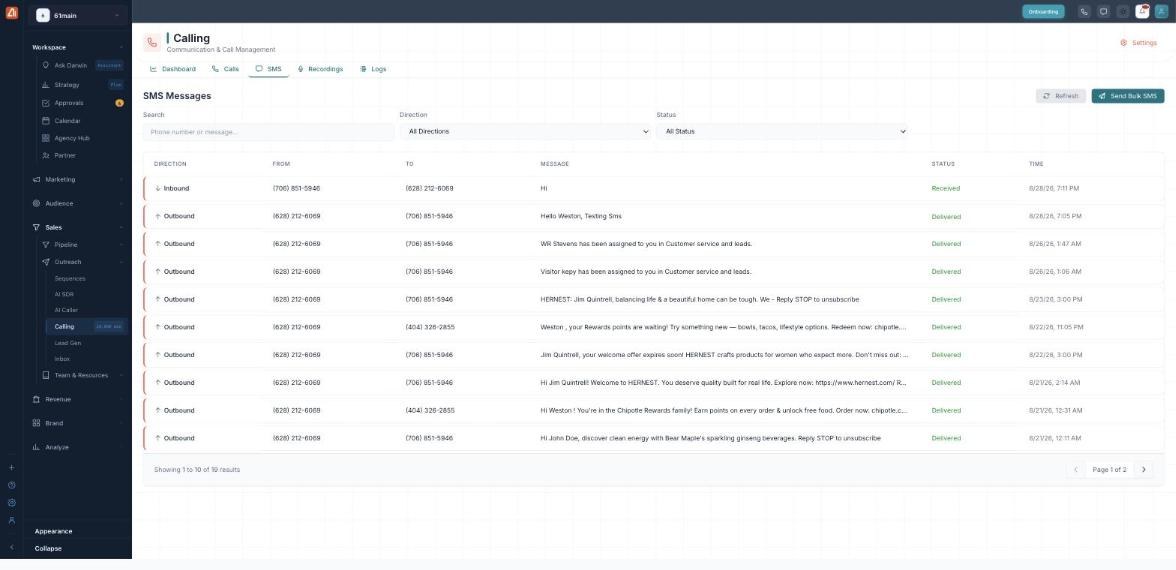
Every text message, inbound and outbound, with its delivery status.
How to send a bulk SMS
- Open Calling → SMS.
- Click Send Bulk SMS.
- Choose your recipients and write the message.
- Send — each message appears in the list with a delivery status.
Find a message
Filter by Direction (Inbound or Outbound) and Status, or search by phone number or message text. Hit Refresh for the latest.
The columns & statuses
| Column / Status | Meaning |
|---|---|
| Direction | Inbound (received) or Outbound (sent). |
| From / To / Message | The numbers and the message text. |
| Delivered | The carrier confirmed delivery. |
| Sent | Handed to the carrier, delivery not yet confirmed. |
| Queued | Waiting to be sent. |
| Received | An inbound message from a contact. |
| Undelivered / Failed | The carrier could not deliver it (often a blocked or invalid number). |
💡 Compliance: Always give recipients a way out — include “Reply STOP to unsubscribe” in marketing texts. A contact who replies STOP is opted out automatically.
FAQ
Why is a message Undelivered?
The carrier rejected it — usually a landline, an invalid number, or a message filtered as spam. The Logs tab shows the exact error code.
What’s the difference between Sent and Delivered?
Sent means it left our system to the carrier. Delivered means the carrier confirmed it reached the handset.
Can I text a whole list at once?
Yes — use Send Bulk SMS.