
The Image Editor lets you fix up an image without any other tool — crop it, cut out the background, or make it sharper. The result is saved back as a new asset, so your original is always kept.
Where to find it: Left menu → Marketing → Content → Library (open any image) (the page is titled Content). Part of the Content guide.
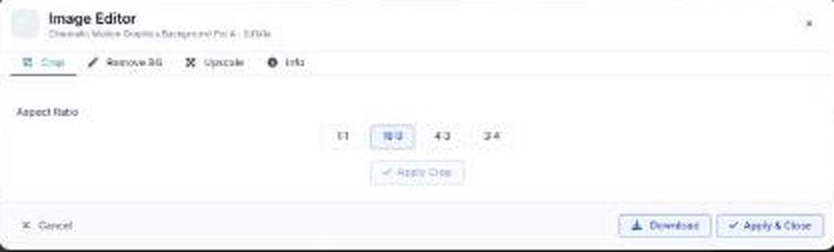
The Image Editor — crop, cut out backgrounds, and upscale, all in one place.
Opening it
Hover over any image in the library (or a Stock image) and click Edit image. The editor opens as a full window. It’s available for images only — not for videos or PDFs.
The four tabs
| Tab | What it does |
|---|---|
| Crop | Pick an Aspect Ratio — 1:1, 16:9, 4:3, 3:4, or free — drag the box to frame the shot, then Apply Crop (Crop Again resets it). |
| Remove BG | One click on Remove Background cuts the subject out onto a transparent (checkerboard) background. Toggle Before / After to compare. |
| Upscale | Upscale Image (2x) makes the image larger and crisper. Toggle Before / After to compare. |
| Info | Image details and photographer, with Copy URL and Open in New Tab. |
Saving your work
When you’re happy, Download the result to your device, or Apply & Close to save it back into your library as a new asset. Your original file is never changed.
What’s next
- Back to Content & the asset library.
- See Adding assets.
- See Templates.
- See Experiences.