
Create Document opens a full document editor right inside Marketing Titan. Write from scratch or from a template, then share, sign, download — and get AI help from the Document Intelligence panel as you go.
Where to find it: Left menu → Sales → Team & Resources → Documents → Create Document. Part of the Document Management guide.
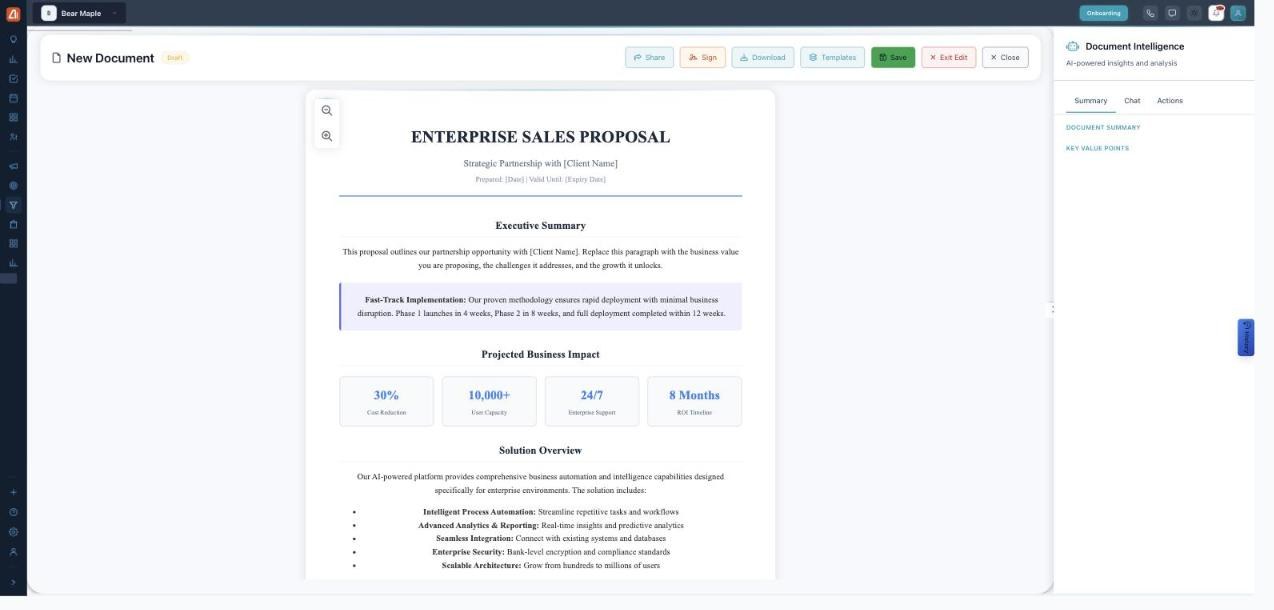
The document editor — write on the left, AI Document Intelligence on the right.
Create a document
- Click Create Document (or Templates to start from one).
- Write and format in the editor canvas — fill in the placeholders.
- Click Save to keep it, or Exit Edit / Close when done.
The editor toolbar
| Action | What it does |
|---|---|
| Share | Send the document to teammates or clients. |
| Sign | Add a signature or send it for signing. |
| Download | Save a copy to your computer. |
| Templates | Swap in a template to start faster. |
| Save | Store your changes in the library. |
Document Intelligence (AI)
The right-hand Document Intelligence panel reads your document and helps you work on it, across three tabs:
- Summary — an AI Document Summary and the Key Value Points it finds.
- Chat — ask questions about the document in plain English.
- Actions — AI suggestions and one-click things to do next.
💡 Tip: Draft with a template, then open the Summary tab to check the AI captured the key points you intended.
FAQ
Can I sign documents here?
Yes — the Sign action adds a signature or sends the document for signing.
What is Document Intelligence?
An AI panel that summarizes the document, pulls out key points, answers questions and suggests actions — right beside your draft.
Can I export the finished document?
Yes — use Download to save a copy, or Share to send it.