
Folders, tags and the activity feed keep your library tidy. This is the whole left sidebar — where you group documents, filter them fast, and see what has changed.
Where to find it: Left menu → Sales → Team & Resources → Documents → New Folder. Part of the Document Management guide.
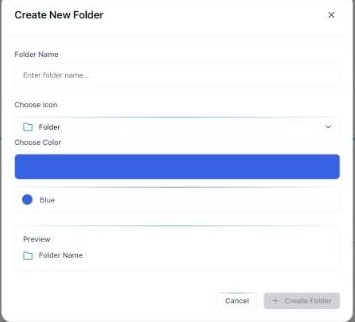
Create New Folder — name it, pick an icon and color, and see a live preview.
The default folders
| Folder | What goes in it |
|---|---|
| All Documents | Everything, across every folder — with a total count. |
| Sales Materials | Decks, one-pagers and collateral for selling. |
| Proposals | Client proposals and quotes. |
| Contracts | Agreements and signed documents. |
| Presentations | Slide decks and pitch documents. |
| Team Resources | Internal guides and shared resources. |
Create a folder
- Click New Folder in the top toolbar.
- Enter a Folder Name.
- Pick an icon and a color — the preview updates as you choose.
- Click Create Folder — it appears in the left sidebar, ready to fill.
Quick Tags
Tags appear under Quick Tags as you add documents — for example PDF and Excel. Click a tag to filter the grid to matching documents in one step.
Recent Activity
The Recent Activity feed shows what you and your team have done — uploads, edits and more — so you can pick up where you left off.
💡 Tip: Give each folder a distinct color and icon — a glance at the sidebar then tells you where everything lives.
FAQ
Can I make my own folders?
Yes — New Folder lets you name, color and icon a folder beyond the defaults.
Where do tags come from?
They are generated from your documents (like file type) and grow as you add content.
Why is Recent Activity empty?
It fills once you start working with documents — uploading, editing or moving them.