
Document Management is your team’s shared file library. Store proposals, contracts, presentations and sales materials in one place, organize them into folders, find them fast, and even create and edit documents with AI help — without leaving Marketing Titan.
Where to find it: Left menu → Sales → Team & Resources → Documents. Part of the Document Management guide.
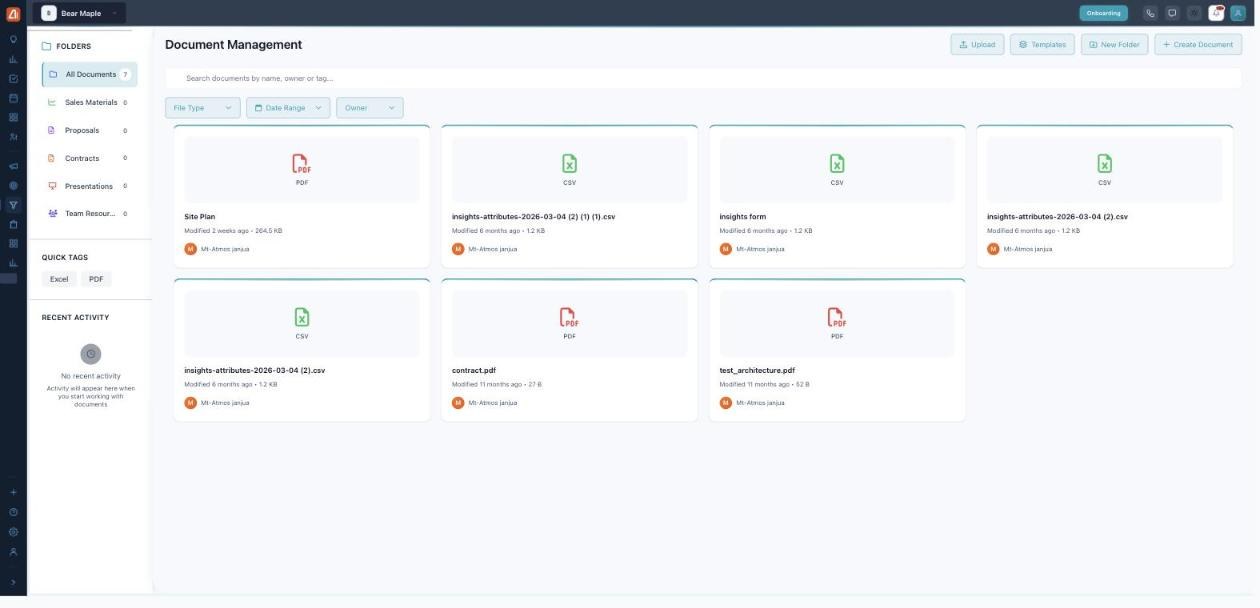
Document Management — folders and tags on the left, your documents on the right.
What you can do here
- Organize with folders and tags — keep everything tidy; see Folders & Organization.
- Add files — drag in documents with Upload.
- Create & edit documents — write in the built-in editor with AI insights; see Create & Edit Documents.
- Start from a template — proposals, invoices, reports and more in the Templates Library.
- Find anything — search and filter by file type, date range and owner.
The left sidebar
| Section | What it’s for |
|---|---|
| Folders | All Documents plus your folders (Sales Materials, Proposals, Contracts, Presentations, Team Resources), each with a document count. See Folders & Organization. |
| Quick Tags | Tags that appear as you add documents (for example Excel, PDF) — click one to filter. |
| Recent Activity | A running feed of what you and your team have done with documents. |
The top toolbar
| Button | What it does |
|---|---|
| Upload | Add existing files to the library. |
| Templates | Open the template library and start from a ready-made document. |
| New Folder | Create a folder to organize documents. |
| Create Document | Open the editor to write a new document from scratch. |
Find a document
- Search by name, owner or tag in the search box.
- Narrow with the File Type, Date Range and Owner filters.
- Or click a folder on the left to see just its documents.
- Each card shows the file type, name, when it was modified, its size and its owner.
💡 Tip: Click a Quick Tag (like PDF or Excel) to instantly filter the grid to that file type.
FAQ
What file types can I store?
Documents and files of many kinds — PDF, Word, PowerPoint, Excel, images and more. See Upload for the full list.
Is this the same as the Knowledge Base?
No — the Knowledge Base feeds the AI with reference content; Document Management is your working file library for proposals, contracts and the like.
Why is my library empty?
Nothing has been uploaded or created yet — start with Upload or Create Document.