
Upload brings your existing files into the library. Drag them in or browse for them, and they join your documents in seconds.
Where to find it: Left menu → Sales → Team & Resources → Documents → Upload. Part of the Document Management guide.
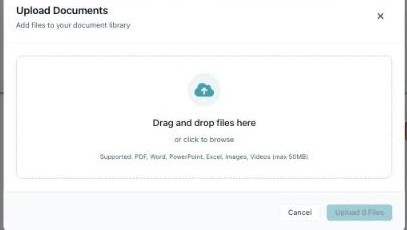
Upload Documents — drag and drop, or click to browse.
Upload files
- Click Upload in the top toolbar.
- Drag and drop your files into the area — or click to browse and pick them.
- Review the list, then click Upload to add them.
- They appear in the grid and in All Documents.
Supported files
| What | Details |
|---|---|
| File types | PDF, Word, PowerPoint, Excel, images and videos. |
| Maximum size | 50 MB per file. |
| How many | Several at once — drop a batch and upload together. |
💡 Tip: Open the folder you want first, then upload — the files land where you are looking.
FAQ
Can I upload more than one file at a time?
Yes — drop several files and upload them together.
What is the size limit?
50 MB per file. Compress or split anything larger.
Where do uploaded files go?
Into the library and All Documents; tag or move them to keep things organized.