
The Templates Library gives you a head start. Pick a professional template — a proposal, invoice, report and more — and the editor opens pre-filled so you only change what matters.
Where to find it: Left menu → Sales → Team & Resources → Documents → Templates. Part of the Document Management guide.
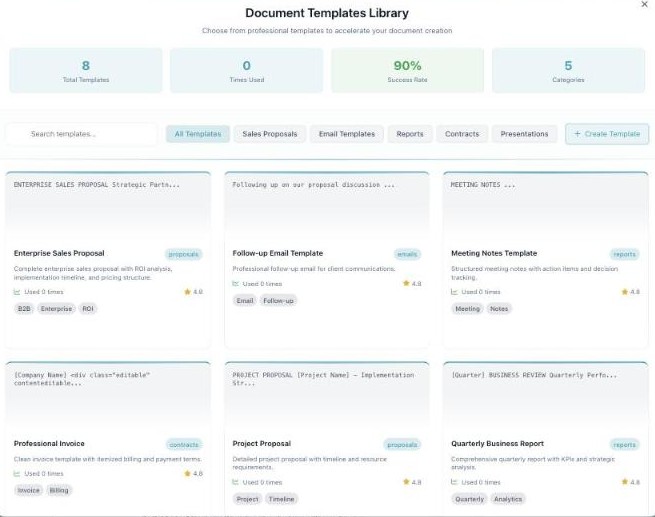
The Templates Library — professional starting points, filtered by category.
Start from a template
- Click Templates in the toolbar (or in the editor).
- Browse, or filter by category (Sales Proposals, Email Templates, Reports, Contracts, Presentations), or search.
- Pick a template — the editor opens pre-filled.
- Replace the placeholders, then Save.
What a template card shows
| Detail | Meaning |
|---|---|
| Name & category | What the template is — for example Enterprise Sales Proposal (proposals). |
| Description | A short note on what it covers. |
| Used N times | How often the template has been used. |
| Rating & tags | A quality rating and tags (like B2B, Enterprise, ROI) to help you choose. |
💡 Make your own: Use Create Template to save a document you use often as a reusable template for the whole team.
FAQ
Can I build my own template?
Yes — click Create Template in the library.
Do templates cost anything to use?
No — pick one and the editor opens ready to fill in.
Which template should I pick?
Filter by category and check the rating and tags — for a client quote, start with a Proposal template.