
Create with AI builds a form from a plain-English description — the fastest way to go from an idea to a working form.
Where to find it: Left menu → Marketing → Web → Forms → Create with AI. Part of the Forms guide.
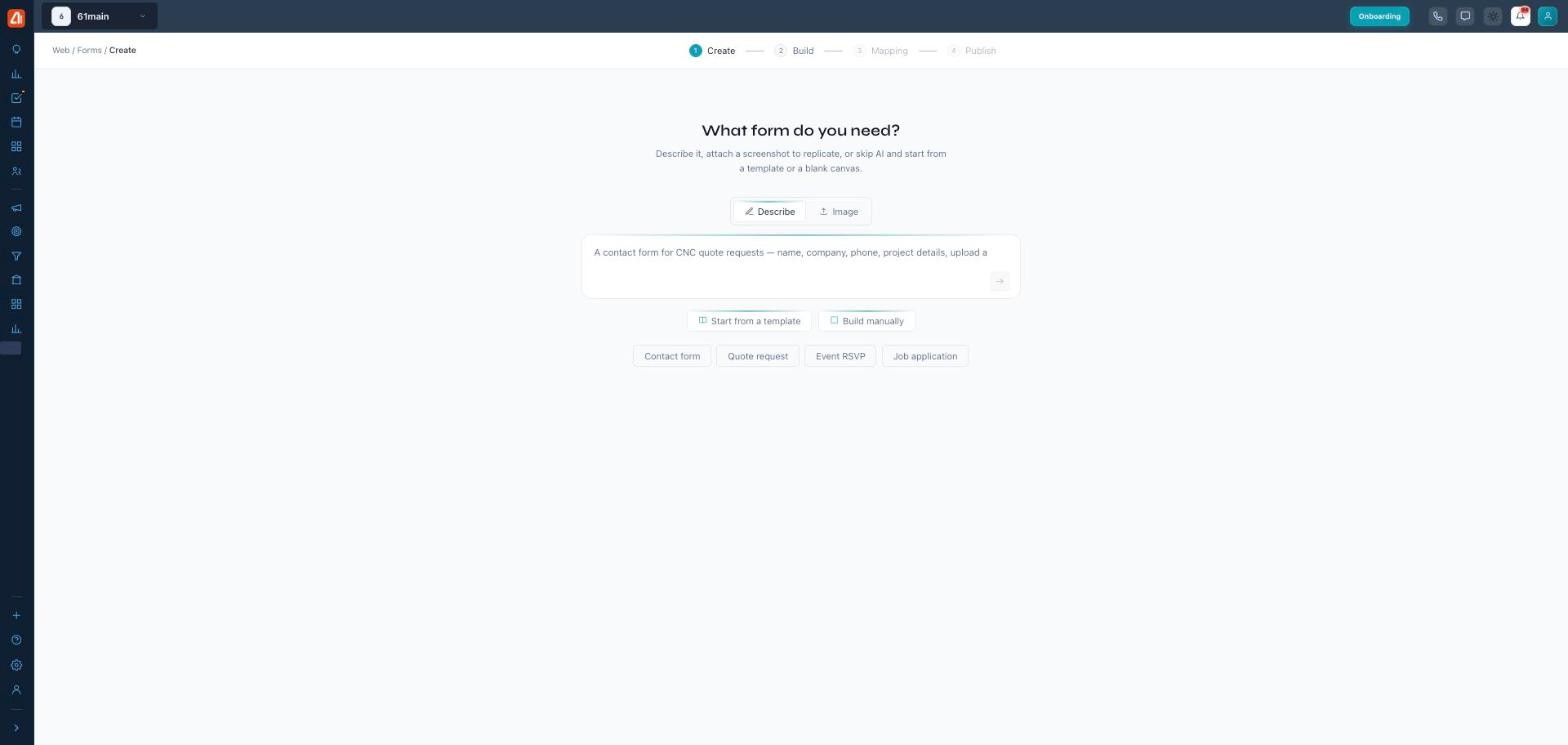
Create with AI — describe the form in plain English and it’s built for you.
Tell it what you need
On the “What form do you need?” screen you can Describe the form in words (“a contact form for quote requests — name, company, phone, project details, upload”) or switch to Image and attach a screenshot of a form to replicate. Quick starters — Contact form, Quote request, Event RSVP, Job application — fill the prompt for you.
The four steps
A progress bar walks you through: Create (describe it) → Review (check the AI’s fields, with confidence hints on which to double-check) → Build (fine-tune in the AI builder — it adds smart fields like Email, Phone, Number, Date, Address, Signature, Rating/NPS, and Consent, plus a Design panel for theme and colors) → Mapping (connect fields to a CRM board, with Auto-map to do it for you) → Publish (go live and get the link plus embed code — Inline, Popup, or Slide-in).
Or skip the AI
Prefer to do it yourself? Start from a template picks a ready-made design, and Build manually opens the blank AI builder — both land you in the same drag-and-drop editor, just without the generated draft.
Note: this is the AI side
Forms built here are managed in Manage (AI) — a separate list from the classic Manage dashboard. Pick one side and stay on it for a given form.
What’s next
- Back to the Forms overview.
- See Create (the builder).
- See Manage.
- See Manage (AI).